
Setting up Express VPN for Automatic Startup and Installation on Linux: A Step-by-Step Guide
Express VPN is a popular virtual private network (VPN) service that allows you to browse the internet securely and anonymously. While the graphics and content of Express VPN’s website might suggest that it is a free VPN, it is not. Express VPN is a paid service that offers a free trial version for those who want to try it out before committing to a paid subscription.
Setting up Express VPN to run automatically at startup can be useful if you want to ensure that your VPN connection is always active and protecting your sensitive data. By default, Express VPN does not have an auto-connect feature, but there are a few methods you can use to achieve this.
If you are using Express VPN on a Windows or macOS device, the easiest way to set it up to run automatically at startup is to use the built-in auto-start feature provided by the Express VPN desktop application. This feature allows Express VPN to launch and connect to a VPN server as soon as your device starts up.
For those using Express VPN on Linux, the process is a bit more involved. While Express VPN does not officially support auto-connect on Linux, it is still possible to achieve this using a combination of scripts and commands. The steps involved will depend on your specific Linux distribution, but a general guide can be found on Express VPN’s official website.
Once you have set up Express VPN to run automatically at startup, you will no longer need to manually start the application and connect to a VPN server every time you power on your device. This can be especially useful if you frequently switch between different networks or connect to public Wi-Fi hotspots, as Express VPN will automatically establish a secure connection to protect your data from hackers and malicious trackers.
Benefits of Using Express VPN
1. Enhanced Online Security: By using Express VPN, you can ensure that your online activities and sensitive information are protected from hackers and other malicious entities. Express VPN encrypts your internet connection, making it almost impossible for anyone to intercept or access your data.
2. Access to Global Content: Express VPN has numerous server locations across the world. This allows you to bypass geo-restrictions and access content that might be otherwise unavailable in your region. Whether you want to watch your favorite shows on streaming platforms or access websites that are blocked in your country, Express VPN helps you bypass these limitations.
3. Faster Internet Speed: Express VPN uses high-performance servers that are optimized for speed. This means that even when you’re connected to a VPN, you can enjoy a fast and seamless internet browsing experience.
4. Secure File Sharing: Express VPN ensures that your file sharing activities are secure and anonymous. Whether you are downloading or uploading files, Express VPN encrypts your connection, making it difficult for anyone to trace your activities back to you.
5. Compatibility with Multiple Devices and Operating Systems: Express VPN is compatible with various devices and operating systems. Whether you are using Windows, Mac, Linux, Android, iOS, or routers, Express VPN provides dedicated apps for easy installation and setup. You can also use Express VPN on multiple devices simultaneously.
6. 24/7 Customer Support: Express VPN offers round-the-clock customer support to assist you with any queries or issues you may have. Their support team is knowledgeable and responsive, ensuring that you get the help you need whenever you need it.
7. 30-day Money-Back Guarantee: Express VPN provides a 30-day money-back guarantee, allowing you to try out their service risk-free. If you’re not satisfied with the service, you can request a refund within 30 days of your purchase.
8. Auto-Connect Feature: Express VPN’s auto-connect feature allows you to automatically connect to a VPN server whenever you start your device or connect to the internet. This ensures that your connection is always secure, even if you forget to manually connect to the VPN.
9. Protection from Online Trackers: Express VPN helps protect your privacy by blocking online trackers and advertisers from monitoring your online activity. This not only enhances your security but also prevents targeted ads from following you across the internet.
How to Download and Install Express VPN
To download and install Express VPN, you first need to visit their official website. Above the main page, you will find a “Download” button, which will take you to the download page.
On the download page, you will see different options for downloading Express VPN based on the operating system you are using. You can choose between Windows, Mac, iOS, Android, and Linux.
Click on the relevant option for your system, and the download will start automatically. Once the download is complete, locate the downloaded file and run the installer.
Follow the on-screen instructions to complete the installation process. Express VPN also offers an alternative installation method that allows you to use the app without installing it on your system. This can be useful if you are using a public computer.
After installing Express VPN, open the app. You will be prompted to enter your activation code. If you don’t have one, you can start a free trial or purchase a subscription.
Once you have activated Express VPN, you can simply select a server location and click the “Connect” button to start using the service. Express VPN also offers an auto-connect feature that will automatically connect you to the best server based on your location.
Express VPN is known for its easy-to-use interface and fast network speeds. It provides a secure and reliable browsing experience by encrypting your internet traffic and protecting you from malicious websites and cyber threats. It can also help you bypass geoblocks and access content that is not available in your country.
If you ever need to uninstall Express VPN, you can do so by following the steps provided on their website. Simply navigate to the “Help” section and search for “uninstall”. You will find a guide with step-by-step instructions for uninstalling the software.
In conclusion, downloading and installing Express VPN is a straightforward process that can be completed in just a few minutes. Once installed, you can enjoy a secure and private browsing experience with the ability to access geo-restricted content and protect your sensitive information.
How to Set up Express VPN on your Device
If you want to ensure a secure and private internet connection, setting up ExpressVPN on your device is a great option. ExpressVPN offers a reliable and fast VPN service that allows you to browse the internet while protecting your sensitive data and maintaining your anonymity.
1. Download and Install ExpressVPN
The first step is to download and install the ExpressVPN app. You can find the app on the official ExpressVPN website. Once downloaded, follow the on-screen instructions to install the app on your device.
2. Connect to a Server
After the app is installed, open it and click the “On” button to connect to a VPN server. You can choose from a list of servers in different locations around the world. By connecting to a specific server, you can bypass geographical restrictions and access online content that is not available in your location.
3. Activate ExpressVPN
To activate ExpressVPN, you will need an activation code. You can find the code in your account dashboard on the ExpressVPN website. Once you have the code, enter it in the app and click “Activate”. This will enable all the features of ExpressVPN on your device.
4. Set ExpressVPN to Run Automatically at Startup
If you want ExpressVPN to start automatically every time you turn on your device, you can set it up to run at startup. The steps to do this may vary depending on your device and operating system. For example, on Windows, you can go to the “Settings” menu and select “Apps”. Find ExpressVPN in the list of installed apps and click on it. Then, click “Advanced options” and toggle the “Run at startup” switch to the “On” position.
5. Keep ExpressVPN Updated
To ensure the best performance and security, it is important to keep ExpressVPN updated. The app will automatically check for updates and prompt you to install them. By updating your ExpressVPN app, you will benefit from the latest features, bug fixes, and security enhancements.
By following these steps, you can easily set up and use ExpressVPN on your device. Enjoy a safe and private internet browsing experience with ExpressVPN’s reliable VPN services.
Troubleshooting Common Express VPN Issues
Using a virtual private network (VPN) like ExpressVPN can provide you with a secure and private internet browsing experience. However, there may be some common issues that you might encounter while using ExpressVPN. Here are some troubleshooting steps to help you resolve those problems and ensure a smooth experience:
1. Installation and Setup
If you are having trouble installing or setting up ExpressVPN, make sure you have downloaded and installed the correct version of the software for your operating system. Additionally, check if the software is set to auto-connect on startup. If not, you can manually enable this feature in the settings.
2. Connection Issues
If you are experiencing connection issues with ExpressVPN, first make sure that your internet connection is stable. You can also try switching to a different server location to see if that improves the connection speed. Additionally, check if any firewall or antivirus software is blocking the VPN connection and temporarily disable them if necessary.
3. Disconnections
If your VPN keeps disconnecting, try the following steps:
- Make sure you have the latest version of ExpressVPN installed;
- Check if there are any conflicting apps running in the background;
- Ensure that ExpressVPN is allowed through your firewall;
- Switch to a different VPN protocol;
- Restart your device and router.
If the disconnections persist, reach out to ExpressVPN support for further assistance.
4. Speed and Performance
If you are experiencing slow internet speeds or poor performance when using ExpressVPN, try connecting to a different server location. Speeds can vary depending on the distance between your physical location and the VPN server. Additionally, avoid using multiple VPNs simultaneously as it can impact performance.
5. Compatibility
If you are using ExpressVPN on a Linux distribution such as Ubuntu, make sure you have followed the manual installation instructions provided by ExpressVPN. Furthermore, ensure that your distribution supports the 32-bit or 64-bit architecture, depending on your system. If you are encountering compatibility issues with certain websites or applications, try using a different browser or contact ExpressVPN support for assistance.
Remember, ExpressVPN offers a 30-day money-back guarantee, so if you are still experiencing any issues or if the VPN is not the right choice for you, you can request a refund. ExpressVPN also provides a list of server locations and detailed setup guides on their website to help you make the most of their service.
How to Set up Express VPN on Windows
If you want to ensure your online privacy and security while operating Windows, using a VPN is essential. ExpressVPN is a popular choice among users due to its support for different operating systems and distributions.
Why use ExpressVPN?
- ExpressVPN provides a secure and private connection, encrypting your internet traffic and protecting your data from trackers or hackers.
- It offers a vast selection of servers in different locations, allowing you to switch between them for a better browsing experience.
- ExpressVPN is available for Windows, Mac, Linux, iOS, and Android, making it compatible with various devices.
How to install Express VPN on Windows:
- Visit the official ExpressVPN website and select the option to download the Windows installer.
- Once the installer is downloaded, open it to start the installation process.
- Follow the on-screen instructions to complete the installation.
- After the installation is complete, you will need to manually connect to a VPN server.
How to enable auto-connect and startup on Windows:
- Open the ExpressVPN application and go to the settings.
- Click on the “General” tab.
- Check the box that says “Launch ExpressVPN on Windows startup”.
- Enable the “Auto-connect on launch” option.
- You can also choose whether to connect to the last used server or a specific location on startup.
- Click “OK” to save the changes.
Now, ExpressVPN will automatically connect on Windows startup, ensuring that you have a secure and private connection from the moment you turn on your computer.
Thanks to its user-friendly interface and reliable performance, ExpressVPN is an excellent choice for Windows users who want to keep their online activities safe and private.
How to Set up Express VPN on macOS
Step 1: Visit the ExpressVPN website and sign up for an account if you don’t already have one. ExpressVPN offers a 30-day money-back guarantee, so you can try it risk-free.
Step 2: After signing up, download the ExpressVPN app for macOS from the download page on the website.
Step 3: Open the downloaded file and follow the installation instructions to install the ExpressVPN app on your macOS device.
Step 4: Once the installation is complete, open the ExpressVPN app. You will be prompted to enter your activation code, which you can find in your account settings on the ExpressVPN website.
Step 5: After activating your account, the ExpressVPN app will show a list of available servers. You can connect to any server by simply clicking on it. If you want to connect to a specific server location, you can find a list of recommended servers on the ExpressVPN website.
Step 6: Once connected, the ExpressVPN app will display a green “Connected” status, indicating that your connection is secure. You can now browse the web anonymously and access blocked content.
Step 7: To ensure that ExpressVPN automatically runs at startup, go to the “Preferences” menu in the app and enable the “Connect on startup” option.
Step 8: If you ever want to disconnect from the ExpressVPN server, simply click on the “Disconnect” button in the ExpressVPN app.
Now you know how to set up ExpressVPN on macOS. With ExpressVPN installed, you can enjoy a secure and private internet connection while protecting your online privacy and accessing content from different locations.
How to Set up Express VPN on iOS
If you’re experiencing issues with your VPN connection on iOS or you simply want to switch to Express VPN, this guide will walk you through the process. Express VPN offers a user-friendly app for iOS devices, making it a great choice for protecting your online privacy and accessing restricted content.
Step 1: Install and Update
First, install the Express VPN app on your iOS device from the App Store. Once installed, make sure to open the app and check for any available updates. Keeping your app up to date is important for security and performance improvements.
Step 2: Sign In and Connect
After the app is installed and updated, open it and sign in using your Express VPN credentials. Once signed in, you can choose a server location from the list provided or let the app automatically select the best server for you. Click the “Connect” button to establish a VPN connection.
Step 3: Enable Automatic Startup
To ensure that Express VPN runs automatically at startup, follow these steps:
- Open the iOS Settings app.
- Scroll down and tap on “Express VPN”.
- Toggle on the “Connect on Demand” switch.
- Toggle on the “Auto Reconnect” switch.
- Toggle on the “Start on Boot” switch.
Step 4: Test Your Connection
Once you’ve followed the above steps, Express VPN should automatically connect and run at startup on your iOS device. To verify that it’s working, open a web browser or any other app that requires an internet connection and check if your IP address has changed. You should also be able to access region-restricted content.
By following this guide, you can easily set up and configure Express VPN on your iOS device, ensuring a secure and private online experience. If you’re experiencing any issues, make sure to consult Express VPN’s support documentation or contact their customer support for further assistance.
How to Set up Express VPN on Android
ExpressVPN is a popular VPN service that allows you to browse the internet securely and privately. Setting up ExpressVPN on your Android device is a straightforward process that can be completed in just a few easy steps.
1. Download and Install ExpressVPN
First, download the ExpressVPN app from the Google Play Store. Once the app is downloaded, open it and follow the on-screen instructions to complete the installation.
2. Sign in to Your Account
After the app is installed, open it and sign in with your ExpressVPN account credentials. If you don’t have an account, you can sign up for one on the ExpressVPN website.
3. Choose a Location
Once you’re signed in, you can choose a server location to connect to. ExpressVPN offers a wide range of server options, allowing you to choose the location that best suits your needs.
4. Connect to a Server
To connect to the selected server, simply tap the connect button. ExpressVPN will then establish a secure connection, routing your internet traffic through the selected server location.
5. Enable the VPN Always-On Feature
If you want ExpressVPN to automatically connect whenever you use your Android device, you can enable the VPN always-on feature. This will ensure that your internet traffic is always protected by the VPN.
6. Disconnect and Uninstall
If you want to disconnect from the VPN, simply tap the disconnect button in the ExpressVPN app. To uninstall the app, go to your Android device’s settings, find the app, and select uninstall.
7. Get Help with ExpressVPN
If you have any questions or need help with using ExpressVPN on your Android device, you can visit the ExpressVPN website for FAQs, troubleshooting guides, and customer support.
8. Additional Features
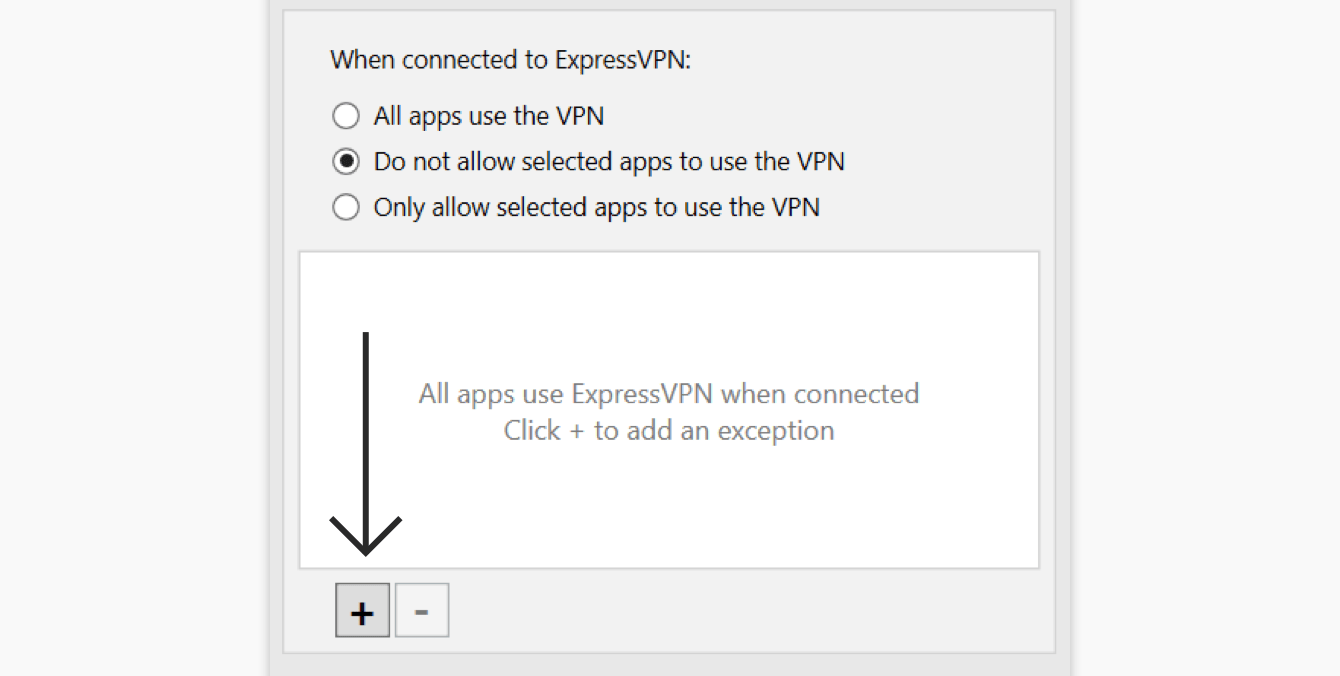
ExpressVPN offers a range of additional features, such as split tunneling, network lock, and DNS leak protection. These features can enhance your VPN experience and provide extra security.
9. Network Protocols and Speed
ExpressVPN supports multiple network protocols, including OpenVPN (UDP & TCP), L2TP/IPsec, and PPTP. The choice of protocol can affect the speed and performance of your VPN connection.
10. Compatibility and License
ExpressVPN is compatible with Android devices running version 5.0 and above. You can use ExpressVPN on up to 5 devices simultaneously with a single license.
11. Start Using ExpressVPN
Now that you have set up ExpressVPN on your Android device, you can start enjoying a secure and private internet browsing experience. Connect to any server location and browse the web freely, without any restrictions or privacy concerns.
How to Set up Express VPN on Linux
Setting up Express VPN on Linux is a straightforward process that allows you to enjoy a fast and secure internet connection. By following a few simple steps, you can install Express VPN on your Linux operating system and start browsing privately.
Installation Guide
To install Express VPN on Linux, you can use the command line or a package manager like dpkg. First, download the installation package from the official Express VPN website. Once the download is complete, open the terminal and navigate to the directory where the installation package is located.
Enter the command “dpkg -i [package-name].deb” to start the installation process. This will install Express VPN on your Linux system. After the installation is complete, you can run the command “expressvpn” to open the Express VPN command-line interface.
Auto-Connect at Startup
If you want Express VPN to automatically connect at startup, you can configure it to do so. By using the command “expressvpn auto-connect on”, Express VPN will connect to the last location you used. If you want to connect to a specific location, you can use the command “expressvpn connect [location]”.
To view a list of available server locations, enter the command “expressvpn list”. This will display a list of all the available server locations that you can choose from. You can also switch between servers by entering the command “expressvpn disconnect” to disconnect from the current server and then “expressvpn connect [new-location]” to connect to a different server.
Uninstallation and Support
If you ever need to uninstall Express VPN from your Linux system, you can use the command “expressvpn uninstall” in the terminal. This will remove Express VPN and all its associated files from your system.
If you encounter any issues during the installation process or have any questions, the Express VPN website provides a comprehensive support section. You can find FAQs, guides, and troubleshooting steps to help you resolve any problems you may have.
Now that you have Express VPN installed on your Linux system, you can enjoy a private and secure internet connection. Express VPN helps you bypass geoblocks, allows you to access restricted websites and protects your online privacy by hiding your IP address and encrypting your internet traffic. With Express VPN, you can now browse the internet without worrying about being tracked by websites, advertisers, or other third-party trackers.
How to Set up Express VPN on Router
If you want to secure all the devices in your network with Express VPN, setting it up on your router is a great option. By doing so, you won’t need to install the VPN client on every device separately, saving time and effort. Here’s a guide on how to set up Express VPN on your router:
Step 1: Check Router Compatibility
First and foremost, you need to ensure that your router is compatible with Express VPN. Not all routers support VPN configurations, so visit the Express VPN website to check their list of compatible router models.
Step 2: Install Express VPN Firmware
Once you have confirmed that your router is compatible, you need to install the Express VPN firmware. Follow the instructions provided on the Express VPN website to download and install the firmware onto your router.
Step 3: Connect Your Router to Express VPN

After the firmware installation is complete, you need to connect your router to Express VPN. Access your router’s configuration interface by typing its IP address into your web browser. You can find the IP address in the router’s manual or on the bottom of the router itself. Once you’re logged in, look for the VPN or Express VPN settings and enter the required information, such as the server address, username, and password provided by Express VPN.
Step 4: Test the Connection
After the configuration is complete, it’s time to test the connection. Restart your router and all connected devices to apply the VPN settings. Ensure that all devices are connecting to the internet through the router, either wirelessly or via Ethernet. Visit a website that displays your public IP address, and check if it matches the server location you selected in Express VPN.
Step 5: Troubleshooting
If you’re encountering any issues or have questions, refer to Express VPN’s troubleshooting guide or contact their customer support for assistance. They will be able to help you with any configuration problems or answer any questions you may have.
Setting up Express VPN on your router ensures that all devices in your network are protected by the VPN’s encryption. It provides a secure and private browsing experience for devices that may not support VPN installations, such as Internet of Things devices or Smart TVs. Follow this guide to enjoy a safe and anonymous browsing experience on all your devices!
How to Use the Command Terminal to Install ExpressVPN
If you are experiencing issues with the startup feature of ExpressVPN or if clicking on the app does not automatically connect you to a server, you may need to install the software manually using the Command Terminal. Here are the steps to install ExpressVPN via the Command Terminal:
- Make sure your device is compatible with ExpressVPN. Some graphics cards or services may not work well with the software, and it’s important to check their compatibility before installation.
- Open the Command Terminal on your device. This can typically be done by searching for “Command Terminal” or “Terminal” in your device’s search bar.
- Once the Command Terminal is open, navigate to the location where you have downloaded the ExpressVPN installation file. You can use the “cd” command to change directories. For example: “cd Downloads”.
- After navigating to the correct directory, run the ExpressVPN installation command. This command will vary depending on your operating system. For Ubuntu or Fedora, you can use the “sudo dpkg -i
” or “sudo rpm -i ” command respectively. Replace or with the actual name of the ExpressVPN installation file you downloaded. - The installation process will take some time to complete. Once it is finished, you can use the “expressvpn activate” command to activate your ExpressVPN account.
- If you want to uninstall ExpressVPN at any time, you can use the “expressvpn uninstall” command in the Command Terminal. This will remove the software from your device.
- Once ExpressVPN is installed, you can open the app without using the Command Terminal. Simply clicking on the ExpressVPN icon should open the software and allow you to connect to a server instantly.
Using the Command Terminal to install ExpressVPN is a safe and effective choice for those who are experiencing issues with the software’s startup feature. It allows you to manually install, uninstall, and activate ExpressVPN, providing greater control over the software’s functionality.
How to Troubleshoot Express VPN Connection Issues
If you are experiencing connection issues with your Express VPN, there are a few steps you can take to troubleshoot and resolve the problem.
1. Check your internet connection
Before troubleshooting your Express VPN, make sure that your internet connection is working properly. If your internet is not working, you won’t be able to connect to the VPN.
2. Update your Express VPN software
Make sure you are running the latest version of Express VPN. Check for updates and install them if available. Updating your software can often fix any bugs or issues that may be causing connection problems.
3. Try different VPN servers
If you are unable to connect to a specific server, try connecting to a different server location. Sometimes certain servers may be experiencing issues, so switching to a different server can help resolve the problem.
4. Change VPN protocols
Express VPN supports various protocols like OpenVPN TCP and UDP, IKEv2, and L2TP/IPsec. Try switching between different protocols to see if that resolves the connection issues. Some protocols may work better depending on your network configuration.
5. Disable antivirus and firewall
Your antivirus or firewall settings may be blocking the connection to the VPN. Temporarily disable them and try connecting again to see if that resolves the issue. Remember to enable them after troubleshooting.
6. Contact Express VPN support
If none of the above steps work, or if you are experiencing other issues, it is best to contact Express VPN support for further assistance. They have a dedicated support team that can help you troubleshoot and resolve any problems you may be facing.
Note: It is always a good idea to follow the instructions provided by Express VPN’s official support channels or refer to their FAQs for specific troubleshooting steps based on your operating system or device.
How to Change Express VPN Server Locations
If you want to switch to a different server location in ExpressVPN, you can easily do so by following these steps:
- Open the ExpressVPN client or app on your device.
- Select the “Select Location” button or similar option.
- A list of available server locations will be displayed.
- Choose the server location you want to connect to.
- Click on the server location to connect to it.
By following these steps, you can easily change the server location in ExpressVPN and connect to a different server for enhanced privacy and access to different content.
It should be noted that ExpressVPN has a vast network of servers available for you to choose from. These servers are located in different countries across the globe, ensuring that you can always find a server that suits your needs.
The ability to change server locations is particularly useful if you are experiencing connection issues with a specific server. By switching to a different server, you can troubleshoot any connection problems and ensure a stable and secure internet connection.
Additionally, changing server locations can help you bypass geographical restrictions and access content that may be blocked in your current location. This can be especially beneficial if you are trying to access region-restricted streaming services or websites.
ExpressVPN also offers a feature called “Smart Location,” which automatically selects the best server location for you based on factors such as speed and distance. This ensures that you always have an optimal connection.
In conclusion, changing server locations in ExpressVPN is a simple process that can be done through the client or app. By switching to different servers, you can ensure a secure, fast, and unrestricted internet connection.
How to Optimize Express VPN for Speed
If you have a paid subscription with Express VPN and you want to optimize your internet speed while using the service, there are several steps you can take to achieve faster connections. By following these easy-to-use commands and settings, you can improve the speed of your Express VPN connection.
1. Use the Fastest Servers
Express VPN has a feature that allows you to connect to the fastest available servers automatically. This can be done by enabling the “Autoconnect” feature in the Express VPN app. By doing so, the app will track the speed of different servers and connect you to the one that offers the best performance.
2. Use the UDP Protocol
By default, Express VPN uses the UDP (User Datagram Protocol) for its connections. UDP is faster than TCP (Transmission Control Protocol) because it does not have the same level of error-checking and retransmission of packets. You can enable the UDP protocol in your Express VPN settings to optimize the speed of your connection.
3. Choose the Right VPN Protocol
Express VPN offers several VPN protocols including OpenVPN, IKEv2, and L2TP/IPsec. OpenVPN is recommended for its balance between speed and security. However, if you prioritize speed over security, you can choose the IKEv2 protocol. Experiment with different protocols to find the optimal balance for your needs.
4. Use Split-Tunneling
If you only want to encrypt certain traffic through the Express VPN servers, you can enable the Split-Tunneling feature. This allows you to select specific applications or websites that will run through the VPN while the rest of your traffic will use your regular network connection. By reducing the amount of data that needs to be encrypted and decrypted, you can improve the overall speed of your connection.
5. Connect to Nearby Servers
Express VPN has servers located in various countries and cities around the world. To optimize your speed, try connecting to servers that are geographically closer to your location. The closer the server, the lower the latency and the faster your connection will be.
6. Check Your Internet Speed
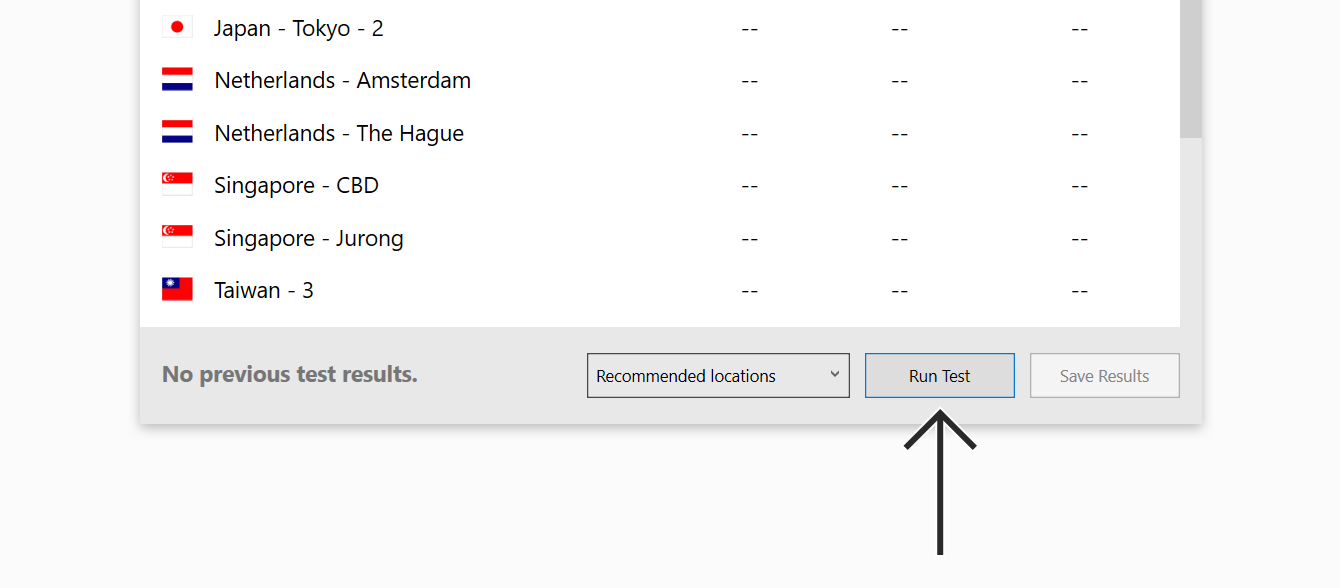
Before and after making any changes to your Express VPN settings, it’s a good idea to check your internet speed using a tool like Ookla’s Speedtest. This will help you determine if the modifications you made have improved the speed of your connection.
By following these simple steps, you can optimize your Express VPN for speed and enjoy faster and more reliable connections while using the service. Remember to experiment with different settings to find the best configuration for your needs.
How to Cancel Express VPN Subscription
Cancelling your Express VPN subscription is a straightforward process and can be done through the official website. Whether you want to switch to a different VPN service or no longer require a VPN, you are sure to find the cancellation option easily accessible.
Cancelling your subscription
To cancel your Express VPN subscription, follow these steps:
- Log in to your Express VPN account from their website.
- From the dashboard, navigate to the “Subscription” or “Account” section.
- Find the option to cancel your subscription and click on it.
- Follow the provided steps, which may include confirming your cancellation or providing a reason for cancellation.
- Once you have completed the cancellation process, your subscription will no longer be active and you will no longer be charged.
Reimbursement and money-back guarantee
If you cancel your Express VPN subscription within the specified time frame, usually within 30 days of purchase, you may be eligible for a full refund. Express VPN offers a money-back guarantee to ensure customer satisfaction. However, make sure to review the terms and conditions regarding refunds and cancellations on their website.
After cancellation
After cancelling your Express VPN subscription, make sure to uninstall the application from your device. Additionally, it is recommended to clear any browser cookies or cache related to Express VPN for a complete removal.
If you have any issues with cancelling your subscription or require further assistance, you can contact Express VPN’s customer service for support.
Вопрос-ответ:
Can Express VPN be set up to run automatically at startup?
Yes, Express VPN can be set up to run automatically at startup. This ensures that your VPN connection is established as soon as your computer starts up, providing you with a secure internet connection from the beginning.
Why is it important to set up Express VPN to run automatically at startup?
It is important to set up Express VPN to run automatically at startup because it ensures that your VPN connection is established as soon as your computer starts up. This helps in protecting your online privacy and security from the very beginning, without you having to manually connect to the VPN every time you start your computer.
Can I install ExpressVPN on Ubuntu 20.04?
Yes, you can install ExpressVPN on Ubuntu 20.04. ExpressVPN provides support for various platforms, including Ubuntu. By installing ExpressVPN on Ubuntu 20.04, you can protect your internet connection and browse the web securely and anonymously.
Can I install ExpressVPN on Ubuntu 22.04?
Yes, you can install ExpressVPN on Ubuntu 22.04. ExpressVPN provides support for various platforms, including the latest version of Ubuntu. Installing Express VPN on Ubuntu 22.04 allows you to protect your internet connection and maintain your online privacy and security.
Видео:
How to set up ExpressVPN on your Android device
How to set up ExpressVPN on your Android device by ExpressVPN 2 years ago 2 minutes, 7 seconds 31,471 views
How setup ExpressVPN OPENVPN configuration on windows?
How setup ExpressVPN OPENVPN configuration on windows? by pro SSH 2 years ago 4 minutes, 35 seconds 4,921 views
STOP using a VPN – You don’t really need it!
STOP using a VPN – You don’t really need it! by Liron Segev 1 year ago 5 minutes, 55 seconds 621,810 views
