How to Set Up ExpressVPN on Routers in the UK: Linksys, TP-Link, Asus – A Comprehensive Guide
If you are in the UK and want to use ExpressVPN on your router, you have come to the right place. In this guide, we will walk you through the setup process for various routers including Linksys, TP-Link, and Asus. ExpressVPN is a popular VPN service that allows you to connect to servers all around the world, giving you access to blocked content and protecting your online privacy. By setting up ExpressVPN on your router, you can enjoy VPN protection on all of your connected devices at home.
Although ExpressVPN provides a dedicated app for routers, it is not compatible with every router model. However, it does support a wide range of routers including the popular Linksys WRT32X, TP-Link Archer C5400, and Asus RT-AC68U. If you have any of these routers or other supported models, you can easily configure ExpressVPN on them to enjoy a seamless VPN experience.
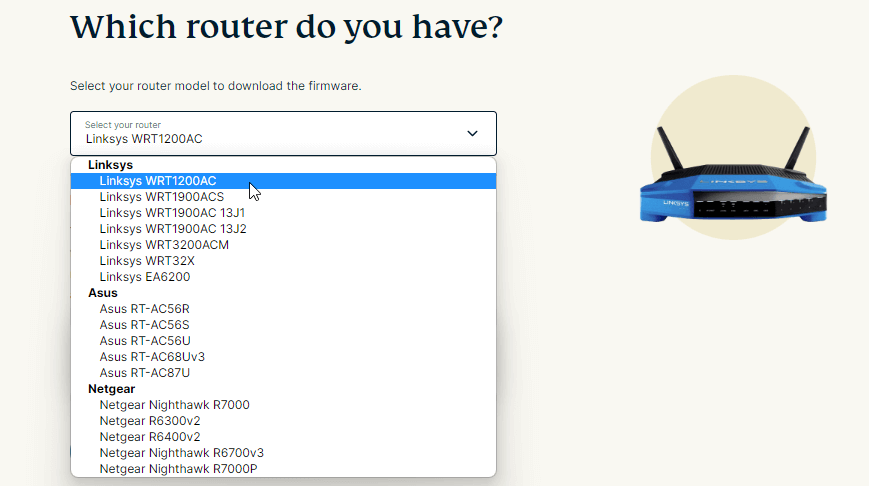
The installation process for ExpressVPN on these routers is quite straightforward. First, you need to download the ExpressVPN firmware for your specific router model from their website. Then, you can follow the detailed step-by-step guide provided by ExpressVPN to flash the firmware onto your router. Once the firmware is installed, you can configure the VPN settings through the router’s web interface.
During the configuration process, you will need to enter your ExpressVPN account details, select the VPN protocol (such as OpenVPN or PPTP), and choose the VPN server you want to connect to. You can also configure additional settings such as the DNS and DHCP options. ExpressVPN provides detailed instructions for each step, making it easy for you to get your router up and running with their VPN service.
One of the key advantages of setting up ExpressVPN on your router is that all devices connected to the router will automatically be protected by the VPN. You won’t need to install a separate VPN app on each device, saving you time and reducing the hassle of managing multiple VPN connections. This is especially useful if you have devices like smart TVs, gaming consoles, or streaming devices that don’t natively support VPN connectivity.
Another benefit of having ExpressVPN on your router is that it provides a unique IP address for all your devices. This can be handy if you need to access region-locked content or if you want to browse the web anonymously without revealing your real IP address. Moreover, having a VPN at the router level ensures that all traffic from your devices is encrypted and secure, regardless of whether it is connected via Wi-Fi or a wired connection.
In conclusion, if you are in the UK and want to use ExpressVPN on your router, there are several supported models from Linksys, TP-Link, and Asus that you can choose from. ExpressVPN provides a comprehensive setup guide to help you configure the VPN on your router, ensuring that all devices connected to the router can enjoy a secure and speedy VPN connection. Whether you want to access geo-restricted content or simply enhance your online privacy, setting up ExpressVPN on your router is a great solution.
ExpressVPN Router Setup Guide for Linksys, TP-Link, Asus
If you’re looking to enhance your home network’s connectivity and enjoy exceptional speeds with the added security of a VPN, setting up an ExpressVPN router is a must. ExpressVPN supports a wide range of routers, including Linksys, TP-Link, and Asus, to provide you with full coverage and advanced controls.
Supported Routers
ExpressVPN supports a variety of routers, including Linksys, TP-Link, and Asus models. Some popular supported routers include the Linksys WRT3200ACM, TP-Link Archer C7, and Asus RT-AX86U. These routers are equipped with 64-bit processors and offer dual-band connectivity for optimized performance.
Installation Steps
Setting up your ExpressVPN router is a straightforward process. First, you’ll need to configure your router’s network settings and connect it to the internet. Once connected, you can proceed to download and install the ExpressVPN firmware on your router. The installation method may vary depending on your router model, so it’s best to consult the router’s user manual or the ExpressVPN website for specific instructions.
Wired or Wireless Setup
Whether you prefer a wired or wireless connection, ExpressVPN has you covered. You can connect your devices to the ExpressVPN router using an Ethernet cable for a stable and secure wired connection. Alternatively, you can connect wirelessly for the freedom to move around your home while maintaining a secure internet connection.
FAQs and Support
If you have any questions or run into any issues during the setup process, ExpressVPN provides comprehensive FAQs and support options to help you troubleshoot. You can also reach out to their customer support team for personalized assistance.
ExpressVPN router setup offers top-notch security and privacy for your home or business network. With ExpressVPN, you have full control over your internet connection and can ensure that your data is encrypted and protected. The robust features, exceptional speeds, and wide router compatibility make ExpressVPN a popular choice among VPN users.
So, if you’re looking to enhance your online security and enjoy faster speeds, consider setting up ExpressVPN on your Linksys, TP-Link, or Asus router. Follow the simple steps outlined in the setup guide and experience the benefits of a private and secure internet connection.
Choose the Right Router for Your VPN Setup
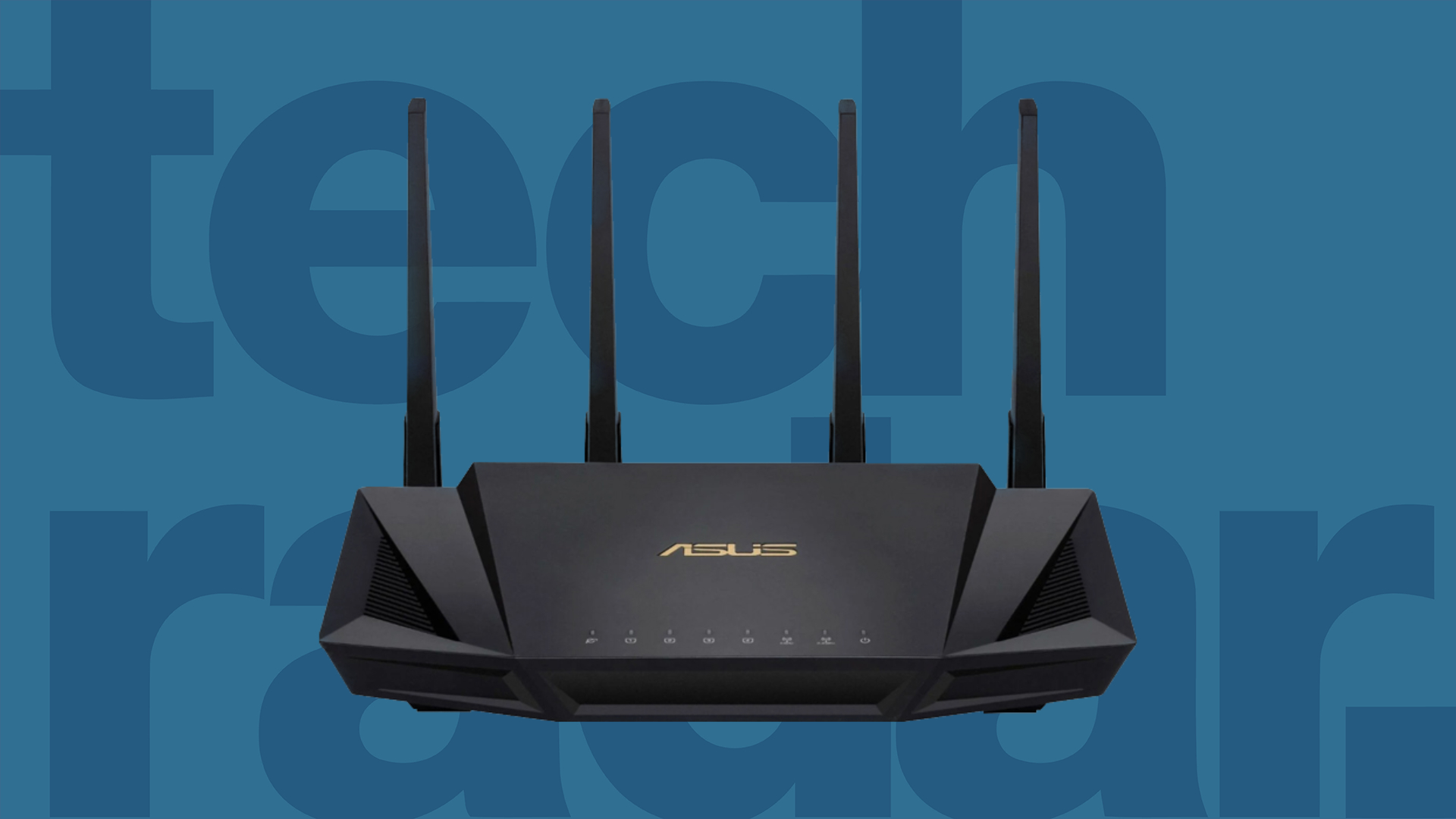
Picking the right router for your VPN setup is crucial to ensure a secure and reliable connection. Here are a few factors to consider when selecting your router:
1. Supported VPN protocols
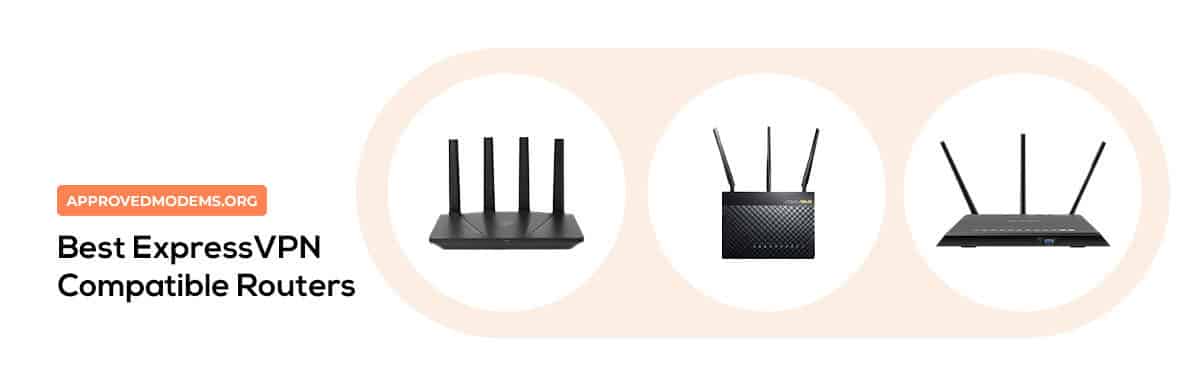
Before making a purchase, check if the router supports the VPN protocols you plan to use. The most common protocols are OpenVPN, L2TP/IPSec, and PPTP.
2. Network size and bandwidth requirements
Consider the number of devices that will be connected to the router and the bandwidth requirements of your network. Look for routers with multiple antennas, gigabit Ethernet ports, and support for high-speed connections.
3. Router performance and power
Make sure the router has enough processing power and memory to handle the VPN encryption. Look for routers with powerful CPUs and at least 256 MB of RAM.
4. Wired or wireless
Decide whether you need a wired or wireless router for your VPN setup. Wired routers provide faster and more stable connections, while wireless routers offer more flexibility for mobile devices.
5. Brand and reliability
Choose a reputable brand that has been proven to be reliable. Brands like Linksys, TP-Link, and Asus are known for their extensive range of routers and good customer support.
6. Easy setup and configuration
Look for routers that offer an intuitive setup process and a user-friendly interface. Some routers even come with pre-installed VPN software for easy configuration.
7. Additional features
Consider any additional features you might need, such as parental controls, guest networks, or USB ports for file sharing.
8. Budget
Lastly, determine your budget and compare the prices of different routers that meet your requirements. Keep in mind that a higher price often reflects better performance and more advanced features.
By considering these factors, you can choose the right router that will best suit your VPN setup and provide a secure and reliable network for all your connected devices.
Linksys Router Setup with ExpressVPN in the UK
If you are a user of a Linksys router and have checked the compatibility with ExpressVPN, setting it up in the UK is a simple step-by-step process. By connecting your Linksys router to ExpressVPN, you can ensure that all your internet traffic is securely encrypted and your online privacy is protected.
The first step in setting up your Linksys router with ExpressVPN is to ensure that you have a compatible router model. You can find a list of supported routers on the ExpressVPN website, including models from Linksys, TP-Link, Asus, and more. Once you have a compatible router, follow these steps:
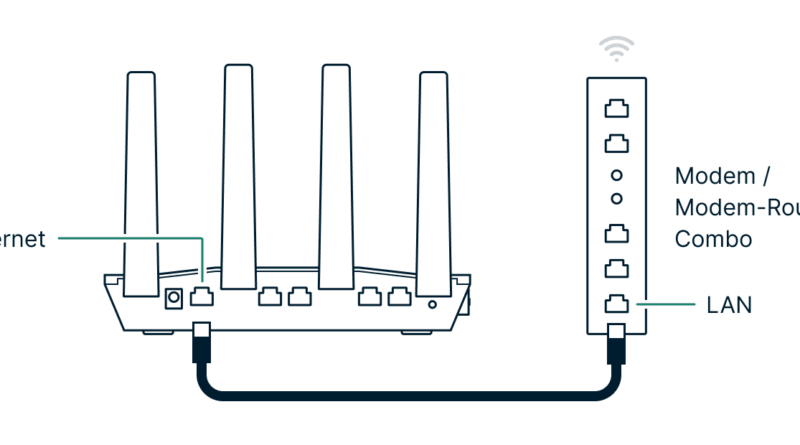
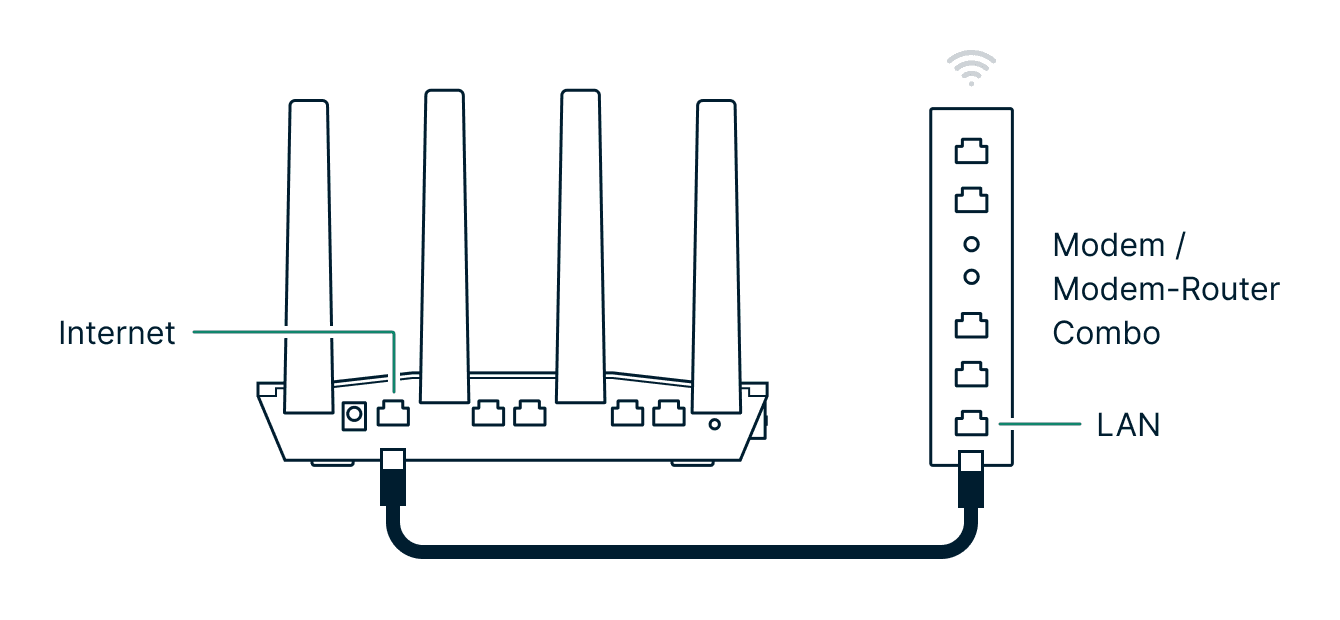
- Connect your modem to the dedicated WAN port on your Linksys router using an Ethernet cable.
- Power on your router and wait for it to fully boot up.
- Connect your computer to the router using an Ethernet cable or via Wi-Fi.
- Open a web browser and enter the default IP address of your Linksys router to access the admin panel.
- Log in to the admin panel using the default username and password provided by Linksys, or the login credentials you have previously set.
- Navigate to the “Internet Setup” or “WAN” section of the admin panel.
- Select “Automatic Configuration – DHCP” as the internet connection type.
- In the DNS settings, change the DNS address to the one provided by ExpressVPN.
- Save the changes and restart your router.
- Once the router has restarted, open a web browser on your computer and connect to one of the ExpressVPN servers to ensure your connection is working properly.
By setting up your Linksys router with ExpressVPN, you can enjoy a secure and private internet connection with exceptional coverage and connectivity. ExpressVPN offers dedicated servers optimized for gaming, streaming, and P2P activities, allowing you to experience fast and stable connections without any network problem.
Whether you have a small apartment or a large house, a Linksys router with ExpressVPN can provide you with the freedom to connect multiple devices and enjoy reliable and fast Wi-Fi coverage throughout your home. With ExpressVPN, you can also enjoy simultaneous connections across different devices, ensuring that all your network activities are protected.
In conclusion, setting up a Linksys router with ExpressVPN in the UK is a straightforward process that can significantly enhance your online privacy and security. By following the steps outlined above, you can easily configure your router to work seamlessly with ExpressVPN and enjoy a secure and private internet connection.
TP-Link Router Setup with ExpressVPN in the UK
Introduction
Setting up your TP-Link router with ExpressVPN in the UK allows you to secure your internet connection and surf the web privately. Whether you have a TP-Link modem-router combo or a separate modem and router, this guide will provide you with the necessary steps to get started.
Benefits of Using ExpressVPN with TP-Link Router
By configuring your TP-Link router with ExpressVPN, you can enjoy the following benefits:
- Simultaneously connect multiple devices to the VPN, ensuring all devices are protected and can access geo-restricted content.
- Detect and block any malicious websites or activities with the built-in firewall and parental control features.
- Experience faster internet speeds and improved performance with the MU-MIMO technology, allowing multiple devices to communicate simultaneously.
- Securely connect to public Wi-Fi networks and protect your data from potential threats.
Steps to Set Up TP-Link Router with ExpressVPN
To set up your TP-Link router with ExpressVPN, follow these steps:
- Select a compatible TP-Link router model, such as Archer C5400 or Archer VR600 v2.
- Connect your modem to the TP-Link router using an Ethernet cable.
- Access the router’s admin interface through a web browser using the default IP address.
- Download the ExpressVPN firmware for your specific router model.
- Upgrade the router’s firmware with the ExpressVPN firmware.
- Create a unique network name (SSID) and secure it with a strong password.
- Configure the VPN settings by entering your ExpressVPN account information.
- Select the desired VPN server location for your connection.
- Enable the ExpressVPN connection on your TP-Link router.
- Reboot the router to finalize the setup.
Additional Information
If you’re using a modem-router combo, make sure to bridge the modem to avoid double NAT issues. For more advanced users, there are additional options available, such as using OpenVPN or selecting a 64-bit version of ExpressVPN. If you’re searching for more coverage, consider setting up a mesh network with multiple TP-Link routers. Keep in mind that ExpressVPN provides support and compatibility for a wide range of router models, including Linksys and Asus. Using ExpressVPN with your TP-Link router in the UK means you can enjoy a private and secure internet connection for all your devices.
Asus Router Setup with ExpressVPN in the UK
If you are in the UK and want to set up ExpressVPN on your Asus router, here is some information to help you get started. ExpressVPN is a popular VPN provider that allows you to surf the internet freely, protecting your connection and giving you the freedom to access blocked websites and content.
This setup guide is specifically for Asus routers, but the steps may vary slightly depending on the model and firmware version you are using. Before you begin, make sure you have an ExpressVPN subscription. If you don’t have one, you can sign up for a free trial or choose from one of their plans that best suits your needs.
Step 1: Check Router Compatibility
First, check if your Asus router is compatible with ExpressVPN. ExpressVPN supports a wide range of routers, such as Asus RT-AC56U, RT-AC68U, RT-AC87U, among others. You can find the full list of supported routers on the ExpressVPN website.
Step 2: Configure ExpressVPN on your Asus Router
To configure ExpressVPN on your Asus router, you will need to access the router’s web interface. To do this, open a web browser on a device connected to the router and enter the router’s IP address in the address bar. The default IP address is usually 192.168.1.1. If you are unsure about the IP address, you can check the router’s user manual or contact the manufacturer for assistance.
Once you are in the router’s web interface, go to the VPN section and enter the necessary information provided by ExpressVPN. This includes the server names, IP addresses, and login credentials. You can find these details in your ExpressVPN account panel or by contacting their support team. Make sure to save the settings once you have entered all the required information.
After configuring ExpressVPN on your Asus router, you can prioritize and handle your connections using the router’s firmware. This gives you the advantage of having all your devices connected to the VPN at the network level. You can also enjoy features like firewall protection, DNS prioritization, and more.
Step 3: Reboot and Test the Connection
Once you have completed the setup, it is recommended to reboot your router. This ensures that all the changes are applied and your connection is secure. After the reboot, connect your devices to the router and test the connection to confirm that ExpressVPN is running successfully.
Although ExpressVPN cannot be installed directly on the router firmware provided by Asus, configuring it manually allows you to protect all your devices connected to the router, including game consoles, smart TVs, and more. This way, you can enjoy a private and secure online experience.
List of Supported Routers for ExpressVPN
When it comes to setting up ExpressVPN on your router, there are several options available. ExpressVPN supports a wide range of routers, including popular brands like Linksys and TP-Link. With these routers, you can easily connect all your devices to the VPN and enjoy a secure and private internet connection.
1. Linksys Routers: ExpressVPN works seamlessly with Linksys routers, allowing you to protect your entire network. Some supported models include the Linksys EA8500, Linksys WRT1900ACS, and the Linksys Velop.
2. TP-Link Routers: TP-Link also offers compatibility with ExpressVPN. You can configure your TP-Link router to connect to the VPN and secure your internet traffic. Models such as the TP-Link Archer C2300 and TP-Link Archer C7 are supported.
3. Asus Routers: Asus routers are another great option for using ExpressVPN. With models like the Asus RT-AC86U and Asus RT-AX88U, you can easily set up the VPN and enjoy fast speeds and enhanced security.
4. Synology Routers: ExpressVPN also provides support for Synology routers. You can connect your Synology router to ExpressVPN and enjoy a secure Wi-Fi network. Compatible models include the Synology RT2600ac and Synology RT1900ac.
5. Aircove Routers: Aircove is a router brand that is specifically designed to work with ExpressVPN. By using an Aircove router, you can easily set up the VPN and enjoy enhanced security features like a firewall and parental controls.
6. Arris Routers: ExpressVPN supports select Arris routers, allowing you to protect your internet connection. Models like the Arris Surfboard SBG8300 and Arris SVG2482AC can be configured to work with the VPN.
7. GX90 Modem-Router: The GX90 modem-router is another option for using ExpressVPN. Its powerful Wi-Fi capabilities, MU-MIMO technology, and 4 Gigabit Ethernet ports make it a reliable choice for VPN connectivity.
8. Other Supported Routers: ExpressVPN also supports other router brands like D-Link, Netgear, and Cisco. You can check the ExpressVPN website for a complete list of supported routers and find the one that best suits your needs.
Setting up ExpressVPN on your router is a simple and transparent process. Once configured, all devices connected to your router will be protected by the VPN, keeping your data secure and your online activities private. Whether you’re looking for better speeds, enhanced security, or access to geo-restricted content, ExpressVPN and its supported routers have you covered.
How to Set Up ExpressVPN on TP-Link Archer GX90 Router in the UK
If you are a user of the TP-Link Archer GX90 router in the UK and want to set up ExpressVPN on it, this guide will help you go through the process. ExpressVPN is a secure and reliable VPN service that provides access to servers in various locations around the world.
To set up ExpressVPN on your TP-Link Archer GX90 router, follow these steps:
- Step 1: Get the ExpressVPN software
You can download the ExpressVPN software from the official website. Make sure to get the software that is compatible with your router model. - Step 2: Install the software
Once you have downloaded the software, install it on your computer by following the instructions provided. The installation process is straightforward and should only take a few minutes. - Step 3: Activate your account
After the software is installed, you will need to activate your ExpressVPN account. This can be done by entering the activation code provided to you during the sign-up process. - Step 4: Configure your router
Now that your ExpressVPN account is activated, you can proceed to configure your TP-Link Archer GX90 router. Log in to the admin panel of your router and locate the VPN settings. - Step 5: Set up the VPN connection
In the VPN settings, select the PPTP protocol as your connection type. Enter the server address provided by ExpressVPN and input your VPN username and password. Save the settings. - Step 6: Connect to ExpressVPN
Once the settings are saved, you can click the Connect button to establish a secure connection to ExpressVPN. From now on, all devices connected to your TP-Link Archer GX90 router will be protected by ExpressVPN.
With ExpressVPN set up on your TP-Link Archer GX90 router, you can enjoy secure and fast internet access, as well as gain access to geographically restricted content such as Netflix. The extensive network of ExpressVPN servers ensures that you can connect to the server that provides the best speed and performance for your needs.
If you have any questions about the setup process or need more information, you can visit the ExpressVPN website and browse through the FAQs section. ExpressVPN’s customer support team is also available to assist you with any queries you may have.
Вопрос-ответ:
Where can I find a list of routers supported by ExpressVPN?
You can find a list of routers supported by ExpressVPN on their website. They have a dedicated page that lists all the compatible routers. You can visit their website and look for the “Supported Devices” or “Router VPN” section. In that section, you will find a comprehensive list of routers that are compatible with ExpressVPN. The list includes popular brands like Linksys, TP-Link, Asus, and many others.
Видео:
What is VPN || Set up VPN on TP-Link Wi-Fi Router || Setup a home VPN on a TP-Link Router ||
What is VPN || Set up VPN on TP-Link Wi-Fi Router || Setup a home VPN on a TP-Link Router || by Daily Support 1 year ago 7 minutes, 4 seconds 9,281 views
