Asus Router VPN Setup Instructions: PPTP & OpenVPN Configuration
Setting up a VPN connection on your Asus router is a great way to secure your internet connection and protect your private data. With a VPN, you can easily bypass restrictions and access region-locked content. In this tutorial, we will show you how to setup PPTP and OpenVPN on your Asus router.
Before you begin the setup process, make sure you have the following specifications:
- Asus router with VPN support
- PPTP or OpenVPN client software installed on your computer or mobile device
- Router admin login credentials
- Internet connection
To start the setup, open a web browser and navigate to your router’s admin interface. You can usually access it by typing “http://192.168.1.1” or “http://router.asus.com” in the address bar. Enter your admin login credentials to proceed.
In the router’s admin interface, navigate to the VPN section. This can usually be found in the left-hand menu under “VPN” or “VPN Settings”.
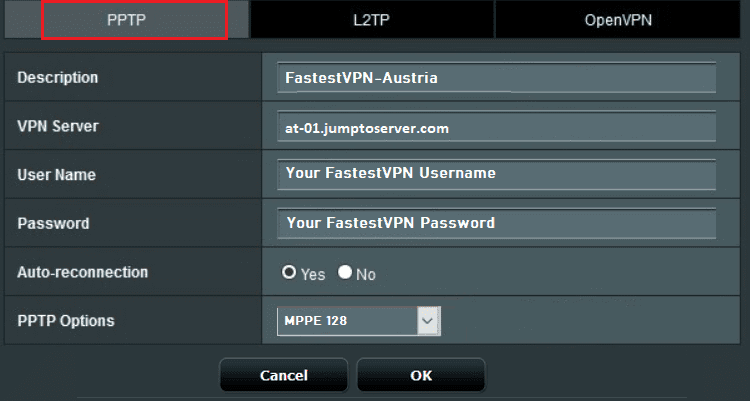
For PPTP setup, click on the “PPTP” tab in the VPN settings menu. Here, you will need to enter the VPN server address, username, and password provided by your VPN service provider. Once you have entered the necessary information, click “Connect” and your router will automatically establish a VPN connection.
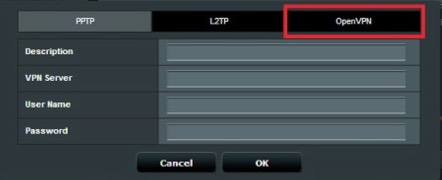
If you prefer OpenVPN setup, click on the “OpenVPN” tab in the VPN settings menu. Here, you will need to upload the OpenVPN client configuration file provided by your VPN service provider. Once the file is uploaded, click “Connect” and your router will connect to the VPN server.
If you have any issues with the setup or need further assistance, please contact your VPN service provider or check their support documentation for specific instructions for your Asus router model. Enjoy a secure and private internet connection with your Asus router and VPN!
Asus Router VPN Setup Instructions
If you have an Asus router and want to setup a VPN connection, this guide will walk you through the process. Whether you have an Asus RT-N66U or any other Asus router model, the instructions should be similar.
1. Accessing the router settings
To start the VPN setup process, you need to access the router settings. To do this, simply open your internet browser and navigate to the IP address of your router. This is usually “192.168.1.1”. If you are unsure about the IP address, you can find it in the router’s user manual or by contacting your ISP.
2. Locating the VPN settings
Once you are on the router’s admin page, you should see a menu on the left-hand side. Look for the “VPN” or “Basic” section. Click on it to expand the options and locate the VPN client settings.
3. Setting up the VPN connection
In the VPN client settings, you will find options for PPTP and OpenVPN configurations. Choose the one that suits your needs. OpenVPN is generally more secure and flexible, but PPTP might be easier to set up for beginners.
4. Configuring the VPN client
Now it’s time to set up the VPN client with your specific VPN connection details. This includes the server address, username, password, and any other specifications provided by your VPN provider. Enter this information in the appropriate fields on the router’s VPN settings page.
5. Connect to VPN
After entering the VPN configuration details, click the “Connect” button to establish the VPN connection. The router will automatically connect to the VPN server using the specified protocol and settings.
That’s it! You have successfully set up a VPN connection on your Asus router. Now all the devices connected to the router, including computers, mobile devices, and smart TVs, will use the VPN connection to access the internet.
Note that if you want to connect other routers to your VPN, you should navigate to the “VPN” or “Basic” section on those routers and follow the same setup instructions.
PPTP & OpenVPN Configuration
When setting up a VPN connection on your Asus router, you have the option to use either PPTP or OpenVPN configuration. These two protocols offer different levels of security and functionality, so it’s important to choose the one that suits your needs best.
PPTP Configuration
To set up a PPTP VPN connection on your Asus router, you will need to access the router’s admin interface. This can be done by opening a web browser and typing in the router’s IP address.
Once you are logged in, navigate to the VPN section of the router’s settings menu. Here, you will find the option to set up a PPTP VPN connection. Click on this option to start the setup process.
During the setup, you will be asked to enter the necessary connection details, such as the server address, username, and password. Once you have entered these details, click on the “Connect” button to establish the PPTP VPN connection.
OpenVPN Configuration
If you prefer to use OpenVPN for your VPN connection, you can set it up on your Asus router as well. OpenVPN offers more advanced security features and is generally considered to be more secure than PPTP.
To set up an OpenVPN connection on your Asus router, you will need to have the OpenVPN client software installed on your computer. You can download this software from the OpenVPN website or contact your VPN service provider for assistance.
Once you have the OpenVPN client software installed, you should navigate to the VPN section of your router’s settings menu. Here, you will find the option to set up an OpenVPN connection. Click on this option to start the setup process.
During the setup, you will be prompted to enter the necessary connection details, such as the server address, username, and password. You may also need to specify other basic specifications, like the port number or protocol. Once you have entered these details, click on the “Connect” button to establish the OpenVPN connection.
It’s important to note that the setup process for OpenVPN on Asus routers may vary depending on the specific model and firmware version. If you are unsure about the configuration process, it is recommended to refer to the router’s user manual or contact the Asus support team for guidance.
Asus Router – VPN Client Setup OpenVPN
If you want to connect your Asus router to a VPN service using OpenVPN, you can do so by following these steps:
- Navigate to the OpenVPN client setup menu on your Asus router. This can usually be found by accessing the router’s admin panel and locating the VPN section.
- In the OpenVPN client setup menu, you will need to fill in the necessary configuration details for your VPN connection. This includes the VPN server specifications, username, password, and other required settings.
- If you already have an OpenVPN configuration file from your VPN provider, you can upload it by clicking on the “Browse” button and selecting the file.
- If you don’t have a configuration file, you can manually enter the server address, port number, and other details as provided by your VPN provider.
- Once you have filled in the necessary details, click on the “Apply” button to save the settings and establish the OpenVPN connection.
- Your Asus router will then automatically connect to the VPN server using the provided configuration.
If you have any issues during the OpenVPN client setup or need assistance, you can contact your VPN provider for a tutorial or technical support. It’s important to ensure that your Asus router and internet connection meet the necessary requirements for a VPN connection. The steps mentioned above are specifically for Asus routers like the RT-N66U, but the basic setup process should be similar for other Asus router models as well.
Configuration
Configuring your Asus router for VPN connection can be done easily through the router’s admin panel. This tutorial will guide you through the necessary steps to set up a PPTP or OpenVPN connection.
PPTP Setup
To configure PPTP on your Asus router, you should first connect to the internet and access the router’s admin panel. You can do this by opening a web browser and entering the router’s IP address. If you are unsure of the IP address, you can check the router’s manual or contact your internet service provider.
Once you have accessed the admin panel, navigate to the VPN menu and select the PPTP tab. Here, you can enter the necessary information provided by your VPN service provider, such as the server address, username, and password. After entering the details, click on the Apply button to save the settings.
OpenVPN Setup
If you prefer to use OpenVPN, the setup process is slightly different. First, you need to download the OpenVPN client and the configuration files from your VPN service provider. These files usually contain the server address, port number, and certificate information.
Next, access the router’s admin panel and navigate to the VPN menu. Select the OpenVPN tab and click on the Import button to upload the configuration files you downloaded earlier. Once the files are imported, you can choose the desired client and other basic settings for the VPN connection. Finally, click on the Apply button to save the settings.
After completing the configuration, your Asus router should establish a VPN connection automatically when needed. You can check the status of the connection in the router’s admin panel or through the VPN client on your computer or other devices.
Basic Internet Setup
The Internet Setup page is where you can configure the basic settings for your ASUS router. This includes settings for your internet connection, such as your ISP, IP address, and DNS servers.
Navigate to the Internet Setup Page
- Open a web browser and enter the IP address of your ASUS router in the address bar. The default IP address is usually “192.168.1.1”.
- When prompted, enter your admin username and password to log in to the router.
- In the router’s admin menu, navigate to the “Internet Setup” or “Basic Setup” section.
Configure Internet Connection Settings
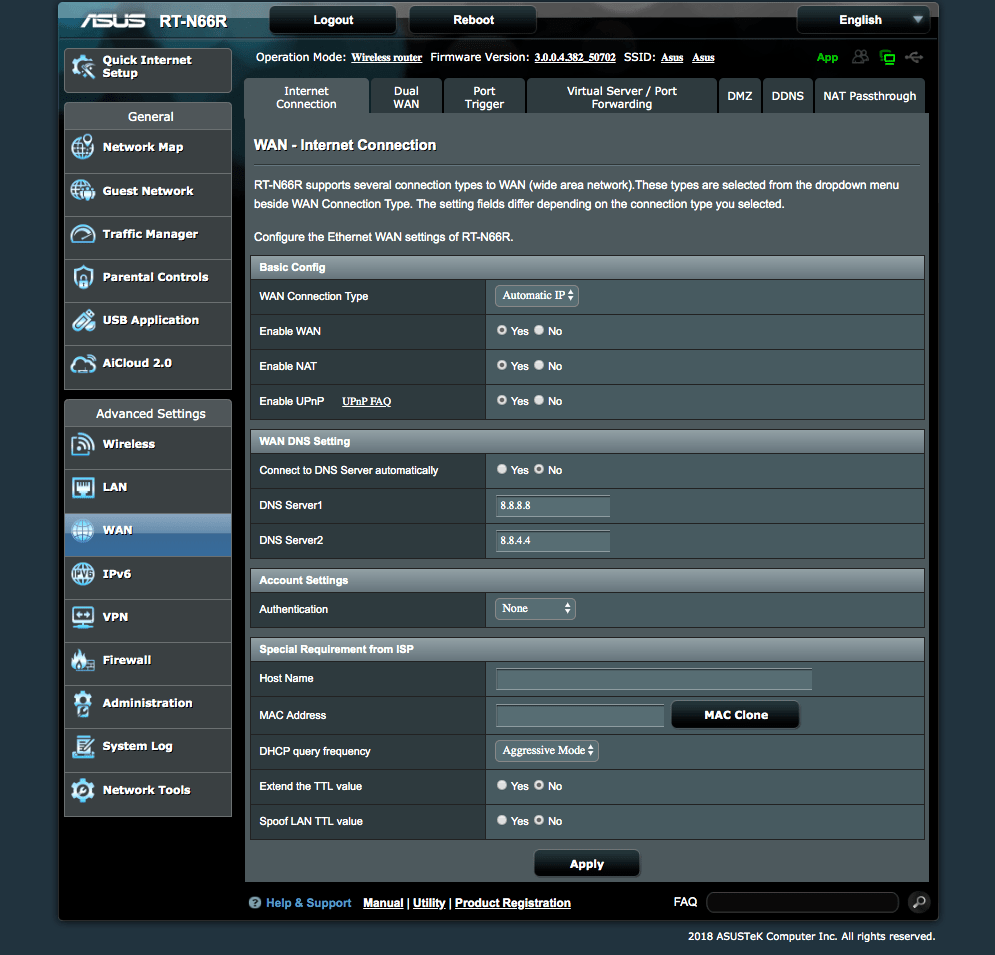
On the Internet Setup page, you will see options to select the connection type for your Internet service. This could be options like “Static IP,” “Dynamic IP,” or “PPPoE.” Select the appropriate connection type based on your ISP’s specifications.
If you are unsure of your connection type, contact your ISP for assistance.
Automatic Configuration
In most cases, your ASUS router should be able to automatically detect and configure the necessary settings for your Internet connection. You can usually select the “Automatic IP” or “Obtain IP Automatically” option to allow the router to handle this automatically.
Manual Configuration
If you need to manually enter your connection settings, you will need to provide the necessary information provided by your ISP. This may include the IP address, subnet mask, gateway, and DNS servers.
Save and Apply Settings
Once you have configured your Internet connection settings, click the “Apply” or “Save” button to save the changes and apply the new settings to your router.
After the settings are applied, your router should be connected to the Internet. You can test the connection by opening a web browser and navigating to a website, like “www.google.com”. If the page loads successfully, your Internet connection is working.
FAQ:
What is a VPN and why do I need it for my Asus Router?
A VPN (Virtual Private Network) allows you to create a secure connection to another network over the Internet. By using a VPN on your Asus Router, you can encrypt your internet traffic and protect your online privacy and security. Additionally, a VPN can help you bypass geo-restrictions and access content that may be blocked in your region.
How do I set up PPTP VPN on my Asus Router?
To set up PPTP VPN on your Asus Router, you need to access the router’s web interface and navigate to the VPN section. From there, you can enter the necessary VPN server information, including the server address, username, and password. Once you have entered the required information, you can save the settings and connect to the PPTP VPN server. It is important to note that PPTP is not as secure as other VPN protocols, such as OpenVPN, so it is recommended to use OpenVPN whenever possible.
Can I use OpenVPN on my Asus Router?
Yes, you can use OpenVPN on your Asus Router. OpenVPN is a highly secure and versatile VPN protocol that is recommended for maximum security and flexibility. To set up OpenVPN on your Asus Router, you need to download the OpenVPN configuration files from your VPN provider and import them into the router’s web interface. Once the configuration files are imported, you can save the settings and connect to the OpenVPN server. It is important to follow the specific instructions provided by your VPN provider for configuring OpenVPN on your Asus Router.
What are the advantages of using a VPN on my Asus Router?
Using a VPN on your Asus Router has several advantages. Firstly, it encrypts your internet traffic, which protects your online privacy and enhances your security. Secondly, a VPN allows you to bypass geo-restrictions and access content that may be blocked in your region. This is particularly useful for streaming services and accessing websites that are not available in your country. Lastly, a VPN can also prevent your ISP from throttling your internet connection and provide you with faster and more stable internet speeds.
Videos:
How to setup VPN (OpenVPN) for ASUSWRT routers (stock firmware)
How to setup VPN (OpenVPN) for ASUSWRT routers (stock firmware) by VPN University 6 years ago 17 minutes 355,505 views
How to setup a openvpn and pptp connection using IPVANISH on an Asus VPN router
How to setup a openvpn and pptp connection using IPVANISH on an Asus VPN router by Gizmo 4 years ago 8 minutes, 57 seconds 7,073 views
Galaxy S23’s: How to Set Up IKEv2/IPSec VPN
Galaxy S23’s: How to Set Up IKEv2/IPSec VPN by ITJungles 3 months ago 3 minutes, 5 seconds 20,994 views
