
Solutions for ExpressVPN Stuck on Connecting: How to Change Your Server and Protocol

If you use ExpressVPN and you’ve encountered connectivity issues, you’ll want to find a solution as quickly as possible. There can be various reasons why your ExpressVPN is stuck on connecting, but don’t worry – we’ve got you covered with some helpful troubleshooting steps.
First, it’s essential to check your internet connection. Make sure you are connected to a stable network and that your Wi-Fi or Ethernet is functioning correctly. If you have multiple devices, try connecting to ExpressVPN on a different device to see if the issue persists.
Once you have verified your internet connection, there are a few other troubleshooting steps you can try. One possible solution is to switch to a different VPN server location. Sometimes, certain servers may be experiencing outages or have a high volume of connections, so choosing a different location can help resolve the issue.
If switching server locations doesn’t work, try restarting your device. This can often resolve temporary glitches or conflicts that may be causing the connection problem. Restarting your device clears the cache and gives your system a fresh start, potentially resolving any conflicting processes.
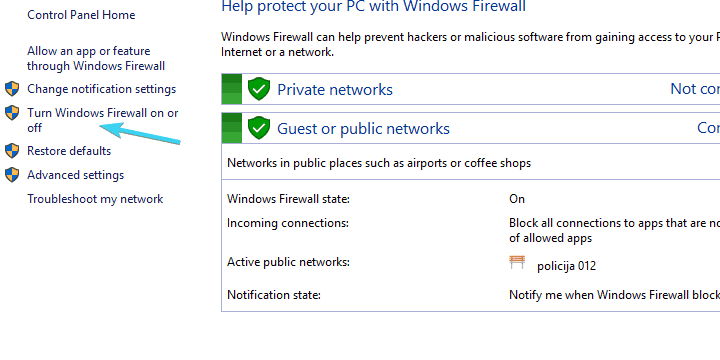
If you are using ExpressVPN on Windows, another potential solution is to disable your firewall temporarily. Some antivirus or firewall software may block ExpressVPN connections, so disabling them temporarily can help you determine if this is the cause of the issue. However, be cautious when disabling your firewall, as it can leave your device vulnerable to malicious attacks. Make sure to re-enable it after troubleshooting.
For macOS users, you can try adding ExpressVPN to the exclusions list in your firewall settings. This whitelist will allow ExpressVPN to bypass any firewall restrictions, ensuring a stable connection. Additionally, clearing the cache on your browser or disabling any browser extensions can also help resolve connectivity issues.
If you’re using ExpressVPN on Android or iOS, make sure you have the latest version of the app installed. Updating the app can fix any bugs or compatibility issues that may be causing the connection problem. If updating doesn’t work, you can try uninstalling and reinstall the app.
If none of these solutions work, it’s recommended to contact ExpressVPN’s customer support for further assistance. They have a team of experts who can guide you through specific troubleshooting steps based on your device and operating system.
Troubleshooting ExpressVPN Connection Issues on macOS
If you are experiencing connection issues with ExpressVPN on your macOS device, there are several troubleshooting solutions you can try. Here are some possible solutions to help you get your ExpressVPN connection working again:
1. Check your internet connection
Make sure you have a stable internet connection by connecting to other websites or services. If you are connected to Wi-Fi, try disconnecting and reconnecting to the network. Restarting your router may also help resolve any connectivity issues.
2. Update ExpressVPN
Ensure you have the latest version of ExpressVPN installed on your device. Launch the ExpressVPN app and check for any available updates. Updating the app may solve any compatibility issues that could be causing the connection problems.
3. Disable antivirus and firewall
If you have antivirus or firewall software installed on your macOS device, temporarily disable them to see if they are blocking the ExpressVPN connection. You can usually do this by accessing the settings or preferences of your antivirus or firewall software.
4. Clear cookies and cache
Try clearing your browser’s cookies and cache. In Safari, go to the “Safari” menu and select “Preferences.” In the “Privacy” section, click on “Manage Website Data” and remove any data related to ExpressVPN. This can help resolve any conflicts with your browser that may be affecting the connection.
5. Switch VPN protocols
If you are using a specific VPN protocol in ExpressVPN, try switching to a different one. Open the ExpressVPN app, go to the “Options” section, and change the VPN protocol to see if it improves the connection. You can try protocols like OpenVPN UDP or TCP, or even IKEv2.
6. Restart ExpressVPN
Close the ExpressVPN app completely and relaunch it. This can help refresh the connection and resolve any temporary issues that may be causing the connection problems.
7. Contact ExpressVPN support team
If none of the above solutions work, reach out to ExpressVPN’s support team for additional help. They can provide you with further troubleshooting steps specific to your macOS device and assist you in resolving any connection issues.
By following these troubleshooting solutions, you should be able to solve any connection problems with ExpressVPN on your macOS device and get back to securely browsing the internet.
Check your internet connection
If your ExpressVPN is stuck on connecting, the first thing you should do is to check your internet connection. Ensure that you are connected to a stable and reliable internet network. You may want to restart your router or switch to a different network to see if that resolves the issue.
1. ExpressVPN app
- Make sure you are using the latest version of the ExpressVPN application. Outdated software can sometimes cause connection issues.
- If you are using the ExpressVPN app on Windows or macOS, try disabling your antivirus or firewall temporarily. Sometimes, these security services can block VPN traffic.
- On iOS or Android devices, ensure that ExpressVPN has the necessary permissions to access your network settings. You can find these settings in your device’s settings menu.
2. Browser connection issues
- If you are using ExpressVPN in a browser, try clearing your browser cache and cookies. Sometimes, these can interfere with the VPN connection.
- If you are using ExpressVPN’s browser extension, try switching to a different browser to see if the issue persists. Alternatively, you can try reinstalling the extension.
- If you are using ExpressVPN with Microsoft Edge or Safari, make sure you have the latest version of the browser installed. Older versions may not be compatible with ExpressVPN.
3. Check for other network issues
- If you are connected to a public Wi-Fi network, there may be restrictions or limitations that prevent you from establishing a VPN connection. Try connecting to a different network or contacting the network administrator for assistance.
- If your ExpressVPN is stuck on connecting for a long time and you have already tried the above solutions, it is possible that there may be an issue with ExpressVPN’s servers. Check their website or contact their support team for any known outages or server issues.
- If you are sharing your internet connection with other devices or users, try disconnecting those devices and connect only the device you are using ExpressVPN on. This can help to rule out any conflicts or bandwidth issues.
Restart your computer
If you are facing the issue of ExpressVPN getting stuck while connecting, one of the first troubleshooting steps you can try is to restart your computer. Restarting your computer can help resolve any temporary glitches or conflicts that may be causing the issue.
To restart your computer on Windows:
- Click on the Start menu in the bottom left corner of the screen.
- Click on the Power icon.
- Select Restart from the options.
To restart your computer on macOS:
- Click on the Apple menu in the top left corner of the screen.
- Select Restart from the options.
After your computer restarts, try launching ExpressVPN again and see if the connection issue has been resolved.
Update ExpressVPN software
If you are experiencing connectivity issues with ExpressVPN, it may be due to outdated software. Updating the ExpressVPN software can often solve the problem.
You can update ExpressVPN by following these steps:
- Open the ExpressVPN app on your device.
- Select the “Account” or “Options” tab, depending on your device’s software.
- Look for the “Update” or “Check for updates” option, and click on it.
- If an update is available, download and install it.
Note: It’s recommended to have the latest version of ExpressVPN to ensure compatibility and to fix any existing bugs or issues.
If updating the software doesn’t solve the problem, you can also try the following steps:
- Restart your device: Sometimes, a simple restart can solve connectivity issues. Turn off your device, wait for a few seconds, and then turn it back on.
- Switch servers: Sometimes, the server you are connected to may be experiencing connectivity problems. Switching to a different server can help resolve the issue.
- Reset your network: Resetting your network settings can also help fix connection issues. You can do this by going to your device’s settings, selecting “Network & Internet,” and then choosing “Reset network settings.”
- Remove cookies and cache data: Clearing your browser’s cookies and cache data can help resolve issues that may be caused by stored information. This option can usually be found in the settings of your browser.
- Whitelist ExpressVPN: Some antivirus or firewall software may mistakenly block ExpressVPN. Make sure to whitelist ExpressVPN in your antivirus or firewall settings to prevent any conflicts.
- Check your internet connection: Make sure that your internet connection is working properly. Test it by trying to load a different website or using another device.
- Try different connection protocols: ExpressVPN supports various connection protocols. Trying different protocols, like OpenVPN or IKEv2, can sometimes help resolve connectivity issues.
- Disable other VPNs or proxy services: If you have multiple VPNs or proxy services installed, they may interfere with ExpressVPN. Disable any other VPN or proxy services and try connecting again.
- Restart your router: Restarting your router can help resolve network-related issues. Turn off your router, wait for a few seconds, and then turn it back on.
- Check for any system updates: Ensure that your device’s operating system is up to date. System updates often include bug fixes and security patches that can improve connectivity.
Disable antivirus and firewall
If you’re having trouble connecting with ExpressVPN on Windows, one possible solution is to temporarily disable your antivirus and firewall. This can be particularly useful if you’re experiencing issues with the app getting stuck on the “connecting” stage.
Antivirus and firewall software can sometimes interfere with VPN connections, as they may mistakenly identify the VPN as a security threat. By disabling these security measures, you can eliminate any potential conflicts and allow ExpressVPN to establish a successful connection.
Here are the steps to disable antivirus and firewall settings in Windows:
- Open the antivirus or firewall software on your computer.
- Find the settings or options menu.
- Look for an option to temporarily disable the antivirus or firewall.
- Select this option to turn off the security measures.
- Once disabled, restart your computer to apply the changes.
After restarting, try connecting to ExpressVPN again and see if the issue has been resolved. If the VPN connects successfully, you can then re-enable the antivirus and firewall software. In some cases, you may also need to add ExpressVPN to the whitelist or exclusions list of your antivirus or firewall software to prevent any future conflicts.
It’s worth mentioning that disabling antivirus and firewall software should only be done temporarily and as a troubleshooting step. These security measures play a crucial role in protecting your system from viruses and other threats, so it’s important to have them enabled whenever possible. If you’re still experiencing connectivity problems after trying this solution, consider contacting the ExpressVPN support team for further assistance.
Try different VPN protocols
If you are experiencing connection issues with ExpressVPN, one solution you can try is to switch to a different VPN protocol. This can help resolve any compatibility issues between the VPN server and your device.
To change the VPN protocol, you can navigate to the ExpressVPN app or software on your device. Look for the settings or preferences section, where you will find an option to change the protocol. Some common protocols include OpenVPN UDP/TCP, L2TP, and PPTP.
It is recommended to start with OpenVPN UDP as it provides faster speeds and greater security. If that doesn’t work, you can try switching to another protocol. Keep in mind that different protocols have different levels of security and speed, so you may need to find the one that works best for your device and network.
When you switch to a different protocol, make sure to turn off any third-party firewall or defender software on your device, as they can sometimes interfere with the VPN connection. Additionally, check if there are any updates available for your device’s operating system and VPN software. Keeping everything up to date can help resolve compatibility issues and improve the overall performance of your VPN connection.
Restart ExpressVPN
If your ExpressVPN is stuck on connecting, you can try restarting the application to resolve the issue. Here are some steps you can follow:
- Disable ExpressVPN: The first step is to disable ExpressVPN. To do this, you can go to the ExpressVPN application and click on the Menu button located in the top-left corner. Then, select the Quit ExpressVPN option to close the application.
- Restart your device: Next, you should restart your device. This can help refresh the system and clear any temporary issues that may be causing the connection problem.
- Launch ExpressVPN again: Once your device has restarted, launch the ExpressVPN application again. You can click on the ExpressVPN shortcut or launch it from the Applications folder.
- Switch servers or locations: If restarting the application did not work, you can try switching servers or locations. Sometimes a specific server may be experiencing issues, and switching to another server can help establish a connection.
- Update ExpressVPN: Make sure you are using the latest version of ExpressVPN. If you are not on the latest version, update the application to see if it fixes the connecting issue.
- Temporarily disable antivirus or firewall: Your antivirus or firewall could be interfering with the connection. Try temporarily disabling them and check if ExpressVPN connects successfully. Remember to enable them again once you have identified the issue.
- Remove and reinstall ExpressVPN: If the problem persists, you can try removing ExpressVPN from your device and reinstalling it. This can help ensure that any corrupted files or settings are removed and a fresh installation is performed.
By following these steps, you should be able to troubleshoot and resolve the issue of ExpressVPN being stuck on connecting. If you continue to experience problems, you can report the issue to ExpressVPN support for further assistance.
Clear ExpressVPN cache
If you are having trouble connecting to ExpressVPN on Windows, sometimes clearing the cache can help resolve the issue. This solution is often recommended by Microsoft and can temporarily fix connectivity problems with the VPN.
Here are the steps to clear ExpressVPN cache:
- First, make sure ExpressVPN is closed. If it’s currently running, close the application.
- Next, open the Windows Start menu and search for “Run”. Click on the “Run” app that appears in the search results.
- In the Run window, type “%appdata%” (without the quotation marks) and press Enter.
- A file explorer window will open. Look for the folder named “ExpressVPN” and open it.
- Inside the “ExpressVPN” folder, find and delete the “cache” folder.
- Once the cache folder is deleted, restart your computer.
- After your computer has restarted, run ExpressVPN again and try to connect.
This solution is a common troubleshooting step and thanks to its simplicity, it often helps resolve issues with ExpressVPN not connecting or functioning properly. Clearing the cache forces the application to start fresh and can remove any outdated or conflicting settings that may be causing the problem.
If clearing the cache doesn’t work, you may want to consider other solutions such as updating ExpressVPN or choosing another server location. Additionally, you can try running ExpressVPN with antivirus exclusions or resetting your device’s network settings.
Remember that it’s always a good idea to report any issues you encounter to ExpressVPN support. They can provide further assistance and guide you through the troubleshooting process to ensure your privacy and security online.
Disable proxy settings
If you are experiencing issues with your ExpressVPN connection, one possible solution is to disable proxy settings on your device. Proxy settings can interfere with the VPN connection, causing it to get stuck on connecting. Here are the steps to disable proxy settings on different devices and browsers:
Windows:
- Open the Windows Settings by clicking on the Start button and selecting the gear icon.
- Go to the Network & Internet section and select Proxy from the left sidebar.
- In the Manual proxy setup section, toggle off the “Use a proxy server” option.
- Click on the “Save” button to apply the changes.
- Restart your device and try connecting to ExpressVPN again.
macOS:
- Click on the Apple menu and select System Preferences.
- Go to the Network section and select your active Wi-Fi or Ethernet connection.
- Click on the Advanced button and go to the Proxies tab.
- Uncheck all the boxes under “Select a protocol to configure” and click OK.
- Click on the Apply button to save the changes.
- Restart your device and try connecting to ExpressVPN again.
Firefox:
- Open the Mozilla Firefox browser and click on the three horizontal lines in the top-right corner.
- Select Options from the drop-down menu.
- In the General section, scroll down to the Network Settings.
- Click on the Settings button and select No proxy.
- Click OK to save the changes and restart Firefox.
- Try connecting to ExpressVPN again.
Disabling proxy settings can often solve common connection issues. If you are still unable to connect to ExpressVPN after disabling proxy settings, you may need to try other troubleshooting steps or contact the ExpressVPN support team for further assistance.
Disable IPv6
One of the possible solutions to the issue of ExpressVPN getting stuck on connecting is to disable IPv6. IPv6 is an outdated internet protocol that may interfere with the VPN connection. By disabling IPv6, you can ensure a smoother connection.
To disable IPv6, you can follow these steps:
- Take note of your current network connection details because you may need to revert the changes later.
- Go to the network settings on your device. For Windows, you can find it by clicking on the network icon in the taskbar and selecting “Open Network & Internet Settings”. For macOS, go to “System Preferences” and then “Network”.
- Locate your network connection, whether it’s Ethernet or Wi-Fi, and click on it to open its properties.
- Switch to the “IPv6” tab.
- Disable IPv6 by selecting the “Off” option or unchecking the “IPv6” box.
- If you have antivirus or firewall software installed, make sure to check their settings and disable IPv6 exclusions if necessary.
After disabling IPv6, you can try connecting to ExpressVPN again to see if the issue is resolved. If not, you can try other solutions listed in the ExpressVPN support section or contact their support team for further assistance.
Reset network settings
If you are facing issues with the ExpressVPN connection, resetting the network settings on your device can solve the problem. Resetting network settings can help in resolving any underlying issues with network configurations and connections.
To reset network settings on your device, follow these steps:
- On your device, go to the Settings menu.
- Look for the ‘Network & Internet’ or ‘Connections’ option, and click on it.
- Within the network settings, find the ‘Reset’ or ‘Reset network settings’ option.
- Select the option to reset network settings.
- Your device will prompt you to confirm the action. Make sure to read the prompts carefully before proceeding.
- After confirming, your device will reset all network settings to their default configurations.
- Once the reset is complete, restart your device and try connecting to ExpressVPN again.
By resetting the network settings, you can eliminate any potential issues related to network protocols, sharing settings, or third-party apps that may be causing the ExpressVPN connection to malfunction. This can often resolve connection issues and get ExpressVPN working again.
Check for conflicting applications
If your ExpressVPN is stuck on connecting, it may be due to conflicting applications running on your device. Here are some steps you can take to resolve this issue:
- Close other VPN or protocol apps: If you have any other VPN or protocol apps running, close them to avoid conflicts with ExpressVPN.
- Temporarily disable antivirus and firewall: Sometimes, antivirus or firewall software can interfere with ExpressVPN’s connections. Try disabling them temporarily and see if that helps.
- Check for conflicting browser extensions: Certain browser extensions, like ad blockers or privacy-focused add-ons, can sometimes interfere with ExpressVPN. Temporarily disable them to see if it resolves the issue.
- Reset your browser settings: If the issue persists in a specific browser, try resetting its settings. This can often fix any browser-related problems that may be causing ExpressVPN to get stuck on connecting.
- Update your device software: Make sure your device’s software, including operating system and browser, is up to date. Outdated software can sometimes cause compatibility issues with ExpressVPN.
- Check battery saver mode on mobile devices: If you’re using ExpressVPN on a mobile device, check if the battery saver mode is enabled. This can sometimes restrict network connections and cause problems with VPN apps.
- Exclude ExpressVPN from antivirus scans: Some antivirus programs may flag ExpressVPN as a potential threat. To prevent this from happening, add ExpressVPN to the exclusions or trusted applications list of your antivirus software.
By following these steps, you can resolve most issues that cause ExpressVPN to get stuck on connecting. If the problem persists, it’s recommended to contact ExpressVPN support for further assistance.
Flush DNS cache
If you’re experiencing issues with ExpressVPN connecting, one possible solution is to flush your DNS cache. DNS cache stores the IP addresses of websites you frequently visit, and if it becomes outdated or corrupted, it can cause connection problems.
On Windows, you can flush the DNS cache by opening the command prompt as an administrator and running the command “ipconfig /flushdns”. On Mac, open the Terminal and enter the command “sudo killall -HUP mDNSResponder”.
Additionally, you can clear the DNS cache on your Android device by going to Settings, selecting “Network & internet,” tapping on “Private DNS,” and selecting “Off” or “Automatic.”
Flushing the DNS cache can help resolve connection issues because it forces your device to retrieve the latest IP addresses for the websites you visit. This can be especially useful if you’re having trouble connecting to specific websites or if your connection to ExpressVPN is stuck on “Connecting.”
It’s worth mentioning that sometimes malware or antivirus services like Windows Defender can interfere with your DNS settings. In such cases, turning off the antivirus software temporarily or switching to a different DNS server can help resolve the issue.
Thankfully, ExpressVPN’s support team is always ready to assist you in identifying and resolving any issues you may encounter. They can provide you with specific instructions on how to flush your DNS cache or troubleshoot your connection problem.
Reset ExpressVPN preferences
If you are facing connection issues with ExpressVPN and it is stuck on connecting, you may need to reset the preferences of the software. Resetting the preferences can help resolve any conflicts or misconfigurations that might be causing the issue. Here is how you can do it:
- Close the ExpressVPN software on your device.
- On Windows, right-click on the Start button and select “Run”. On macOS, press Command + Space and type “Terminal” to open the terminal.
- In the Run or Terminal window, type “expressvpn preferences reset” and press Enter.
- Wait for the command to execute and then restart your device.
- After your device has restarted, open the ExpressVPN software and check if the issue is resolved.
Resetting the preferences will restore the software to its default settings. This can be useful if there were any changes made to the settings that could be causing conflicts, like outdated protocols or exclusions.
If the issue persists even after resetting the preferences, it could be an issue with your network or the ExpressVPN servers. In such cases, you can try connecting to a different server or contact ExpressVPN support for further assistance.
Uninstall and reinstall ExpressVPN
If your ExpressVPN is stuck on connecting, one effective solution is to uninstall and reinstall the application. This can resolve any software issues or conflicts that may be causing the problem.
Here’s how you can uninstall and reinstall ExpressVPN:
- On Windows, go to the Control Panel and uninstall ExpressVPN. On macOS, drag the ExpressVPN application to the trash.
- Restart your device to complete the uninstallation process.
- Visit the official ExpressVPN website and download the latest version of the software.
- Install the downloaded software by following the on-screen instructions.
- Launch ExpressVPN and try connecting again to see if the issue has been resolved.
If you still encounter problems after reinstalling ExpressVPN, there may be other factors contributing to the connection issue. Here are a few additional troubleshooting steps you can try:
- Check if your device’s antivirus or firewall software is interfering with the VPN connection. Temporarily disabling these programs can help determine if they are causing the problem.
- Make sure your device’s operating system and ExpressVPN app are up to date. Outdated software can sometimes lead to compatibility issues.
- Try connecting to a different server location. Sometimes, specific server outages or issues can affect the connection. Experimenting with different servers can help you find a stable connection.
- Contact ExpressVPN support for further assistance. They can provide personalized troubleshooting steps and help you resolve any underlying issues you may be experiencing.
By following these steps, you should be able to resolve the issue of ExpressVPN being stuck on connecting and enjoy a secure and private browsing experience.
Contact ExpressVPN support
If you’re having trouble connecting to ExpressVPN, sometimes the best option is to contact their support team for assistance. They have a team of knowledgeable professionals who can help identify and solve any issues you may be experiencing.
To contact ExpressVPN support, you can visit their website and look for the “Contact” option. There, you’ll find different ways to get in touch, such as live chat, email, or phone support. They are available 24/7 to assist you.
Before contacting support, make sure to check if you have the latest version of ExpressVPN installed. Outdated software can sometimes cause connectivity issues. You can also try changing your connection protocol. ExpressVPN supports a variety of protocols, so finding the right one for your system may improve your connection.
If you’re using ExpressVPN on a Windows device, check your firewall or antivirus settings. Sometimes, these programs can block the VPN connection. Adding ExpressVPN as an exclusion or temporarily disabling the firewall or antivirus can be a solution.
If you’re using Microsoft Edge or Internet Explorer as your browser, try using a different browser, such as Chrome, Firefox, or Safari. Some users have reported issues with these browsers and ExpressVPN, and switching to a different one can often solve the problem.
If you’re connecting to ExpressVPN through a Wi-Fi connection, make sure you have a stable and strong signal. Weak Wi-Fi signals can cause connection issues. Additionally, if you’re using ExpressVPN on a shared network, such as in a school or office, the network administrator may have put restrictions on VPN usage.
Clearing your browser’s cache and cookies can also help in resolving any connection problems. This will remove any outdated or conflicting data that could be interfering with ExpressVPN. Instructions on how to clear cache and cookies can usually be found in the browser’s settings.
If none of the above solutions work, ExpressVPN support can provide more advanced troubleshooting steps. They may ask you to run diagnostic tools or perform specific tasks to help identify the issue. By working closely with their support team, you can find a solution that gets you back to enjoying a secure and private internet connection with ExpressVPN.
Check for macOS updates

To troubleshoot the issue of ExpressVPN being stuck on connecting, one of the steps you can take is to check for macOS updates. Keeping your operating system up to date is essential for smooth functioning of various applications, including ExpressVPN.
To check for updates on your macOS, follow these steps:
- Click on the Apple menu icon in the top left corner of your screen.
- Select “System Preferences” from the drop-down menu.
- Click on “Software Update.”
- Click on the “Update Now” button if there are any available updates.
- Wait for the updates to download and install.
- Restart your computer if prompted to do so.
Note: If you don’t see “Software Update,” that means your macOS is up to date.
Updating your macOS can often solve compatibility issues and bugs that may be causing ExpressVPN to get stuck on connecting.
Use ExpressVPN on another device
If you’re experiencing connection issues with ExpressVPN, one solution is to try using the VPN service on another device. This can help determine if the problem is specific to your current device or if it’s a widespread issue.
1. Ensure that you have ExpressVPN installed and set up on the second device. You can download and install the ExpressVPN app from the official website or your device’s app store.
2. Once the app is installed, open ExpressVPN and log in using your account credentials.
3. Connect to a different server location than the one you were previously using. This can help bypass any temporary outages or issues with the server you were originally connected to.
4. If you’re able to connect successfully on the second device, it may indicate that the problem lies with your original device. You can try troubleshooting the issue further on that device.
5. Restart your original device. Sometimes, simply restarting your device can resolve minor connectivity issues.
6. Check for any conflicting software or third-party apps that may be interfering with ExpressVPN. Ensure that your firewall and antivirus settings are not blocking the VPN connection.
7. Update your device’s operating system and ExpressVPN app. Keeping both your device’s software and the VPN app up to date can help solve compatibility issues and ensure you have the latest bug fixes and security enhancements.
8. Clear your device’s cache. This can help remove any corrupted data that may be causing connection problems with ExpressVPN. The steps to clear the cache may vary depending on your device and operating system, but you can typically find this option in the settings or storage section.
By following these steps and using ExpressVPN on another device, you can troubleshoot and potentially resolve any connection issues you may be experiencing. Remember to test the VPN connection on multiple devices to ensure the problem is not device-specific.
Вопрос-ответ:
Why is ExpressVPN stuck on connecting in Safari browser?
If ExpressVPN is stuck on connecting in your Safari browser, it could be due to various reasons. It may be caused by a slow internet connection, issues with the VPN server, or conflicts with other VPN or security software installed on your device. To resolve this issue, you can try restarting your router, checking your internet connection speed, or contacting ExpressVPN customer support for further assistance.
What can I do if ExpressVPN gets stuck on connecting in Safari browser?
If ExpressVPN is stuck on connecting in your Safari browser, there are several steps you can take to resolve the issue. First, check your internet connection and make sure you have a stable and fast connection. You can also try restarting your computer or device, as well as restarting your router. If the issue persists, you can contact ExpressVPN customer support for further assistance.
Is there a specific fix for ExpressVPN being stuck on connecting in Safari browser?
While there isn’t a specific fix for ExpressVPN being stuck on connecting in Safari browser, there are several general troubleshooting steps you can try. First, make sure you have a stable internet connection and restart your router. You can also try disabling any other VPN or security software on your device. If the issue persists, you can contact ExpressVPN customer support for specific troubleshooting steps.
Видео:
How To Fix VPN Not Connecting
How To Fix VPN Not Connecting by Trevor Nace 1 year ago 4 minutes, 39 seconds 11,697 views
