
FortiClient VPN Download: System Requirements and Installation Guide
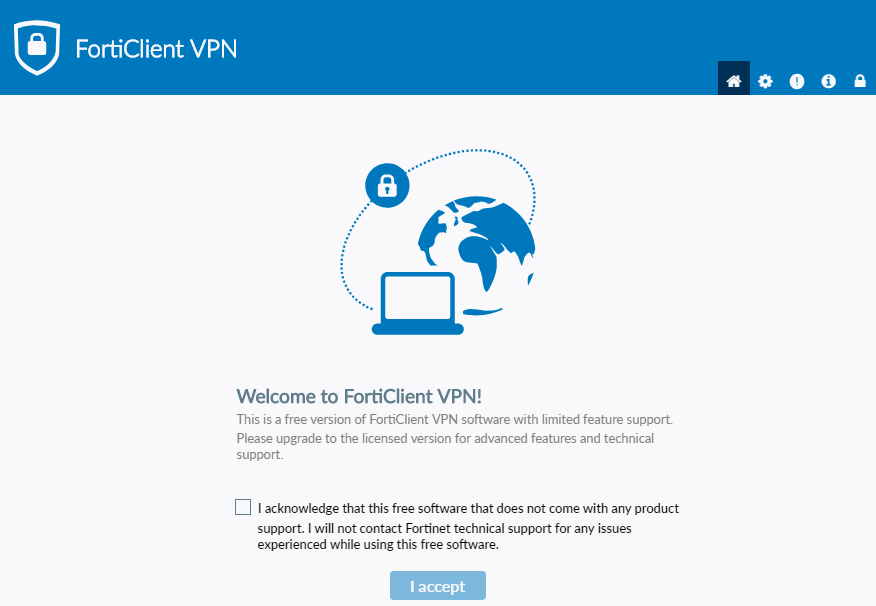
If you are a Windows user and have thoughts of accessing your work files or university resources from home, then FortiClient VPN is the solution for you. It is important to note that FortiClient VPN is only available for Windows and will not work on Mac or Linux devices.
FortiClient VPN is a secure connection that allows users to establish a virtual private network to their work or university network. By downloading and installing the FortiClient VPN software, users will be able to connect to the internet as if they were on-campus. This secure connection uses SSLVPN and is available only to those who have a CWRU Network ID and password.
To download FortiClient VPN for Windows, visit the CWRU UTech Software Center and search for “FortiClient VPN”. Select the version that is compatible with your Windows system, either 32-bit or 64-bit. Once downloaded, enter your CWRU Network ID and password as well as the passcode provided by DUO. This will establish a secure connection to the CWRU network.
If you are using a Mac or Linux system, there are other ways to connect to the CWRU network. For Mac users, FortiClient VPN can be downloaded and installed from the Mac App Store. For Ubuntu or Debian users, FortiClient VPN packages can be downloaded from the developer’s website.
It is important to note that FortiClient VPN is intended for use on personal devices and should not be used on university-owned devices. If you have any questions or need assistance with the installation process, please visit the CWRU UTech Help Center or call the IT Service Desk for support.
Mac FortiClient VPN
Installation and Setup
Installing FortiClient VPN on your Mac system requires meeting certain system requirements. Ensure your Mac system has a stable internet connection, and meets the necessary specifications for the installation process.
To begin, visit the university’s website and download the FortiClient VPN installation package for Mac. Once downloaded, open the package and follow the on-screen instructions to install the software.
Establishing a Secure Connection
After the FortiClient VPN software has been installed, open the application and enter your username and password to establish a secure connection. For users on-campus, a wired connection is recommended for optimal performance.
When prompted, enter the passcode received on your phone. This passcode is used for added security during the connection process.
Note on Compatibility
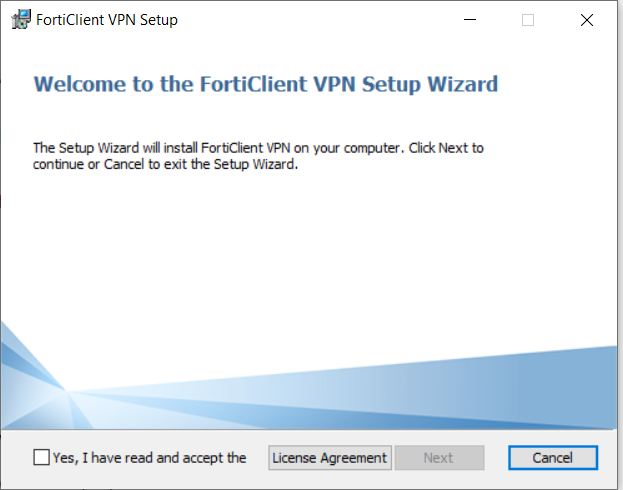
Please note that FortiClient VPN for Mac is only compatible with Mac systems running macOS version 10.12 and later.
If you are using an earlier version of macOS or a different operating system, please refer to the specific installation instructions outlined on the university’s website.
Additional Information
For detailed information about the installation requirements and other FAQs, visit the university’s website. There you will find guides and resources to help you with any questions or concerns you may have.
If you encounter any issues during the installation process or need further assistance, do not hesitate to call or send a support request to the university’s IT department. They will be able to provide you with the necessary guidance.
Windows FortiClient VPN
System Requirements
In order to use the FortiClient VPN on Windows, you need to ensure that your system meets the following requirements:
- Windows operating system
- Internet connection
Installation Guide
To install the FortiClient VPN on Windows, follow these steps:
- Visit the FortiClient VPN download page, which can be found here.
- Select the Windows version of the FortiClient VPN that you would like to download.
- Enter your username and password to establish a secure connection.
- Download the FortiClient VPN client by clicking on the “Download” button.
- Once the client is downloaded, double-click on the installation file to begin the installation process.
- Follow the on-screen instructions to complete the installation.
Using FortiClient VPN
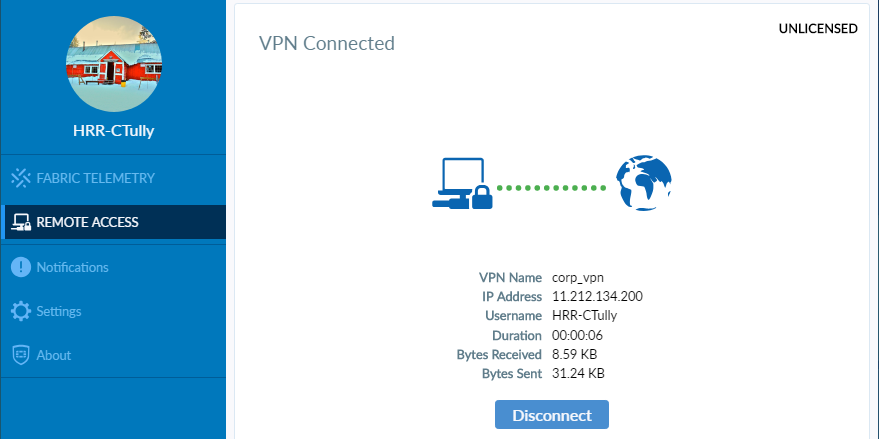
Once the FortiClient VPN is installed on your Windows device, you can use it to connect to the university’s VPN. To do so, follow these steps:
- Launch the FortiClient VPN application.
- Enter your username and password. Note that the passcode field is optional.
- Select the VPN connection you would like to use from the available options.
- Click on the “Connect” button to establish the VPN connection.
Note for Windows Users
Windows users should note that the FortiClient VPN is only available for Windows operating systems. If you have a different operating system, such as Mac or Ubuntu, you may need to use a different VPN client.
FortiClient – SSLVPN deb packages
FortiClient SSLVPN deb packages are available for users to download and install on their Ubuntu or Debian systems. These packages allow users to establish a secure VPN connection to the FortiClient VPN server.
To download the FortiClient SSLVPN deb packages, users can visit the official FortiClient website. Once downloaded, the packages can be installed on the system using the appropriate package manager. For Ubuntu users, the “dpkg” command can be used for installation, while Debian users can use “apt-get” or “apt” commands.
Before installing the FortiClient SSLVPN deb packages, users should ensure that their system meets the necessary requirements. These requirements include having a compatible version of the operating system, such as Ubuntu 10.04 or later, or Debian 5 or later. Additionally, users will need an internet connection and a valid username and password to establish the VPN connection.
After installing the FortiClient SSLVPN deb packages, users can launch the FortiClient application and enter their username and password to establish a secure VPN connection. If required, users may also need to enter a passcode, which can be obtained from the university’s IT support or through other secure means.
It is important to note that the FortiClient SSLVPN deb packages are available for Ubuntu and Debian systems, and may not be compatible with other operating systems. For Windows users, there is a separate version of FortiClient available for download. Additionally, these packages are intended for use by on-campus university users and may not be suitable for off-campus or wireless connections.
Thoughts on “Forticlient – SSLVPN deb packages”
The blog post titled “Forticlient – SSLVPN deb packages” discusses the thoughts and requirements for downloading and installing the Forticlient VPN client on various devices.
The version of the Forticlient VPN client that is discussed in the post is the SSLVPN deb packages that are available for download. It provides a secure way to establish a VPN connection and is suitable for both Windows and Debian-based operating systems.
If you are using a Debian-based system such as Ubuntu, you can simply visit the official Forticlient website and download the deb package for your system. Once downloaded, you can install it by following the instructions provided.
For Windows users, there are multiple ways to download the Forticlient VPN client. You can visit the official website or call the University’s IT support for assistance. Once you have the Forticlient VPN client installed, you will need to enter your username and password to establish a secure connection.
If you are on-campus, using a wired connection, it is recommended to select the SSLVPN deb package for your system. This will ensure that your connection is secure and encrypted. Note that only users with a valid CWru username and password will be able to download and use the Forticlient VPN client.
If you are using a Mac, you can download the Forticlient VPN client from the official website. Once downloaded, you will need to enter your CWru username and password, along with the passcode that you receive when you set up your account, to establish a secure connection.
Key Requirements:
- Forticlient VPN client version 274 or later
- Devices: Windows, Debian-based system (such as Ubuntu), or Mac
- An active CWru username and password
- A passcode for Mac users
In conclusion, the blog post provides information and instructions on how to download and install the Forticlient VPN client on different systems. It emphasizes the importance of establishing a secure and encrypted connection when using the VPN.
System Requirements
If you are considering using FortiClient VPN, it is important to ensure that your system meets the necessary requirements. Here, we will outline the system requirements for Windows, Mac, and Linux users.
Windows Requirements
- To use FortiClient VPN on a Windows device, you will need Windows 7, 8, 8.1, or 10.
- Ensure that you have a working internet connection to establish a secure VPN connection.
- If you have a wired connection, make sure it is configured properly.
Mac Requirements
- For Mac users, FortiClient VPN is compatible with macOS version 10.12 or later.
- Make sure you have an active internet connection to establish a secure connection.
- Wired connections should be properly configured.
Linux Requirements
- If you are using Linux, you can download the FortiClient VPN client for Ubuntu, Debian, and other Linux distributions.
- Visit the official FortiClient website to download the necessary packages.
- Ensure that you have the relevant Linux version and SSLVPN packages.
Note: University users should enter their CWru username and password when using FortiClient VPN. If you have any thoughts or questions about the installation process, you can send an email or call the IT support team for assistance.
FortiClient VPN
FortiClient VPN is a system that allows users to establish a secure connection to a network through a Virtual Private Network (VPN). It serves as a client for both Windows and Debian-based systems, providing a way for users to access resources on the network.
System Requirements
Before installing FortiClient VPN, make sure your system meets the following requirements:
- Windows 7 or higher
- Ubuntu 18.04 or higher
- Debian 9 or higher
- At least 4 GB of RAM
- 100 MB of free disk space
- Internet connection
Installation
To install FortiClient VPN, follow the steps below:
- Visit the FortiClient website and download the appropriate version for your operating system.
- Once downloaded, run the installer file and follow the on-screen instructions to complete the installation.
- After installation, open the FortiClient VPN application and enter your username and password to log in.
- If you are connecting from off-campus, enter sslvpn.vpn.uni.edu as the VPN server address.
- For on-campus connections, enter wired.vpn.uni.edu.
- Click on the “Connect” button to establish the VPN connection.
Using FortiClient VPN
Once connected, FortiClient VPN allows you to securely access resources on the network. You can send and receive data from your devices as if you were on-campus. Just remember to disconnect from the VPN when you no longer need the secure connection.
Note: For FortiClient VPN on Windows, if you have a CWru phone passcode, you will need to enter it after connecting.
For more information about FortiClient VPN and its features, visit the official FortiClient website.
Вопрос-ответ:
What are the system requirements for FortiClient VPN?
The system requirements for FortiClient VPN vary depending on the operating system. For Windows, the minimum requirements are Windows 7 or higher, 1 GB RAM, and 1 GB of hard disk space. For Mac, the minimum requirements are macOS 10.12 or later, 2 GB RAM, and 1 GB of hard disk space.
Where can I download FortiClient VPN for Windows?
You can download FortiClient VPN for Windows from the Fortinet website. Simply go to the Downloads section and select the version of FortiClient VPN that is compatible with your operating system.
How do I install FortiClient VPN on Mac?
To install FortiClient VPN on Mac, you need to download the FortiClient VPN package for Mac from the Fortinet website. Once the package is downloaded, double-click on it to begin the installation process. Follow the on-screen instructions to complete the installation.
Can I use FortiClient VPN on Ubuntu?
Yes, you can use FortiClient VPN on Ubuntu. Fortinet provides SSLVPN deb packages for Ubuntu, which can be downloaded from the Fortinet website. Once the deb package is downloaded, you can install it using the Ubuntu Software Center or by using the command line.
Видео:
How to download and install Forticlient VPN on windows 7/8/10/11 | Forticlient VPN in Hindi (Latest)
How to download and install Forticlient VPN on windows 7/8/10/11 | Forticlient VPN in Hindi (Latest) by DKS Technologies 1 year ago 4 minutes, 40 seconds 23,491 views
How to setup unlimited tuxler vpn – How to download and use tuxler vpn
How to setup unlimited tuxler vpn – How to download and use tuxler vpn by Bigxmotion TV 8 months ago 9 minutes, 22 seconds 14,088 views
