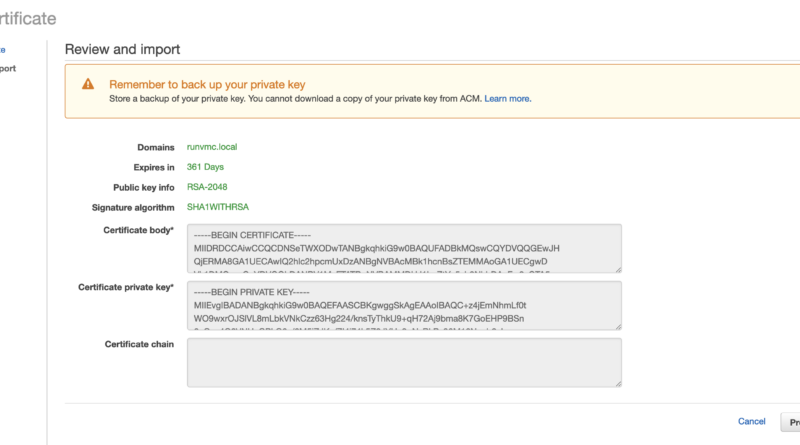
AWS Client VPN: Installation Log File, Silent Install MSI, Pricing and More – A comprehensive guide to AWS Client VPN
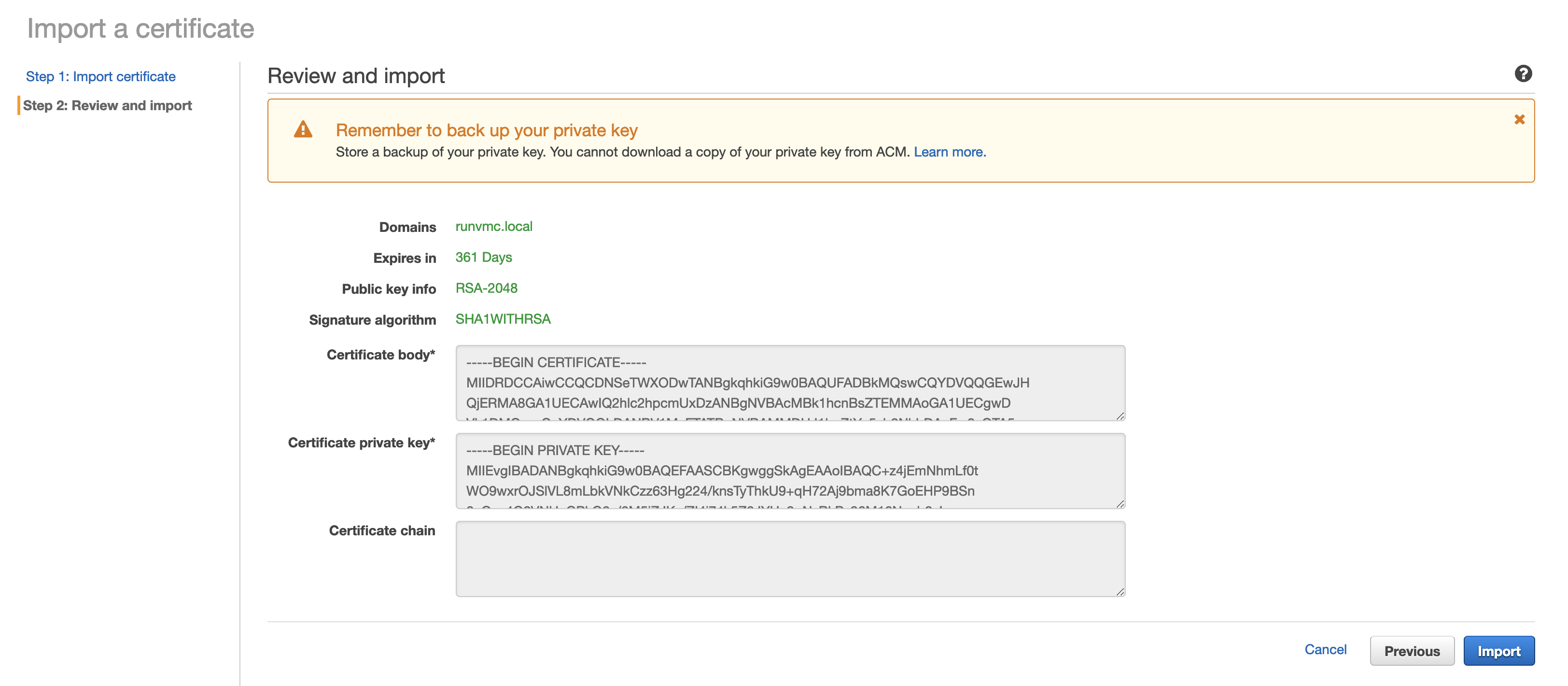
The recent release of AWS Client VPN has provided new features and added functionality to support the needs of enterprise customers. One of the key features is the ability to enter multiple CIDR ranges to create VPN target networks for your clients. This capability allows for more flexible configurations and enables your clients to access specific resources within your network.
For those looking for a how-to guide on configuring ports for their VPN endpoint, AWS has provided an informative blog post on their website. This post outlines the steps to assign security groups, configure routing rules, and create network interfaces for your VPN connections. It also provides guidance on how to enable DNS resolution and configure split tunneling to optimize traffic flow.
If you are looking to install the AWS Client VPN utility, you can download the silent installer MSI from the AWS website. This installer allows you to silently install the components you need without any user interaction. Once installed, you can use the utility to manage your VPN connections, view log files, and enable/disable client-based VPN connection profiles.
When it comes to pricing, AWS offers a pay-as-you-go model for the Client VPN service. You are charged based on the number of active client connections and the volume of data transferred. This pricing model allows you to scale your VPN usage based on your needs, ensuring you only pay for what you use.
In conclusion, AWS Client VPN provides a secure and reliable solution for connecting your clients to your AWS resources. With its easy installation and configuration process, informative guides, and flexible pricing, AWS Client VPN is a valuable tool for any organization looking to enable secure remote access to their resources.
Additional Configurations
Manage Services and Access
To manage and access AWS Client VPN, enter the AWS Management Console using your account credentials. You can enable or disable the functionality of AWS Client VPN for your users by selecting the corresponding options in the console.
Silent Installation
If you prefer a silent installer utility, you can download the MSI file from silentinstallhq.com. This allows you to install AWS Client VPN without any prompts or user intervention. In addition, you can specify configurations and rules through command-line arguments, ensuring a seamless installation process.
Site-to-Site VPN Configuration
If you need to enable site-to-site VPN connections, you can configure AWS Client VPN to support IKEv2 for tunnel establishment. This enables secure and efficient data transfer between your local networks and your AWS resources.
Authorization and VPN Client Assignments
By creating and managing VPN client authorization rules, you can control which users have access to your AWS resources through AWS Client VPN. You can specify the client names and IP addresses that are allowed or denied access based on your specific requirements.
Route Configuration
To set up routing configurations, you can specify routing rules and assign routes to subnets in your VPC. This allows you to control how traffic is directed between your client devices and your AWS resources. You can easily configure and update routes through the AWS Management Console or using the AWS CLI.
Latest Pricing Information
For the most up-to-date pricing information, refer to the AWS Client VPN pricing page. It provides informative details about the costs associated with using AWS Client VPN, including data transfer and client connections. Stay updated with the latest releases and pricing information to make informed decisions about your AWS infrastructure.
How to Uninstall the AWS VPN Client Silently
If you need to uninstall the AWS VPN Client silently, you can do so by following the steps below:
1. Open the Command Prompt
To uninstall the AWS VPN Client, you need to open the Command Prompt on your Windows device. You can do this by searching for “Command Prompt” in the Windows search bar and selecting the application.
2. Navigate to the AWS VPN Client Installation Location
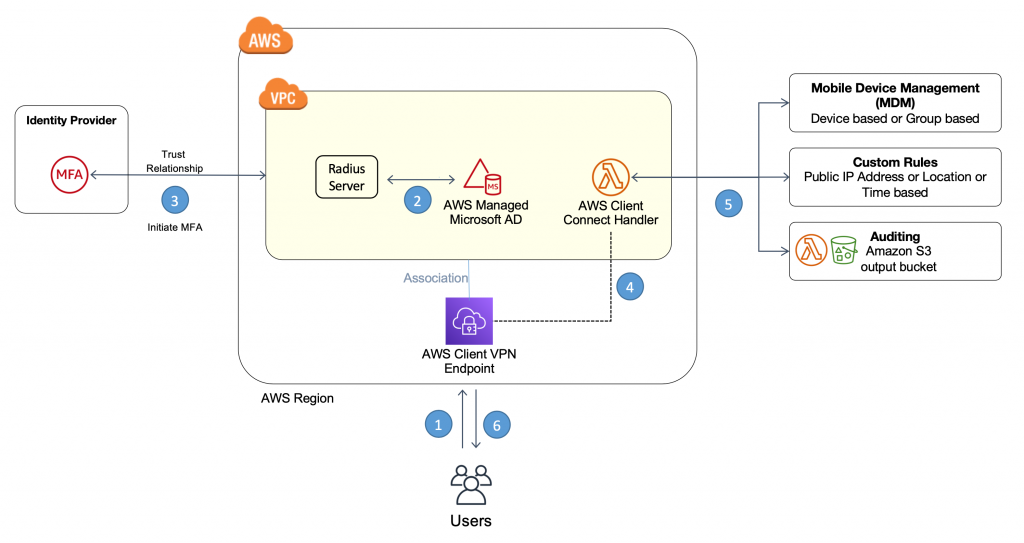
Once you have the Command Prompt open, navigate to the location where the AWS VPN Client is installed. You can use the “cd” command followed by the path to the installation folder. The default installation location is typically “C:\Program Files\AWS VPN Client”.
3. Run the Uninstall Command
Once you’re in the AWS VPN Client installation folder, run the uninstall command to remove the client silently. The command is typically:
msiexec /x <path-to-MSI-file> /qn
Replace <path-to-MSI-file> with the actual path to the MSI file of the AWS VPN Client on your device.
4. Verify Uninstallation
After running the uninstall command, verify that the AWS VPN Client has been successfully uninstalled. You can do this by checking the list of installed programs in the Control Panel or using the command prompt to list the installed programs.
By following these steps, you can uninstall the AWS VPN Client silently without any user interaction. This can be useful when you need to remove the client from multiple devices or automate the uninstallation process.
LEGAL INFORMATION
The AWS Client VPN is a cloud-based service that enables secure remote access to your resources in an Amazon Virtual Private Cloud (VPC). It provides a clear and encrypted connection for authorized users to access the network and resources within the VPC. The installation and use of the AWS Client VPN is subject to the applicable terms and conditions, including the AWS Customer Agreement.
Installation and Configuration
To install the AWS Client VPN, you will need to download and run the installer on your computer. The installation process will guide you through the necessary steps and configurations required for proper functionality. Once installed, you can create and assign access authorizations for users. You can also configure client certificates and configure route tables to control the traffic transfer.
Working with the AWS Client VPN
Once the AWS Client VPN is installed and configured, users can connect to the VPN endpoint using the client software and their credentials. The AWS Management Console provides additional interfaces for managing client VPN configurations, authorization rules, and associated subnets.
Additionally, the AWS Client VPN supports site-to-site VPN functionality, enabling secure communication between your on-premises network and your VPC. This allows you to extend your network and access resources securely across different locations.
Uninstalling the AWS Client VPN
If you no longer require the AWS Client VPN, you can uninstall it from your computer using the provided uninstall utility. Please note that uninstalling the AWS Client VPN will remove all associated configurations and access authorizations from your system.
Pricing and Account Information
The pricing for the AWS Client VPN depends on the number of active client VPN endpoints and the amount of data transferred. You can find detailed pricing information on the AWS website or by contacting their sales representative. Additionally, the AWS account associated with the AWS Client VPN will be billed for any usage of the service.
For any account-related queries or problems, you can refer to the AWS support documentation or contact their support team for assistance.
Disclaimer: This text is for informational purposes only and does not constitute legal advice. For specific legal advice, please consult with a qualified attorney.
Features of Client VPN
Client VPN is a powerful and flexible solution offered by Amazon Web Services (AWS) that allows users to securely connect their devices to a Virtual Private Network (VPN). It offers several key features to enhance the user experience and provide a seamless connection.
1. Multiple VPN Configurations
Client VPN supports the creation of multiple VPN configurations, allowing users to customize their VPN settings to meet their specific needs. Each VPN configuration can have different rules and routes, providing granular control over network access and connectivity.
2. Easy Installation and Management
Client VPN can be easily installed on multiple Windows devices using an MSI package, making it convenient for administrators to deploy and manage. Additionally, an installation log file provides detailed information about the installation process, enabling troubleshooting in case of any issues.
3. Silent Installation Option
For a seamless deployment experience, Client VPN supports silent installation through specific command-line parameters. This allows the installation process to run silently in the background without any user intervention, streamlining the setup process.
4. Secure Connection and Access Controls
Client VPN ensures secure and encrypted connections between devices and the VPN endpoint, protecting sensitive data from unauthorized access. Access controls can be enforced at the subnet or individual device level, ensuring that only authorized users can access specific resources.
5. VPN Gateway Integration
Client VPN is integrated with AWS VPN Gateway, providing a seamless connection between the client devices and the VPN endpoint. This integration allows users to leverage the advanced features and capabilities of AWS VPN Gateway, such as high availability and support for multiple IPsec VPN connections.
6. Flexible Pricing
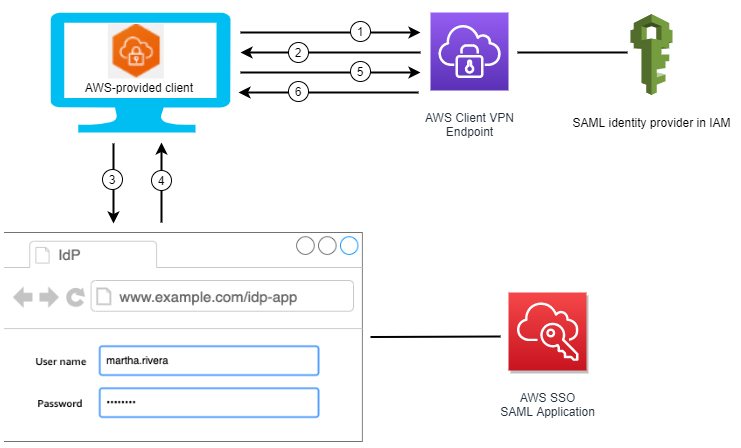
AWS offers flexible pricing options for Client VPN based on the number of client connections and the amount of data transferred. This allows users to optimize their costs and pay only for the resources they actually use, making it a cost-effective solution.
7. Documentation and Support
Amazon provides extensive documentation and support resources for Client VPN. This includes how-to guides, troubleshooting posts, and additional information on pricing and legal terms. Users can leverage these resources to get started with Client VPN and troubleshoot any problems or configuration issues they may encounter.
Components of Client VPN
The AWS Client VPN has several components that are essential for its proper functioning and secure data transfer:
- Client-Based Software: The client-based software allows users to establish connections with the AWS Client VPN endpoint. It can be installed on various devices, such as laptops, desktops, and mobile devices.
- Client Configuration File: Clients require a configuration file which contains all the necessary information to establish a secure connection with the AWS Client VPN endpoint.
- AWS Client VPN Endpoint: The AWS Client VPN endpoint is the central utility that manages the connections and data transfer. Clients connect to this endpoint using the client-based software.
- Subnets: Subnets are used to assign IP addresses to clients connecting via the AWS Client VPN. Clients are assigned IP addresses from the specified subnets based on the subnet association rules.
- Security Groups: Security groups are used to control the traffic flow and specify the allowed inbound and outbound traffic for the clients.
- Authorization Rules: Authorization rules determine which clients and resources are allowed to establish connections and access specific services within the AWS network.
- Log File: The log file keeps track of all the activities and events related to the AWS Client VPN. It provides important information about connections, data transfer, and any problems or errors that occur.
Installation and Uninstallation
To install the AWS Client VPN, you can use the installation MSI file. This file can be silently installed on the client machines using commands or software like silentinstallhq.com. For uninstallation, simply enter the name of the installation folder and the software will clear all the components and data associated with the AWS Client VPN.
Pricing and Availability
The pricing for the AWS Client VPN is based on the number of client connections and data transfer. Additional charges may apply for extra features and support. The AWS Client VPN is available in multiple regions and can be used with various AWS services.
Working with the AWS Client VPN
To create connections and configure the AWS Client VPN, you need to provide the necessary information such as the client configuration file, subnet associations, security groups, and authorization rules. Once everything is set up, clients can establish secure connections and access the specified services within the AWS network.
For more information about the AWS Client VPN, you can refer to the AWS documentation and blog posts that provide detailed information and updates about its features, configuration, and usage.
Working with Client VPN
Client VPN is a feature provided by AWS that allows administrators to create secure and scalable VPN connections for their users. It enables users to access resources in the AWS cloud or on-premises networks securely using an encrypted connection.
Installing Client VPN
To install the Client VPN components, the administrator needs to download the installer to their desired location. The installation process supports silent installation using additional software switches, allowing for clear and easy deployment across multiple systems.
Creating VPN Connections
Once the installation is complete, administrators can create VPN connections using the AWS console or through configuration files. The configuration files include the necessary information required for establishing the VPN connection, such as VPN server addresses, subnet ranges, and IKEv2 authorization details.
Working with Site-to-Site VPNs
Client VPN supports site-to-site VPN connections, allowing users to connect their Amazon VPC to an on-premises network. This enables secure communication between AWS resources and on-premises networks, expanding the connectivity options available to administrators.
Client VPN Features and Limitations
Client VPN provides several features, including encrypted traffic, support for multiple concurrent connections, and the ability to route traffic to different subnets. However, there are some limitations, such as the inability to access the same subnets from multiple connections or the lack of support for IPv6 addresses.
Pricing and Installation Log File
Information regarding pricing can be found in the AWS Client VPN pricing guide. Additionally, administrators can access the installation log file to troubleshoot any problems that may have occurred during the installation process. The log file provides detailed information about each step of the installation, allowing for easy identification of any issues that need to be addressed.
Limitations and rules of Client VPN
The AWS Client VPN service provides a secure and convenient way for users to access resources in their Virtual Private Cloud (VPC) environments. However, there are some limitations and rules that users should be aware of when using Client VPN.
VPN Configuration Limitations:
- Client VPN currently supports only the IKEv2 VPN protocol.
- Each Client VPN endpoint can have up to 1,000 active connections.
- A maximum of 50 VPN configurations can be assigned to each Client VPN endpoint.
- There is a limit of 50 routes per VPN configuration.
Client VPN Connection Limitations:
- Client VPN connections are available for Windows, MacOS, iOS, and Android devices.
- Each user must have a unique client certificate generated by the Amazon Certificate Manager.
- Only one client certificate can be associated with each VPN connection.
- Client VPN does not support multi-factor authentication.
Management and Pricing Limitations:
- The AWS Pricing Calculator provides information about the cost of using Client VPN.
- You can create and manage Client VPN endpoints using the AWS Management Console, AWS CLI, or the API.
- There is no additional cost for the AWS VPN Client software.
- The Client VPN installer can be downloaded from the Silent Install HQ website.
Overall, it is important for administrators to understand the limitations and rules of using AWS Client VPN in order to ensure a secure and clear connection for their users. By following the guidelines and utilizing the available tools and configurations, users can easily create and manage VPN connections in their VPC environments.
AWS Client VPN Silent Install How-To Guide
Overview
The AWS Client VPN Silent Install How-To Guide provides step-by-step instructions for silently installing the AWS Client VPN software on Windows devices. This guide is aimed at users who want to install the software without any user interaction or prompts.
Silent Installation
To perform a silent installation of the AWS Client VPN software, you can use the provided MSI file along with a silent installation utility such as SilentInstallHQ.com. By using the silent installation utility, you can automate the installation process and avoid any interruptions.
Prerequisites

Before performing the silent installation, make sure you have the necessary permissions and access to the AWS Management Console. Also, ensure that you have the latest version of the AWS Client VPN software and the associated MSI file.
- Access to the AWS Management Console
- Latest version of the AWS Client VPN software
- MSI file for the AWS Client VPN
Step-by-Step Instructions
Follow these steps to perform a silent installation of the AWS Client VPN:
- Download and update the silent installation utility.
- Open the utility and enter the necessary information, such as the path to the MSI file and any additional configurations.
- Run the utility and wait for the silent installation to complete.
- Once the installation is finished, you can manage the AWS Client VPN settings and connections using the AWS Management Console.
Additional Information
For more information about using the AWS Client VPN and its features, refer to the AWS documentation and support resources. You can also query the AWS Console or use the CLI commands to manage your VPN configurations, routes, and rules.
The AWS Client VPN supports client-based VPN connections and enables secure transfer of traffic between devices and AWS networks. It uses the IKEv2 protocol for secure communication.
By following this guide, you can efficiently deploy the AWS Client VPN software silently and start working with it without any interruptions.
Create an AWS VPN Client Installation Log File
When you create an AWS VPN client installation log file, you can gather important information about the installation process and any potential issues that may arise. This log file contains information about the installation steps, such as the installation location and the components that were installed.
To create an installation log file for the AWS VPN client, you can use the command-line utility provided by AWS. The utility, called “aws-vpn-client-util”, allows you to enable or disable the creation of the log file and specify its location. By default, the log file creation is disabled.
Once the log file is enabled, the utility will create a log file in the specified location. The log file will contain informative messages about the installation process, including details about the software components that were installed and their associated functionality.
Having an installation log file can be helpful for troubleshooting purposes, as it allows you to review the steps taken during the installation and identify any issues that may have occurred. It can also be useful for documenting the installation process and keeping a record of the configuration settings used for future reference.
In addition to the installation log file, AWS VPN client supports the creation of route information files. These files contain information about the VPN connections, such as the IP addresses and subnets used by the VPN clients and the VPN server. They can be used to assign IP addresses to client interfaces and to manage the routing of traffic between the VPN clients and other network interfaces.
By creating an AWS VPN client installation log file and potentially route information files, you can ensure a clear and organized installation process for your VPN clients. This will make it easier to troubleshoot any issues that may arise and provide a record of the configuration settings used for future reference.
About Jason
Jason is an experienced network administrator who has extensive knowledge about AWS Client VPN and its features. He has written several informative and helpful blog posts about the installation, configuration, and working of AWS Client VPN.
As an administrator, Jason understands the importance of log files in troubleshooting and monitoring network connections. He has provided detailed information about the log file, its location, and how to access it.
Jason is also well-versed in the installation process of AWS Client VPN. He has written step-by-step guides on how to install the software, including instructions for silent installation using MSI files. He has also covered the topic of uninstallation and how to remove AWS Client VPN from the system.
One of the key areas that Jason has covered is the pricing and availability of AWS Client VPN. He has provided clear information on the pricing structure and the different pricing options available for AWS Client VPN.
Jason has also written about the limitations and restrictions of AWS Client VPN. He has highlighted the number of connections allowed and the subnets that can be assigned to each client. He has also discussed the limitations of the configuration file, including the supported protocols (IKEv2) and the query-based configuration.
Furthermore, Jason has provided guidance on how to configure AWS Client VPN to work with different devices and interfaces. He has explained the process of assigning IP addresses and routes to client devices, as well as the configuration options for VPN clients.
In addition to his blog posts, Jason has demonstrated his expertise in AWS Client VPN by actively participating in online communities and forums. He has answered user queries and provided support to fellow users.
In conclusion, Jason is a knowledgeable resource on AWS Client VPN, with a deep understanding of its features, installation process, pricing, limitations, and configurations. His blog posts and contributions to online communities make him a valuable asset for those seeking information and assistance with AWS Client VPN.
AWS Site-to-Site VPN releases updated Download Configuration utility
The updated Download Configuration utility from AWS Site-to-Site VPN provides an easy way to configure and manage site-to-site VPN connections. This utility is available as an MSI file, allowing for a silent install and the ability to assign a name for each configuration.
Updated Utility Features
- Clear and informative interface: The utility provides clear and informative options for configuring site-to-site VPN connections, making it easy for users to set up and manage their VPN connections.
- Management of multiple configurations: The utility allows users to manage multiple configurations and easily switch between them. Each configuration can be assigned a name for easy identification.
- Secure connection: The utility enables the secure exchange of data between different components of an AWS network, ensuring that traffic is encrypted and secure.
- Route selection and routing availability: Users can specify the routes and IP ranges for each configuration, allowing them to control how traffic is routed between AWS and the on-premises network.
How to Use the Updated Utility
- Download and install the AWS Site-to-Site VPN Download Configuration utility on your Windows endpoint.
- Launch the utility and select the appropriate configuration.
- Enter the necessary information such as the Amazon VPC CIDR range, on-premises CIDR range, and the IP addresses of the customer gateway and virtual private gateway.
- Specify the desired features, such as whether to enable or disable IKEv2, and enter any additional authorization or pricing information.
- Click “Generate Configuration File” to create the VPN configuration file.
- Use the generated configuration file to configure the VPN connection on your on-premises devices.
- Manage your VPN connections using the utility’s management features, such as adding, removing, or editing configurations.
With the updated AWS Site-to-Site VPN Download Configuration utility, users can easily configure and manage their site-to-site VPN connections, ensuring secure and reliable data exchange between their on-premises network and the Amazon VPC.
AWS VPN Client Silent Install MSI
About the AWS VPN Client
The AWS VPN Client is a utility provided by Amazon Web Services (AWS) that enables users to securely connect to their AWS Virtual Private Cloud (VPC) networks.
Silent Installation of AWS VPN Client
The AWS VPN Client can be installed silently using the MSI package. This package contains all the necessary files and configurations for the installation. Users can download the MSI package from the official AWS Console or from the silentinstallhq.com website.
Utility for Silent Installation
The silentinstallhq.com website provides a utility that helps users perform silent installations of various software, including the AWS VPN Client. To use this utility, users simply need to enter the necessary information and select the silent installation option.
Benefits of Silent Installation
Silent installation is a useful feature as it allows the installation process to be performed without any user intervention. This is particularly useful for large-scale deployments where manual installations can be time-consuming and prone to human error.
Performing Silent Installation
To perform a silent installation of the AWS VPN Client, users need to run the MSI package with specific command-line switches. These switches can be used to specify installation paths, select features, and authorize the installation. The installation log file will contain informative data about the installation process, including any problems encountered.
Using Silent Installation for AWS VPN Client
By using silent installation, users can easily deploy the AWS VPN Client across multiple devices or interfaces. This ensures the secure transfer of data between different networks or sites, using the same client-based software. Silent installation also enables users to create and manage multiple VPN configurations and routes.
Availability and Pricing
The AWS VPN Client is available for download from the official AWS Console. As for pricing, AWS charges based on the number of client VPN endpoints and the data transfer that occurs through these endpoints. Users can refer to the AWS website for detailed pricing information and associated charges.
Conclusion
Overall, the AWS VPN Client’s silent installation feature provides a convenient and efficient way for users to deploy and manage secure VPN connections. By using silent installation, users can easily set up and configure the VPN client on multiple devices or interfaces, ensuring a secure transfer of data between different networks or sites.
How to Install AWS Client VPN Silently
Installing AWS Client VPN can be done silently using the MSI file and command line switches. This allows system administrators to manage the installation process without any user interaction, making it more convenient and efficient.
To install AWS Client VPN silently, you can use the following command line switch: /qn. This switch tells the installer to run quietly without displaying any user interface or prompts.
Here is an example command to silently install AWS Client VPN:
msiexec /i "path\to\AWSClientVPNInstaller.msi" /qnMake sure to replace “path\to\AWSClientVPNInstaller.msi” with the actual path to the MSI file on your system.
After the installation is complete, you can create multiple VPN connections by using the AWS Client VPN endpoint configuration file. This file contains the necessary information about the VPN connection, such as the endpoint address, ports, and routing preferences.
To create a VPN connection using the endpoint configuration file, you can use the following command:
aws ec2 create-client-vpn-endpoint --client-cidr-block yourCIDR --server-certificate-arn arn:aws:acm:yourCertificateARN --connection-log-options enabled=yourLogGroupARN --client-token yourClientToken --authentication-options Type=certificate-authentication,MutualAuthentication={ClientRootCertificateChainArn=arn:aws:acm:yourRootCertificateARN},ActiveDirectoryAuthentication={DirectoryId=yourDirectoryId}Make sure to replace “yourCIDR”, “yourCertificateARN”, “yourLogGroupARN”, “yourClientToken”, “yourRootCertificateARN”, and “yourDirectoryId” with the appropriate values for your VPN connection.
By following these steps, you can easily install and configure AWS Client VPN silently, saving time and effort for system administrators.
Recent Posts
1. How to Install AWS Client VPN on Windows
Learn how to easily install the AWS Client VPN on your Windows devices. This informative post contains step-by-step instructions and screenshots to guide you through the installation process. You’ll also find additional tips on how to enable and configure the client VPN for secure site-to-site data transfer.
2. AWS Client VPN: Installation Log File and Silent Install MSI
Discover how to use the AWS Client VPN installation log file to troubleshoot any problems that may arise during the installation process. You’ll also learn how to perform a silent install of the MSI file, allowing you to install the client VPN silently and configure it using command line parameters. This post provides all the necessary information and commands you need to know to install the client VPN without any user interactions.
3. AWS Client VPN: Pricing and Availability
Find out about the pricing and availability of the AWS Client VPN service. This post provides an overview of the different pricing options and the factors that can affect the cost of using the client VPN. You’ll also learn about the availability zones and regions where the service is currently available. Whether you’re a small business or a large enterprise, this post will help you determine the cost and availability of using the AWS Client VPN for your network needs.
4. AWS Client VPN: Features and Limitations
Learn about the features and limitations of the AWS Client VPN service. This post provides an in-depth look at the capabilities of the client VPN, including support for different VPN protocols (IKEv2 and OpenVPN), the ability to assign IP addresses and routes to client devices, and the option to configure split tunneling for more efficient data transfer. You’ll also find information about the limitations and restrictions of using the client VPN, such as the maximum number of VPN connections and the allowed IP ranges for VPN configurations.
5. AWS Client VPN: How to Uninstall
Discover how to uninstall the AWS Client VPN utility from your devices. This post provides step-by-step instructions on how to remove the client VPN from both Windows and macOS. You’ll learn about the different methods you can use to uninstall the utility, including using the control panel on Windows and the command line on macOS. Whether you no longer need the client VPN or you’re experiencing issues, this post will guide you through the process of uninstalling it from your devices.
Pricing for Client VPN
The pricing for Amazon Web Services (AWS) Client VPN is based on a number of factors. First, there is a small hourly charge for each active client connection. This includes both the inbound and outbound data transfer. Additionally, there is a charge for the amount of data transferred through the VPN. You will also be billed for the storage of the logs generated by the Client VPN service.
It is important to note that the pricing for Client VPN does not include any additional charges for the underlying AWS resources that may be required to support the service. For example, if you need to create a virtual private gateway or use other networking services, you will be charged for those separately.
The administrator should also consider the availability and performance limitations of the service. While Client VPN supports up to 1000 concurrent connections per AWS account, there are some configuration and performance considerations to keep in mind. For example, each connection consumes an Elastic IP address, and there are limits to the number of Elastic IP addresses that can be allocated per AWS account. Additionally, the performance of the service may be impacted by the number of connections and the amount of traffic associated with those connections.
To help with the administration and management of the Client VPN service, AWS provides a Windows-based utility and a command line guide for installation and configuration. This utility can be used to install and configure the Client VPN service, and it provides a user-friendly interface for managing client-based VPN connections. The utility can also be used to view and clear the log file associated with the service.
In addition to the Windows utility, AWS provides APIs for programmatically managing the Client VPN service. These APIs allow users to create, modify, and delete client-based VPN connections, as well as assign authorization rules and configure routes. The APIs can be accessed using the AWS Management Console, the AWS CLI, or SDKs.
FAQ:
Is there a log file generated during the installation of AWS Client VPN?
Yes, AWS Client VPN installation generates a log file. The log file contains detailed information about the installation process, such as the version of the software being installed, any errors encountered during the installation, and the location where the software was installed. The log file can be useful for troubleshooting installation issues or for auditing purposes. By default, the log file is saved to a specific location on the device where the software is being installed, but the exact location may vary depending on the operating system and configuration.
How does AWS Client VPN pricing work?
AWS Client VPN pricing is based on several factors, including the number of client VPN connections, the amount of data transferred through the VPN, and the location where the VPN is deployed. AWS offers a tiered pricing model, where the cost per connection and the cost per GB of data transfer decreases as the usage increases. Additionally, there may be additional charges for data transfer between the VPN and other AWS services, such as Amazon EC2 instances. It’s recommended to review the AWS Client VPN pricing documentation or contact AWS support for more detailed pricing information based on your specific usage requirements.
Videos:
Connect to your PC from Internet | Safe – Free
Connect to your PC from Internet | Safe – Free by NETVN82 1 year ago 12 minutes, 26 seconds 107,918 views
How to use AWS VPN Federated Authentication features
How to use AWS VPN Federated Authentication features by nClouds 1 year ago 22 minutes 2,740 views
