
Step-by-Step Guide: How to View VPN Connect Time on iPhone or iPad and Install CyberGhost – Strict No-Logs Policy
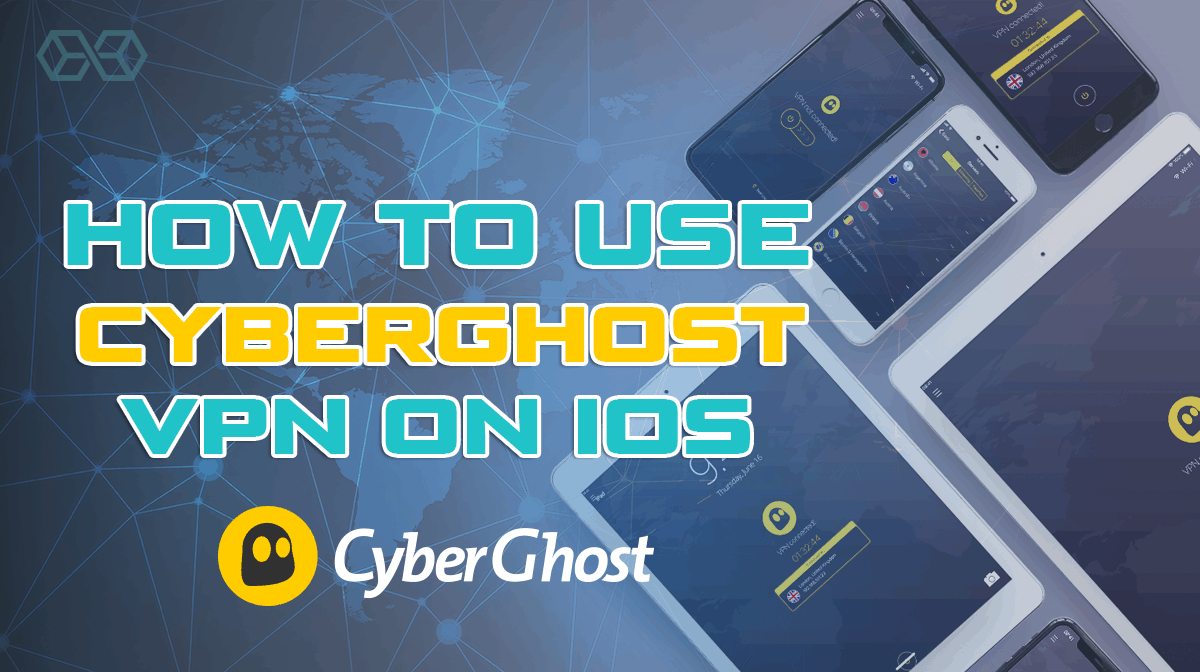
Are you looking for the best way to protect your personal data and access media content from anywhere? If so, then you need a reliable VPN service. Installing a VPN on your iPhone or iPad is a must, especially if you frequently use public Wi-Fi networks. Without a VPN, your data is unsecured and can be easily intercepted by third-party tracking. That’s why CyberGhost is your best bet when it comes to online privacy and security.
CyberGhost is one of the most user-friendly VPN apps available for iOS devices. Whether you’re at home or on the go, CyberGhost encrypts your online activity and sends it through a secure network, keeping you protected no matter where you are. With CyberGhost, you can also choose your virtual location, which is great for accessing geo-restricted media content or bypassing strict censorship in certain countries.
So, how do you install CyberGhost on your iPhone or iPad? The process is simple, and this step-by-step guide will walk you through it. First, you’ll need to update your device to the newest iOS version. This is important because older versions of iOS may not support all the features that CyberGhost offers. Once your device is up to date, go to the App Store and search for “CyberGhost VPN.” Tap on the “Get” button to download and install the app. It’s that easy!
Once CyberGhost is installed on your device, launch the app and sign in with your CyberGhost account. If you don’t have one yet, you can create a new account directly from the app. After signing in, you’ll see the CyberGhost home screen, where you can choose your preferred VPN server location. CyberGhost has servers in over 90 countries, so you have plenty of options to choose from. Simply tap on the country you want to connect to, and CyberGhost will automatically establish a secure VPN connection.
Now that you’re connected to CyberGhost, you can enjoy a faster and more secure internet experience. CyberGhost encrypts all your internet traffic, so your data is protected from hackers, ISPs, and government surveillance. You can browse the web, stream your favorite media content, and download files without worrying about anyone tracking your online activity. Plus, you can also enjoy faster speeds thanks to CyberGhost’s optimized servers.
If you’re still not convinced, CyberGhost offers a 45-day money-back guarantee. This means you can try their service risk-free for almost two months. And to sweeten the deal, CyberGhost frequently runs special promotions and discounts, so you can get the best VPN deals available.
In conclusion, if you want to protect your data and access geo-restricted media content on your iPhone or iPad, installing a VPN is a must. CyberGhost is the top choice for iOS users, thanks to its user-friendly interface, ironclad encryption, and no-logs policy. So why wait? Install CyberGhost today and experience a safer and faster online experience.
Understanding VPN
VPN, or Virtual Private Network, is one of the best ways to protect your online privacy and security. Over the years, VPN services have gained popularity as individuals and organizations recognize the need to keep their internet activities private and secure.
A VPN works by creating a secure connection between your device and a remote server. This server, which can be located in a different country or region, acts as a middleman between you and the websites or online services you want to access. By routing your internet traffic through the server, your IP address is hidden, making it difficult for anyone to track your online activities.
One of the most important features of a VPN is the number of servers it has. The more servers a VPN service has, the more options you have to access different websites and services from around the world. This is especially useful if you need to access content that is restricted in your location.
Another crucial aspect of a VPN is its encryption capabilities. A good VPN will use advanced encryption algorithms to protect your data from interception or hacking. This ensures that your personal information, such as passwords or credit card details, remains secure while you browse the internet.
VPN applications are available for various devices, including iPhones and iPads. These applications allow you to easily connect to a VPN server and replace your device’s IP address with the server’s IP address. They also provide a user-friendly interface where you can select the server location you want to connect to and configure other settings according to your preferences.
While VPNs offer many benefits, there are some drawbacks to consider. One of the main drawbacks is that using a VPN may slow down your internet connection due to the additional encryption and routing processes. However, with the newest VPN protocols and technologies, this impact is often minimal.
Another consideration is the cost of VPN services. While there are free VPN options available, they often have limitations in terms of server locations, bandwidth, or speed. If you want to have full access to a wide range of features and servers, you will need to subscribe to a paid VPN service.
Finally, it is important to choose a VPN provider that takes your privacy seriously. Look for providers that have a strict no-logs policy and offer transparency about their data practices. Additionally, make sure the VPN service you choose has strong technical security measures in place to protect your data from third-party tracking or spyware.
Key Points to Understand about VPN:
- VPN is a virtual private network that provides privacy and security
- It works by routing your internet traffic through a remote server
- VPNs hide your IP address and encrypt your data
- They offer the ability to access content from different locations
- VPN applications are available for various devices, including iPhones and iPads
- VPNs may slow down your internet connection, but newer technologies minimize this impact
- Free VPNs have limitations, while paid VPNs offer more features and server options
- Look for VPN providers with strict no-logs policies and transparent data practices
Benefits of Using VPN
A VPN (Virtual Private Network) can offer numerous advantages when it comes to online privacy and security. Here are some benefits of using a VPN:
- Encrypts Your Data: A VPN encrypts your internet traffic, keeping it secure and protecting it from hackers or malicious individuals who may try to intercept and steal your personal information.
- Hides Your IP Address: When you connect to a VPN server, your IP address is masked, making it difficult for websites, advertisers, or third parties to identify your location or track your online activities.
- Access Restricted Content: VPNs allow you to bypass geo-restrictions and access content that may be blocked or unavailable in your country. You can watch your favorite streaming services, access social media platforms, or browse websites without limitations.
- Secure Public Wi-Fi: Public Wi-Fi networks are often unsecured and vulnerable to cyber attacks. By using a VPN, you can protect your data and maintain your privacy while connected to public Wi-Fi hotspots, such as in cafes, airports, or hotels.
- Enhanced Online Anonymity: By connecting to a VPN server, your online activity is masked, and you can browse the internet anonymously. This prevents your ISP (Internet Service Provider), government agencies, or other entities from monitoring or tracking your online behavior.
- Bypass Censorship: VPNs allow you to bypass censorship imposed by governments or ISPs and access the unrestricted internet. This is especially useful for individuals living in countries with strict internet censorship or for journalists, activists, or researchers who want to access information freely.
- Secure File Sharing: If you frequently share sensitive files or collaborate with others over the internet, a VPN can provide an extra layer of security by encrypting and protecting your data during file transfers.
- Remote Access: VPNs enable secure remote access to your home or work network, allowing you to access files, printers, or other resources as if you were physically present at the location. This is useful for remote workers or individuals who travel frequently for business.
- Protects Against ISP Throttling: Some ISPs (Internet Service Providers) may intentionally slow down your internet connection speed based on your online activities. Using a VPN can prevent your ISP from throttling or limiting your internet speed, providing a more consistent and reliable connection.
Overall, a VPN offers an array of benefits, including enhanced privacy, security, and access to a free and open internet. Whether you’re concerned about your online privacy, want to access geographically restricted content, or need a secure connection while using public Wi-Fi, a VPN can be a valuable tool to protect your online presence and ensure a safer digital experience.
Choosing the Right VPN: CyberGhost vs. NordVPN
If you’re in search of a reliable VPN service, two of the most popular options on the market are CyberGhost and NordVPN. Both offer a wide range of features and benefits that can help protect your personal information, keep your online activities private, and provide secure internet browsing. So, how do you choose between the two? Here are some key points to consider:
1. Server Network and Performance
When it comes to server networks, both CyberGhost and NordVPN have a large number of servers to choose from. NordVPN boasts over 5500 servers in more than 59 countries, while CyberGhost offers over 7000 servers in 91 countries. In terms of performance, CyberGhost claims to have the fastest speeds, making it ideal for streaming and downloading large files.
2. Security and Privacy
Security is a top priority for any VPN user, and both CyberGhost and NordVPN offer strong security measures. They use industry-standard encryption protocols like OpenVPN and both have a strict no-logs policy, meaning they don’t keep any record of your online activities. This can give you peace of mind knowing that your personal information is safe and secure.
3. User-Friendly Interface
When it comes to ease of use, both CyberGhost and NordVPN have user-friendly interfaces that are easy to navigate, making them suitable for beginners. They offer apps for various devices, including iPhones and iPads, allowing you to connect with just a few taps. Additionally, both services have 24/7 customer support to assist you with any issues or questions you may have.
4. Media Streaming and Content Access
If you enjoy streaming movies and TV shows, both CyberGhost and NordVPN are capable of bypassing geo-restrictions and allowing you to access content from anywhere in the world. Whether you want to watch Netflix, Hulu, or BBC iPlayer, these VPNs can help you do so by masking your IP address and connecting you to servers in different countries.
5. Pricing and Deals
When it comes to pricing, both CyberGhost and NordVPN offer competitive rates. However, CyberGhost often has sales and deals, making it more affordable for users on a budget. It also offers a 45-day money-back guarantee, giving you time to try the service and see if it meets your needs. NordVPN, on the other hand, offers a 30-day money-back guarantee.
In conclusion, both CyberGhost and NordVPN are reputable VPN services that offer a high level of security and privacy. The choice between the two ultimately depends on your specific needs and preferences. Consider factors like server network, performance, security measures, user-friendliness, and pricing to determine which VPN is the best fit for you.
Step 1: Open the App Store on your iPhone or iPad
Before you can begin viewing VPN connect time on your iPhone or iPad, you need to open the App Store. The App Store is the gateway to all the applications available for download on your device, including VPN apps like CyberGhost, NordVPN, and ExpressVPN. You can easily access the App Store by finding the corresponding icon on your home screen. It is usually represented by a blue icon with a white letter “A” on it.
Once you have located the App Store icon, simply tap on it to open the store. The App Store will load, and you will be presented with a variety of options to browse and explore. You can search for specific VPN applications, or you can browse through different categories to find the one that best suits your needs.
When using a VPN, it is important to identify and select a reliable and reputable provider. VPNs offer numerous benefits, such as enhanced security and privacy when browsing the internet, the ability to bypass geo-restrictions, and improved internet speed. However, not all VPNs are created equal, and there are some VPNs out there that aren’t as secure or reliable as others.
When selecting a VPN application, it is crucial to choose one that has a good reputation and a track record of transparency and customer trust. Some popular options include NordVPN, ExpressVPN, and CyberGhost. These VPN providers have built-in security features, strict privacy rules, and a commitment to protecting the personal data of their users.
To install a VPN app such as CyberGhost, simply search for it in the App Store by typing “CyberGhost” into the search bar at the top of the screen. Once you locate the app, tap on it to view more details. The app’s page will provide you with information about the app, including its rating, reviews, and screenshots. You can also access the app’s official website or view the developer’s profile.
Before you install the app, it’s a good idea to read through the app’s description and features. This will give you a better understanding of what the app does and how it can benefit you. Additionally, you can check if the app supports your device’s operating system version. For example, some older devices might not be compatible with the latest version of the app.
Once you have reviewed the app and are ready to proceed with the installation, click on the “Get” or “Install” button, depending on the version of the App Store. The app will begin to download and install onto your device. Depending on your internet speed, this process can take a few seconds to a few minutes.
After the installation is complete, the app will be available on your home screen. You can open the app by tapping on its icon. Many VPN apps, including CyberGhost, will prompt you to create an account or log in if you already have one. This is necessary to use the VPN service and access its features.
Step 2: Search for “CyberGhost” and “NordVPN”
Once you have completed the first step of setting up your VPN, the next step is to find a VPN provider that meets your needs. Two popular options are CyberGhost and NordVPN.
To find these VPN providers, you can either search for them using the search function in the App Store or manually navigate through the different categories and sections.
Both CyberGhost and NordVPN offer a wide range of features and benefits, so it’s important to take the time to compare them and choose the one that best fits your needs.
When searching for a VPN provider, you’ll need to consider factors such as the number of locations available, whether they keep logs of your activity, and if they offer additional security features like malware and spyware protection.
CyberGhost and NordVPN both have a large number of server locations, which means you’ll have more options when it comes to finding a secure connection.
However, there are some differences between CyberGhost and NordVPN. For example, CyberGhost offers a 45-day money-back guarantee, while NordVPN offers a 30-day money-back guarantee.
In terms of pricing, both VPN providers offer different plans, so you can choose the one that suits your budget. CyberGhost often runs special promotions and sales, so make sure to check for any deals before making your purchase.
After selecting your preferred VPN provider, you can easily install the app on your iPhone or iPad. Simply click on the “Get” or “Install” button, and the app will be downloaded and installed on your device.
Once the app is installed, you’ll be prompted to sign in or create an account. This step is necessary to activate your VPN service and ensure that your connection is secure.
Once you’re signed in, you can start using your VPN. CyberGhost and NordVPN both offer a simple and intuitive interface, so even if you’re new to VPNs, you’ll be able to navigate through the app easily.
With your VPN activated, you can now browse the internet, use social media, and access online banking without worrying about your personal information being intercepted or your IP address being exposed.
Using a VPN also means that your internet service provider, government, or any other third-party administrators will not be able to see your online activities. This can be especially useful if you frequently use public Wi-Fi networks, as it adds an extra layer of protection to keep your data secure.
Additionally, a VPN encrypts your internet connection, which means that even if someone manages to intercept your data, they won’t be able to decipher it.
Whether you’re looking to access geo-restricted content, keep your online activities private, or simply add an extra layer of security to your internet connection, a VPN is an essential tool for anyone who wants to protect their digital life.
By selecting the right VPN provider and following the steps outlined in this guide, you’ll be able to install a VPN on your iPhone or iPad and enjoy the benefits of a secure and private internet connection.
So don’t wait any longer – start browsing the internet without limitations and stay safe online today!
Step 3: Tap on the respective app from the search results
Once you have opened the App Store on your iPhone or iPad, you can proceed with the search for the VPN app of your choice. Simply type the name of the VPN app you want to install in the search bar located at the top of the App Store screen. For example, if you are looking for NordVPN or ExpressVPN, type their respective names in the search bar and hit enter.
After you hit enter, the search results will display a list of apps related to your search query. Look for the app you want to install and tap on it to open its app page. This page will provide you with more details about the app, such as its size, features, and user reviews. It may also show you if the app is free or if it costs any money to download and use.
If you see a cloud-shaped download button next to the app’s name, it means the app is not yet installed on your device. Tap on this button to begin the installation process. You might be prompted to enter your Apple ID password or use your Touch ID / Face ID to confirm the installation.
Once the installation is complete, you can open the app and start using it. Most VPN apps have a user-friendly interface that allows you to connect to the VPN server with just a few taps. Simply tap on the “Connect” or “On” button to establish a secure VPN connection that encrypts your internet traffic and hides your IP address.
It’s worth noting that some VPN apps, like CyberGhost for example, offer an automatic connection option that connects you to the best server based on your location and needs. This can be a convenient feature if you don’t want to manually select a server every time you use the VPN. However, if you prefer more control over your connection, you can always manually choose a server from a list of available options.
Once you are connected to the VPN, you can gauge the connection time by checking the VPN status in the app. Some VPN apps display the connection time in a timer format, while others may show the duration of the connection in hours, minutes, and seconds. This feature can be useful if you want to keep track of how long you have been connected to the VPN.
Keep in mind that using a VPN is not just about staying connected all the time. It’s about protecting your online privacy and security. A VPN creates a secure and private connection between your device and the internet, encrypting your data and hiding your IP address from third parties. This is especially important when using public Wi-Fi networks, as they are often vulnerable to hacking and tracking.
With a VPN, you can bypass strict internet censorship and access blocked websites and services from different regions of the world. You can also bypass geo-restrictions and watch your favorite media content while traveling abroad. Moreover, a VPN can be very useful for online banking and shopping, as it adds an extra layer of security to your personal and financial information.
In conclusion, installing a VPN on your iPhone or iPad is a relatively simple and straightforward process. Just follow the steps outlined in this guide and you’ll be able to enjoy the benefits of a private and secure internet connection in no time.
Step 4: Tap on “Install”
Once you have located the CyberGhost VPN app in the App Store, you will need to tap on the “Install” button to begin the installation process. This will prompt your iPhone or iPad to download and install the app on your device.
The installation process typically takes a few minutes, depending on your internet connection speed. During this time, you may see a progress bar or spinning wheel indicating that the app is being downloaded and installed.
It’s important to note that you may be asked to enter your Apple ID password or use Touch ID/Face ID to confirm the installation. This is a security measure to ensure that only authorized users can install apps on your device.
Once the installation is complete, you will see the CyberGhost VPN app icon on your home screen. You can now open the app and start using it to protect your online privacy and security.
It’s worth mentioning that CyberGhost offers a 45-day money-back guarantee, so if you’re not satisfied with the app, you can request a refund. Additionally, CyberGhost has a strict no-logs policy, which means your online activities will not be tracked or stored by the VPN provider.
In conclusion, installing CyberGhost VPN on your iPhone or iPad is a simple process that can help you create a secure and private internet connection. It’s a must-have app for anyone who wants to protect their personal information and browse the internet with peace of mind.
Step 5: Wait for the apps to download and install
After selecting the VPN service that suits your needs, you will need to wait for the apps to download and install on your iPhone or iPad. This process may take a few minutes depending on your internet connection speed.
Once the apps are downloaded and installed, you can open them and start using the VPN service. Many VPN services, such as CyberGhost, offer user-friendly interfaces that make it easy to navigate and connect to different servers. This allows you to access the benefits of VPN security and bypass any restrictions or censorship that may be in place.
During the installation process, you may be asked to create an account or sign in to an existing one. This is usually a quick and straightforward process that requires your email address and a password. Once you have logged in, you can start using the VPN service immediately.
With a VPN installed on your iPhone or iPad, you can enjoy lightning-fast and secure internet access no matter where you are. Whether you’re browsing the web, streaming videos, or accessing sensitive information, a VPN will keep your data private and your connection secure.
It’s important to note that VPN services often offer different plans and pricing options. Some may offer a free trial for a limited period, while others may require a monthly or annual subscription. You can choose the option that best fits your needs and budget.
Once the apps are installed and you’re logged in to your VPN service, you’re ready to start enjoying all the benefits of a VPN on your iPhone or iPad. Whether you’re traveling, using public Wi-Fi, or simply want to keep your online activities private, a VPN is a valuable tool to have.
Step 6: Launch the installed VPN app
Now that you have successfully installed the CyberGhost VPN app on your iPhone or iPad, it’s time to launch the app and start using it to protect your internet connection.
Open the CyberGhost VPN app from your device’s home screen. The app will open to the main screen, where you will see a large power button in the center. This button allows you to connect or disconnect from the VPN server with a single tap.
Before connecting, you can customize your VPN settings. Tap on the gear icon in the upper left corner to access the settings menu. Here, you can choose the VPN protocol, enable the kill switch feature, and configure other options according to your preferences.
Once you have configured your settings, simply tap the power button to connect to the CyberGhost VPN server. The app will automatically connect you to the fastest server available, but you can also choose a specific server location by tapping on the “Best Location” button and selecting a server from the list.
When connected to the CyberGhost VPN server, all your internet traffic will be encrypted and routed through the VPN’s secure infrastructure. This ensures that your online activities are anonymous and protected from prying eyes, whether you are accessing the internet at home or away from home.
If you want to disconnect from the VPN server, simply tap the power button again. You can reconnect at any time by tapping the power button once more. The app will remember your previous server selection, so you don’t have to manually choose a server every time.
With the CyberGhost VPN app, you can enjoy a secure and private internet connection on your iPhone or iPad, keeping your data safe from hackers, ISPs, and other third parties. Whether you want to browse the web, stream media, or access geo-restricted content, CyberGhost will be your trusted companion.
Step 7: Sign in or create a new account
Once you have installed CyberGhost on your iPhone or iPad, you will need to sign in to your account or create a new one if you haven’t done so already. This is a crucial step, as it will determine your access to the VPN network.
If you already have a CyberGhost account, simply enter your username and password into the designated fields. If you are new to CyberGhost, you can sign up for a new account directly from the app. Just click on the “Sign Up” or “Create Account” button and follow the prompts to set up your account.
Creating a new account with CyberGhost is easy and only takes a few minutes. You will be asked to provide your email address and create a password. Once you have completed the registration process, you can use the same login credentials to sign in to the app.
Signing in or creating a new account is essential because it allows you to connect to the CyberGhost server network and start browsing the internet securely and privately. This step ensures that your online activities are protected from prying eyes and that your data is encrypted while it travels through the VPN network.
Step 8: Grant necessary permissions to the apps
After installing CyberGhost VPN on your iPhone or iPad, it’s important to grant the necessary permissions to the app to ensure it can function properly and provide you with a secure internet connection.
To grant permissions to CyberGhost and other apps on your device, you’ll need to:
- Open the Settings app on your iPhone or iPad.
- Scroll down and tap on “Privacy”.
- Tap on “Location Services” to manage which apps can access your location.
- Scroll down and find “CyberGhost” in the list of apps.
- Select “While Using the App” to allow CyberGhost to access your location only when the app is open and in use.
In addition to granting location permissions, you may also need to grant permissions for other features such as Wi-Fi network access, cellular data usage, and notifications.
By granting these necessary permissions, you can ensure that CyberGhost VPN and other apps can provide you with the best possible experience and functionality while keeping your online activities secure and private.
Step 9: Connect to a VPN server
Now that you have installed CyberGhost on your iPhone or iPad, it’s time to connect to a VPN server. Simply follow the steps below:
- Open the CyberGhost app on your device.
- Select a VPN server from the list of available locations. CyberGhost offers a wide range of servers in different countries, so you can choose the one that suits your needs.
- Before connecting, you have the option to manually configure the connection protocol. CyberGhost offers protocols like OpenVPN, which is known for its strong security. You can also select the automatic option to let CyberGhost choose the best protocol for you.
- Once you have selected a server and configured the protocol, simply tap on the “Connect” button.
- CyberGhost will now establish a secure connection between your device and the selected server. This means that all your internet traffic will be encrypted and protected, keeping your personal information safe from hackers and other malicious entities.
- You are now connected to the VPN server! You can verify this by checking the connection status in the CyberGhost app.
CyberGhost’s VPN service offers a number of benefits to iPhone and iPad users. By using CyberGhost, you can enjoy enhanced online security and privacy, access geo-restricted content, and bypass censorship or restrictions imposed by your ISP or government. The no-logs policy ensures that your online activity remains private, and the strong encryption protocols keep your data secure.
In addition, CyberGhost’s user-friendly interface and fast speeds make it a popular choice among VPN users. Whether you need VPN protection for personal use or for work-related activities, CyberGhost can meet your needs. With a vast infrastructure of servers and a team of technical experts, CyberGhost ensures that you stay connected and protected at all times.
So, if you want to keep your digital activity private and secure, give CyberGhost a try. Download the app from the Apple App Store, connect to a VPN server, and experience the benefits of this top-notch VPN service for yourself. Stay safe and enjoy unrestricted internet access with CyberGhost!
Step 10: Set VPN connect time preferences
When using a VPN, it’s important to have control over the connect time to ensure that your online activities are secure and private. CyberGhost offers a strict connect time policy, allowing you to get the most out of your VPN connection.
By tracking the connect time, CyberGhost helps to identify how long you’ve been connected to the VPN network, which can be helpful for managing your usage and ensuring that you’re not accidentally connected for longer than you intended.
To set your VPN connect time preferences, follow these steps:
- Open the CyberGhost app on your iPhone or iPad
- Navigate to the settings or preferences menu
- Look for the connect time options or preferences
- Select the desired connect time option (e.g., 30 minutes, 1 hour, etc.)
- Save your settings and exit the preferences menu
By setting a specific connect time, you can ensure that your VPN connection will automatically disconnect after the specified period. This can be useful for conserving bandwidth, managing data usage, and ensuring that your VPN is not continuously connected when you don’t need it.
It’s important to note that some VPN services offer a “keep connected” option, which allows the VPN to stay connected indefinitely. If you want to manually control the connect time, make sure to disable this option.
By setting your VPN connect time preferences, you’ll have more control over your online activities and ensure that you’re following the best practices for VPN usage. Whether you’re accessing private banking services, streaming content, or simply browsing the web, a VPN can help to protect your data and keep you secure.
Step 11: View VPN connect time on iPhone or iPad
Once you have successfully connected to a VPN server using CyberGhost on your iPhone or iPad, you may want to know how long you have been connected for. This can be particularly helpful if you are on a limited plan or need to keep track of your VPN usage for any reason.
To view your VPN connect time on your iPhone or iPad, follow these simple steps:
- First, make sure you are connected to a VPN server from the CyberGhost app on your device.
- Next, go to the home screen of your iPhone or iPad, and open the “Settings” app.
- In the “Settings” app, scroll down and tap on the “General” tab.
- Under the “General” tab, scroll down again and tap on the “VPN” option.
- In the “VPN” section, you will see a list of VPN profiles that you have set up on your device.
- Tap on the VPN profile that you are currently using with CyberGhost.
- On the VPN profile page, you will see various information about your VPN connection, including the duration of your current session.
- The connect time is displayed in hours, minutes, and seconds, so you can easily gauge how long you have been connected for.
- Remember that the connect time will reset every time you disconnect and reconnect to a VPN server, so keep that in mind when tracking your usage.
- If you have any questions about your VPN connect time or need further assistance, you can refer to CyberGhost’s FAQ or contact their technical support team for help.
Being able to view your VPN connect time on your iPhone or iPad is a useful feature that can help you keep track of your VPN usage and costs. It allows you to better understand how long you’ve been connected and can be especially helpful if you have a limited data plan or need to monitor your VPN activity for any reason. By following the steps outlined above, you can easily check your connect time and make sure you’re getting the most out of your VPN connection.
Summary: Key Takeaways
If you’re looking to protect your personal and private information while browsing the web, using a VPN service is a must. CyberGhost is a popular and reliable VPN provider that offers a built-in VPN service for iPhones and iPads.
With CyberGhost, you can access the newest encryption codes to ensure that your data is always protected. The service supports IPsec and offers a decent amount of bandwidth, so you don’t have to worry about slow connection speeds.
When using CyberGhost, you can easily view your VPN connect time on your iPhone or iPad. Simply follow the step-by-step guide provided and turn on the VPN service to start protecting your online activity.
One of the best features of CyberGhost is its no-logs policy, which means that your browsing activity and IP address are not recorded. This helps to keep your online presence private and secure.
Having the ability to access the internet from any location is a great convenience, and CyberGhost makes it even easier with its support for multiple devices. Whether you’re using an iPhone, iPad, or any other device, you can manually set up CyberGhost to protect your online activity.
If you’re unsure about using a VPN, CyberGhost offers a comprehensive FAQ section that will answer any questions you may have. Additionally, their customer support team is always available to help if you need further assistance.
In summary, CyberGhost is a reliable VPN service that offers a secure and private browsing experience. With its easy installation process and user-friendly interface, it’s no wonder why it’s one of the most popular VPN services on the market.
Вопрос-ответ:
Can I view the VPN connect time on my iPhone or iPad after disconnecting from the VPN?
No, once you disconnect from the VPN on your iPhone or iPad, the connect time information will no longer be available. You can only view the connect time while the VPN is still connected.
Are there any costs associated with installing and using CyberGhost VPN on my iPhone or iPad?
CyberGhost VPN offers both free and paid versions of their service. The free version has limited features and may have restrictions on the usage, while the paid version offers more features and unlimited usage. The cost of the paid version varies depending on the subscription plan you choose. You can check the pricing details on the CyberGhost VPN website or within the app.
Can I use CyberGhost VPN on multiple devices with a single subscription?
Yes, CyberGhost VPN allows you to use their service on multiple devices with a single subscription. You can install and use the VPN app on your iPhone, iPad, and other supported devices using the same account credentials.
Видео:
How to install and setup CyberGhost VPN on your iPhone
How to install and setup CyberGhost VPN on your iPhone by CyberGhost VPN 3 years ago 1 minute, 11 seconds 22,125 views
Step-by-Step Guide to Get a Dedicated IP | CyberGhost VPN
Step-by-Step Guide to Get a Dedicated IP | CyberGhost VPN by CyberGhost VPN 2 years ago 1 minute, 44 seconds 3,473 views
