
Step-by-Step Guide: Setting Up and Using ExpressVPN on Chromebook
If you’re a Chromebook user looking for a free and reliable VPN service, look no further than ExpressVPN. With its strong encryption and self-owned, fast servers, ExpressVPN is one of the most trusted VPN providers in the industry. In this step-by-step guide, we’ll show you how to set up and use ExpressVPN on your Chromebook so you can enjoy fast and secure internet browsing.
Before we begin, let’s take a moment to understand why you need a VPN on your Chromebook. Your internet connection is not as secure as you might think. Without a VPN, your data and browsing activities can be exposed to potential leaks and cyber threats. Additionally, if you frequently connect to public Wi-Fi hotspots, you run the risk of your private information being intercepted. By using ExpressVPN, you can protect your privacy and keep your online sessions secure.
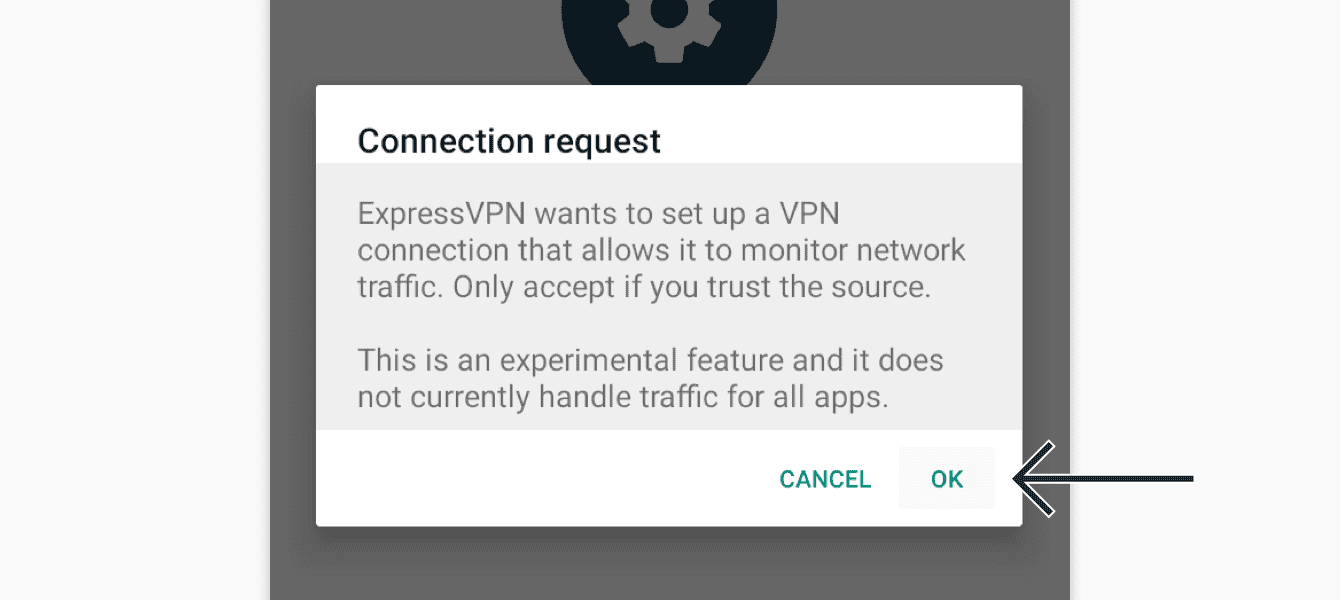
Now, let’s get started with the setup process. First, you’ll need to download and install the ExpressVPN Chrome extension from the Chrome Web Store. Once the extension is installed, click on the ExpressVPN icon in the top-right corner of your Chrome browser. This will open up the ExpressVPN app interface where you can connect to the VPN server of your choice.
ExpressVPN offers a large selection of server locations, so you can switch between different locations to access geo-restricted content or enhance your browsing speed. By using ExpressVPN’s split tunneling feature, you can even choose which websites or apps go through the VPN connection and which ones don’t. This can be useful if you want to save bandwidth or use specific services that don’t work with VPNs.
With ExpressVPN, you can also enjoy smooth and fast torrent downloads on your Chromebook. ExpressVPN supports the most popular torrent protocols and provides optimized servers for torrenting. This ensures that your torrenting needs are met without compromising your privacy or online security.
ExpressVPN also offers additional features and protocols for users who want to customize their VPN experience. For example, if you prefer a fast and secure connection, you can choose the Lightway protocol. If you want the highest level of encryption, you can opt for the OpenVPN protocol. ExpressVPN also provides setup instructions for using the VPN on other platforms such as Android, routers, and more.
In conclusion, setting up and using ExpressVPN on your Chromebook is a simple and effective way to protect your online privacy, access geo-restricted content, and enjoy a fast and secure internet connection. Whether you’re using your Chromebook for work, entertainment, or browsing, ExpressVPN’s strong encryption and multiple server connections will keep your data safe and your browsing sessions secure.
Step-by-Step Guide to Set Up and Use ExpressVPN on Chromebook
Coverage: ExpressVPN offers a wide coverage with servers located all around the world. This ensures that you can access their service and navigate online easily, no matter where you are.
Main Features: ExpressVPN provides top-notch security and protection for your browsing experience. With its reliable and smooth connections, you will never have to worry about interruptions or cyberghosts getting access to your data.
Setting Up: Setting up ExpressVPN on your Chromebook is a simple process. First, visit the Chrome Web Store and search for ExpressVPN. Install the app and launch it.
Choosing a Methodology: ExpressVPN offers two main methods for connecting to their servers: OpenVPN UDP and L2TP/IPSec. Choose the one that suits your needs the best.
Connecting: Once you have selected your preferred protocol, simply click on the country or location you want to connect to. ExpressVPN will automatically connect you to the best server available.
Accessing Content: With ExpressVPN, you can easily access popular streaming services like Netflix, Hulu, and BBC iPlayer. Enjoy your favorite shows and movies without any interruptions or geo-restrictions.
Leaks Protection: ExpressVPN guarantees that your browsing activities will remain hidden and secure. Their strict no-logs policy ensures that no information about your online activities is stored or leaked.
ProtonVPN: ExpressVPN’s partnership with ProtonVPN ensures that you have the most reliable and secure connections on your Chromebook, protecting you from any vulnerabilities.
Support and Help: If you ever run into any issues or have any questions, ExpressVPN provides excellent customer support. Their FAQs and live chat support will help you resolve any problems you may encounter.
Deals and Offers: ExpressVPN often offers deals and discounts on their service, so be sure to check their website regularly to take advantage of any special offers.
Now you know how to set up and use ExpressVPN on your Chromebook. Enjoy a secure and private browsing experience, no matter where you are in the world!
Check Chromebook Compatibility
If you want to use ExpressVPN on your Chromebook, the first thing you need to do is check its compatibility. Not all Chromebooks support the necessary protocols to activate a VPN connection. But don’t worry, ExpressVPN has a specialized app that works with Chromebooks.
ExpressVPN provides a native Chromebook app that is specifically designed to ensure maximum compatibility and protection. This app uses advanced technology to bypass network restrictions and keep your online activities private and secure.
To check if your Chromebook is compatible, you can visit the ExpressVPN website or browse through forums like Reddit, where users often discuss Chromebook compatibility. You can also reach out to ExpressVPN support for more information.
If your Chromebook is compatible with ExpressVPN, you can easily download and install the app from the Google Play Store or the Chrome Web Store. The installation process is straightforward and takes only a few minutes. Once installed, you can launch the app from the app menu and open the file to set it up.
ExpressVPN offers a range of security features to ensure that your connections are always protected. The app uses a zero-logging policy, meaning it doesn’t keep any records of your online activities. It also offers a kill switch feature that will automatically disconnect your internet connection if the VPN connection drops, keeping your data safe from any potential attacks.
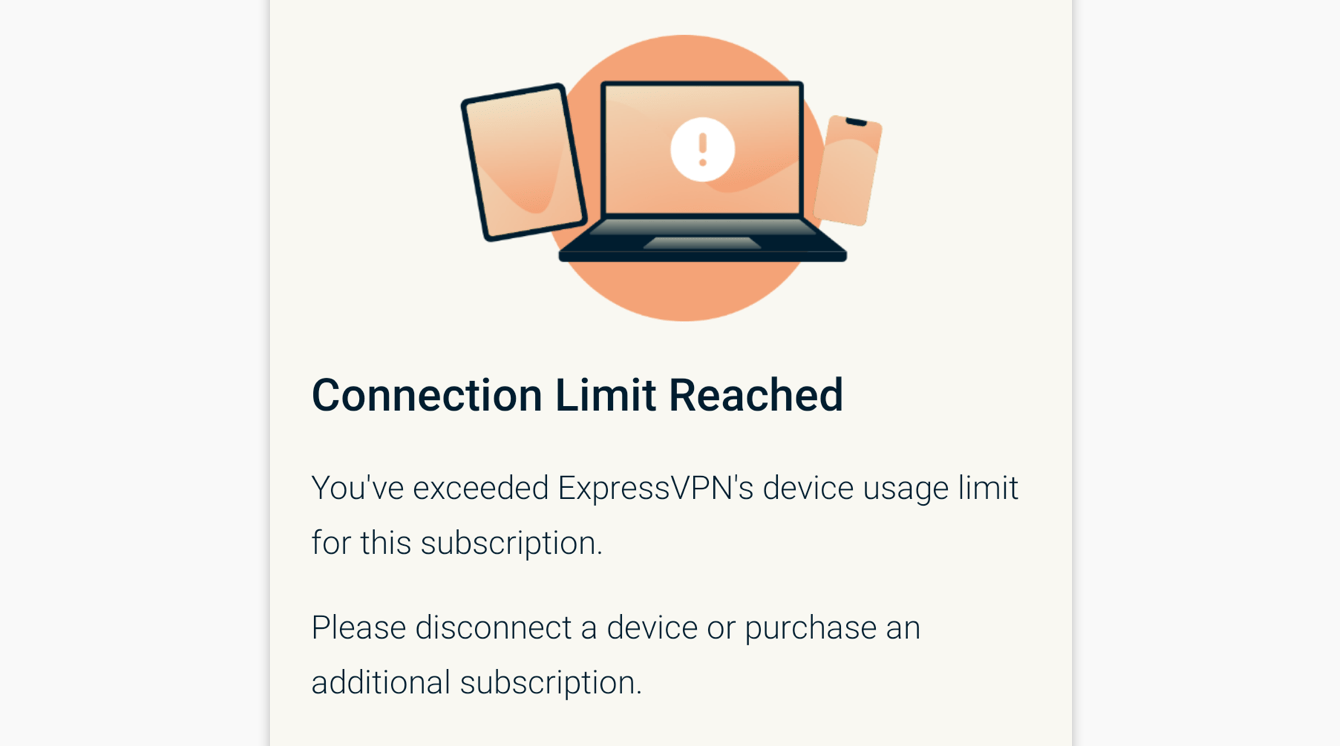
With ExpressVPN, you can enjoy a reliable and fast VPN connection while using your Chromebook. The app allows for up to 6 to 8 simultaneous connections, so you can keep all your devices protected. It also offers split tunneling capabilities, where you can choose which apps or websites go through the VPN and which ones bypass it.
Whether you’re browsing the web, streaming your favorite shows on Netflix, or downloading files, ExpressVPN will ensure that your data is encrypted and your online activities remain private. You can enjoy unrestricted access to websites like Amazon, Netflix, Vudu, and more without any limitations or interruptions.
Sign Up for ExpressVPN

Signing up for ExpressVPN is a simple and straightforward process that will have you up and running in no time. With ExpressVPN, you can switch between over 3000 servers in 94 countries, ensuring a reliable and secure internet connection.
Why Sign Up for ExpressVPN?
ExpressVPN offers a range of features that make it the ideal choice for Chromebook users. Not only does it allow you to bypass online censorship and access geo-restricted content, but it also keeps your online activity private and protected with its strong encryption.
ExpressVPN is also compatible with popular streaming services like Netflix, Hulu, and Amazon Prime Video, allowing you to watch your favorite shows and movies without any interruptions. Plus, it works with smart TVs and gaming consoles, so you can enjoy a seamless streaming experience on any device.
Setting Up ExpressVPN on Chromebook
To set up ExpressVPN on your Chromebook, simply activate the native L2TP/IPsec protocol. ExpressVPN provides step-by-step instructions on how to manually set up the VPN connection, ensuring that every device on your network is protected.
Once set up, you can enjoy simultaneous connections on up to 5 devices, meaning you can secure your Chromebook, phone, and tablet all at the same time. And with ExpressVPN’s reliable server network, you can browse the internet, stream videos, and torrent files worry-free.
Sign Up for ExpressVPN and Save
Signing up for ExpressVPN is a great investment in your online security and privacy. With a 30-day money-back guarantee and a discount for an annual plan, you can try out ExpressVPN risk-free and enjoy its full range of features.
Don’t just take our word for it – ExpressVPN is highly recommended by users on Reddit and has been rated as one of the most popular and reliable VPN services available. So why wait? Sign up for ExpressVPN today and experience a safer and more secure online experience on your Chromebook.
Download ExpressVPN App from the Chrome Web Store
When it comes to securing your online activities and keeping your personal information private, using a virtual private network (VPN) is a smart choice. With ExpressVPN, you can enjoy a secure and private browsing experience on your Chromebook.
To get started, the first step is to download the ExpressVPN app from the Chrome Web Store. Just search for “ExpressVPN” and click on the “Add to Chrome” button. The app is easy to install and only takes a few moments.
Once you’ve installed the ExpressVPN app, you can launch it from the corner of your screen. Upon launching, you will be prompted to enter your ExpressVPN password. This ensures that only you can connect to the VPN and access your private network.
After entering your password, the ExpressVPN app will open, and you can choose from a selection of global VPN servers. ExpressVPN has a large network of servers, so you can always find a reliable and fast connection no matter where you are. Plus, you can easily switch between servers if you need to.
ExpressVPN offers a variety of protocols to choose from, including OpenVPN, which is known for its strong security and reliable connections. You can select the protocol that works best for you and enjoy a seamless browsing experience with minimum interruptions.
With ExpressVPN’s zero-logging policy, you can rest assured that your online activities are not being monitored or stored. This means that even if hackers or nosy networks try to intercept your data, they won’t find anything valuable.
Once you’re all set up, you can start browsing the web with peace of mind. ExpressVPN shields your IP address, so you can bypass geo-restrictions and access streaming services like Netflix, Disney+, and more. Plus, ExpressVPN works on Android devices, so you can enjoy a secure connection on your phone or tablet as well.
In conclusion, ExpressVPN is a powerful and easy-to-use VPN app that provides maximum security and privacy for your Chromebook. By following this step-by-step guide, you can quickly set up and start using ExpressVPN to watch, stream, and browse the web privately and securely from anywhere in the world.
Launch and Log In to ExpressVPN
Once you have installed ExpressVPN on your Chromebook, you can easily launch the app and log in to start using it.
To launch ExpressVPN, click on the app icon located in the bottom-right corner of your screen. It is represented by a green checkmark inside a shield.
After launching the app, you will be prompted to log in to your ExpressVPN account. If you don’t have an account yet, you can sign up for one on their website. Once you have entered your login credentials, click on the “Sign In” button to proceed.
ExpressVPN offers a range of security protocols to choose from, including OpenVPN UDP, OpenVPN TCP, Lightway, and IKEv2. By default, the app will select the best protocol for your connection. However, if you prefer to use a specific protocol, you can change it in the settings.
After logging in and selecting your preferred protocol, you are now ready to connect to a VPN server. ExpressVPN has a large network of servers in various countries around the world. You can choose a server location by clicking on the “Choose Location” button and selecting a country from the list. There are also additional features such as a speed test and a favorite servers list to help you find the best server for your needs.
To connect to a server, simply click on the “On/Off” button. The app will establish a secure connection, encrypting your internet traffic and ensuring your privacy and security while browsing the web.
If you’re looking to access content that is restricted in your country or region, ExpressVPN can help you bypass those restrictions. Just connect to a server in a country where the content is available, and you will be able to enjoy it without any interruptions.
For those who like to torrent, ExpressVPN’s service allows you to download and share files privately—and it’s compatible with popular torrent clients. Just connect to a server that supports P2P traffic, and you’re good to go.
ExpressVPN also offers a feature called “Split Tunneling” which lets you choose which apps should use the VPN connection and which apps should bypass it. This can be useful when you want to access both local and foreign content simultaneously.
Overall, ExpressVPN is one of the most popular VPNs for Chromebook users. Its easy-to-use interface, wide range of server locations, strong security protocols, and fast speeds make it an excellent choice for ensuring your privacy and security while using your Chromebook.
Connect to a Server Location
Once you have installed ExpressVPN on your Chromebook, it’s time to connect to a server location. With ExpressVPN, you have access to a wide range of servers located in different countries around the world.
To connect to a server location, simply click on the large power button in the center of the ExpressVPN interface. This will activate the VPN and establish a private and secure connection.
ExpressVPN offers a variety of protocols to choose from, including OpenVPN, L2TP, and PPTP. You can easily switch between protocols to find the one that works best for you. It’s important to note that not all protocols are compatible with all server locations, so make sure to do your research and choose the best option for your needs.
ExpressVPN’s global server coverage ensures that you can connect to a server location anywhere in the world. Whether you want to watch your favorite streaming services like Netflix, Disney+, or Vudu, or browse the internet privately and securely, ExpressVPN has you covered.
If you’re looking for a smooth and fast connection, ExpressVPN’s servers are equipped with blazing-fast speeds that can handle even long-distance connections. This means you can enjoy a lag-free gaming experience or stream high-quality content without any buffering.
ExpressVPN also offers a split tunneling feature, which allows you to selectively route certain apps or websites through the VPN while keeping others on your regular network. This can be useful if you want to save bandwidth or access local content that is only available in your country.
ExpressVPN takes your privacy and security seriously. Their strict no-logs policy ensures that your online activities remain private and protected. ExpressVPN also utilizes advanced encryption to secure your data and protect it from hackers or other third parties.
Finally, if you ever need help or have any questions, ExpressVPN has a comprehensive support center with FAQs, guides, and troubleshooting resources. Their customer support team is available 24/7 to assist you with any issues you may encounter.
With ExpressVPN, you can browse the internet with confidence, knowing that your data is protected and your privacy is secure. Don’t risk using a vulnerable network when you can easily activate ExpressVPN and enjoy a risk-free browsing experience.
Configure Advanced Settings
Once you have installed and activated the ExpressVPN app on your Chromebook, you can take advantage of its advanced settings to further customize your VPN experience.
1. Choose your preferred protocol
ExpressVPN offers various protocols such as OpenVPN UDP, OpenVPN TCP, L2TP/IPSec, and more. Each protocol has its own merits in terms of speed, security, and compatibility. Check the ExpressVPN website or contact their customer support to determine which protocol is best for your needs.
2. Enable the kill switch feature
The kill switch feature is an important security measure that ensures your internet connection is automatically severed if the VPN connection drops for any reason. This prevents any data or activity from leaking outside of the VPN tunnel and keeps your online identity protected.
3. Split tunneling for selective routing
With split tunneling, you have the option to choose which apps or websites should bypass the VPN connection and use your regular internet connection. This can be useful if you want to access local services, such as streaming platforms like Amazon Prime or Showtime, while still protecting your browsing activities.
4. Connect to specialized servers
ExpressVPN offers specialized servers optimized for certain activities, such as streaming, gaming, or torrenting. By connecting to these servers, you can enjoy better performance and faster speeds for specific purposes.
5. Use browser extensions for added convenience
ExpressVPN also offers browser extensions for Chromebook users. These extensions provide a streamlined way to connect to VPN servers directly from your browser, without having to open the main app. They offer an easy way to protect your browsing activities with just a few clicks.
6. Update and ensure maximum security
It is important to regularly update the ExpressVPN app to ensure that you have the latest security features and bug fixes. ExpressVPN frequently releases updates to enhance the user experience and address any vulnerabilities that may arise.
By configuring these advanced settings, you can tailor the ExpressVPN experience to your specific needs and enjoy a secure and reliable VPN connection on your Chromebook. Remember to keep your ExpressVPN account details secure and take advantage of the tested servers to enjoy the best performance on your devices.
Enable Split Tunneling (Optional)
If you want to take full control over your network setup and decide which apps or websites use the ExpressVPN tunnel, you can enable split tunneling. This feature allows you to choose which apps or websites are routed through the VPN server and which ones have direct access to the internet.
To enable split tunneling, simply follow the steps below:
- Open the ExpressVPN app on your Chromebook.
- Click on the Menu icon in the top-left corner.
- Select “Options” from the menu.
- Under the “Split Tunneling” section, click on “Manage apps”.
- This will show you a list of all the apps installed on your Chromebook.
- You can then easily toggle each app on or off to decide whether it should use the VPN or not.
- Once you’ve made your selections, click “Save” to apply the changes.
With split tunneling enabled, you can now ensure that specific apps or websites of your choice can bypass the VPN tunnel. This can be helpful if you want to access local services that may not work with VPN, such as streaming platforms like Showtime or Disney+ that have geographical restrictions.
It’s important to note that while split tunneling can provide greater flexibility and convenience, it may compromise the security and privacy benefits of using a VPN. By allowing some apps or websites to bypass the VPN, you are exposing your IP address and online activities to the prying eyes of your ISP or other parties. Make sure to carefully choose which apps or websites you allow to bypass the VPN, and always prioritize your security and privacy.
Test the VPN Connection
After completing the setup, it’s important to test the VPN connection on your Chromebook to ensure that it’s working properly. Here are some easy steps to follow:
- Open the ExpressVPN app on your Chromebook.
- In the main menu, click on the “On/Off” button to connect to the VPN.
- Once connected, you will see a summary of your connection in the app.
- Verify that your IP address has changed to one of ExpressVPN’s servers.
- Go to a website that shows your IP address and verify that it matches with the server you selected.
- Try accessing geo-restricted content, such as streaming services like Netflix, Hulu, or BBC, to ensure that you can bypass location restrictions.
- If you encounter any issues, refer to ExpressVPN’s troubleshooting guides or contact their customer support for assistance.
Testing the VPN connection is crucial to ensure that your online activities are secure and private. By verifying that your IP address has changed and that you are able to access geo-restricted content, you can be confident that ExpressVPN is providing you with a reliable and effective VPN service.
Use ExpressVPN on Chromebook
ExpressVPN is one of the most reliable and trusted VPN services for Chromebook. With ExpressVPN, you can protect your online privacy, access geo-restricted content, and browse the internet securely.
Setting up and using ExpressVPN on your Chromebook is a straightforward process. Follow the step-by-step guide below to get started:
Step 1: Installation
- Go to the Chrome Web Store and search for ExpressVPN.
- Click on the “Add to Chrome” button to start the installation.
Step 2: Sign In
Once the installation is complete, click on the ExpressVPN extension icon in the top-right corner of your Chromebook screen. Sign in using your ExpressVPN username and password.
Step 3: Choose a Server
Click on the large “Connect” button to automatically connect to the fastest server available. Alternatively, you can manually choose a server from the menu to access content from a specific country or service.
Step 4: Connect and Enjoy
After connecting to a server, ExpressVPN will shield your IP address and encrypt your internet traffic, ensuring a high-speed and secure online experience. You can now browse the internet, stream your favorite shows on Hulu or Netflix, and download torrents without worrying about any limitations or reduced speeds.
Step 5: Keep ExpressVPN Updated
ExpressVPN regularly releases updates to ensure the best performance and security. To avoid any errors or vulnerabilities, it is important to keep your ExpressVPN extension up to date. Simply navigate to the Chrome Web Store, search for ExpressVPN, and click on the “Update” button to install the latest version.
By following these simple steps, you can use ExpressVPN on your Chromebook and enjoy a worry-free online experience. Whether you want to bypass geo-restrictions, protect your privacy, or ensure a high-speed connection, ExpressVPN has got you covered.
Troubleshooting ExpressVPN on Chromebook
If you are experiencing any issues while using ExpressVPN on your Chromebook, there are a few troubleshooting steps you can follow to ensure a smooth and secure VPN experience.
Check Your Internet Connection
The first step is to check your internet connection. Sometimes a weak or unstable connection can cause the VPN to not work properly. Make sure you are connected to a stable and reliable internet network before trying to use ExpressVPN.
Update the ExpressVPN App
Another common issue is using an outdated version of the ExpressVPN app. Make sure to regularly update the app to ensure you have the latest bug fixes and security enhancements.
Switch Server Locations
If you are unable to connect to a specific server location, try switching to a different server. The server you are trying to connect to may be experiencing high traffic or technical difficulties.
Disable VPN Split Tunneling
Split tunneling allows you to choose which apps or websites use the VPN connection and which ones bypass it. If you have enabled split tunneling and are experiencing issues, try disabling it to see if that resolves the problem.
Clear Cache and Cookies
Clearing your browser’s cache and cookies can help resolve any issues related to website compatibility or loading. Go to your Chromebook’s settings and clear the cache and cookies for a fresh browsing experience with ExpressVPN.
Contact ExpressVPN Support
If none of the above steps helped resolve your issue, it’s best to reach out to ExpressVPN’s support team for personalized assistance. They have a team of experts who can guide you through any troubleshooting steps specific to your Chromebook and network setup.
By following these troubleshooting steps, you can ensure that your ExpressVPN on Chromebook experience is free from any technical glitches and vulnerabilities, providing you with a safer and more secure internet browsing experience.
Advantages of Using ExpressVPN on Chromebook
When it comes to browsing the web securely and privately, using a VPN is a wise choice. And when it comes to VPNs, ExpressVPN is a top contender. It offers a range of advantages for Chromebook users that make it an excellent option for protecting your online activities.
High-Speed Connections
ExpressVPN provides fast and reliable connections, ensuring that you can browse, stream, and download without any issues. With their extensive global server network, you have the freedom to choose a server location that works best for you. Whether you’re researching, working, or simply exploring the world online, ExpressVPN keeps your connection fast and stable.
Easy-to-Use Setup
Setting up ExpressVPN on your Chromebook is a breeze. All you need to do is install the app from the Chrome Web Store and follow a few simple steps. Once installed, you can launch the app, choose a server location, and connect with just a click. ExpressVPN offers an intuitive interface that even beginners can navigate effortlessly.
Secure and Private Browsing
With ExpressVPN, your online activities are kept private and secure. It encrypts your internet traffic, preventing anyone from intercepting your data. Whether you’re connected to a public Wi-Fi network or conducting sensitive research, ExpressVPN ensures that your information remains protected. It also masks your IP address, making it difficult for anyone to trace your online activities back to you.
Bypass Geo-Restrictions
ExpressVPN allows you to bypass geo-restrictions and access content from anywhere in the world. Whether you want to watch your favorite shows on streaming platforms like Netflix, DAZN, or Vudu, or access websites that are blocked in your country, ExpressVPN has got you covered. Their extensive server network ensures that you can connect to a server in the desired location and enjoy unrestricted access.
Kill Switch and Split Tunneling
ExpressVPN offers advanced features like a kill switch and split tunneling. The kill switch ensures that your connection is immediately stopped if the VPN connection drops, preventing any data leaks. Split tunneling allows you to choose which apps or websites use the VPN, providing you with more control over your online activities.
In summary, ExpressVPN provides high-speed, secure, and easy-to-use VPN service for Chromebook users. With its global server network, bypassing geo-restrictions becomes a breeze. Whether you want to keep your online activities private or access content from anywhere in the world, ExpressVPN is the perfect choice for Chromebook users.
Frequently Asked Questions

1. How do I set up ExpressVPN on my Chromebook?
To set up ExpressVPN on your Chromebook, follow these simple steps:
- Download the ExpressVPN app from the Google Play Store.
- Open the app and sign in with your ExpressVPN credentials.
- Select a server location and click “Connect”.
2. Are there any errors I should know about?
If you encounter any errors while setting up or using ExpressVPN on your Chromebook, try the following troubleshooting steps:
- Restart your Chromebook.
- Update your Chrome OS to the latest version.
- Uninstall and reinstall the ExpressVPN app.
- Contact ExpressVPN support for further assistance.
3. Can ExpressVPN guarantee my privacy?
ExpressVPN is committed to protecting your privacy. It uses advanced security features like encryption and zero-logging to ensure your online activities remain private.
4. How does ExpressVPN work for unblocking websites?
ExpressVPN allows you to bypass geo-restrictions and access blocked websites by hiding your IP address and connecting you to a server in a different location. This makes it appear as if you are accessing the internet from that location, allowing you to unblock content.
5. Can I use ExpressVPN on multiple devices?
Yes, ExpressVPN allows you to connect up to 5 devices simultaneously using a single account. This means you can use ExpressVPN on your Chromebook, smartphone, tablet, and more.
6. Are there alternative VPN services for Chromebook?
Yes, besides ExpressVPN, there are other VPN services that work well with Chromebook. Some popular alternatives include PrivateVPN, NordVPN, ProtonVPN, and IPVanish.
7. How can I save on ExpressVPN?
If you want to save money on ExpressVPN, you can use coupon codes or take advantage of special offers available on their website. Additionally, subscribing to the annual plan instead of the monthly plan can save you money in the long run.
8. Can I use a VPN extension on my Chromebook?
Yes, there are VPN extensions available for Chromebook. Some popular options include ZenMate, Hotspot Shield, and Windscribe.
9. Is it possible to set up a VPN on my Chromebook without using an app?
Yes, it is possible to set up a VPN on your Chromebook without using an app. One method involves configuring a VPN on your router and connecting your Chromebook to that network. Another method is to manually configure a VPN connection on your Chromebook using the settings menu.
10. How do I know if ExpressVPN is working?
To check if ExpressVPN is working on your Chromebook, you can visit a website that displays your IP address, such as “https://whatismyipaddress.com/”. If the IP address shown is different from your actual IP address, then ExpressVPN is working correctly.
Additional Tips for Using ExpressVPN on Chromebook
If you have a Chromebook and want to ensure your online activities remain protected, here’s a step-by-step guide on setting up and using ExpressVPN. In addition to the basic setup, there are a few additional tips to help you make the most of this VPN service on your Chromebook.
1. Take Advantage of Multiple Device Connections
ExpressVPN allows you to simultaneously connect multiple devices to the VPN, so make sure to take advantage of this feature. It’s a great way to protect all your devices, from your Chromebook to your router, ensuring that every connection you make is shielded and secure.
2. Check for Updated Server Locations
ExpressVPN regularly updates its server locations to provide users with the best and fastest connections around the world. To ensure you’re always using the most optimal server, check for updated server locations within the app. This will help you enjoy a smooth and fast browsing experience on your Chromebook.
3. Bypass Restrictions with Manual Configuration
If you encounter any restrictions while using ExpressVPN on your Chromebook, you can try manually configuring the VPN settings. ExpressVPN offers detailed instructions on their website to guide you through the process, allowing you to bypass any limitations and access the content you want with ease.
4. Try Other VPN Services
While ExpressVPN is a popular and strong VPN service, it’s always a good idea to explore other options for maximum flexibility. Services like ZenMate and ProtonVPN offer similar features and can easily be installed on your Chromebook. Don’t limit yourself to just one VPN service – try a few and find the one that best suits your needs.
Short on Time? Use the Chrome Extension
If you’re in a rush and don’t have time for a full installation, ExpressVPN also offers a convenient Chrome extension. With this extension, you can easily activate and use the VPN service directly from your Chrome browser. It’s a quick and efficient way to enjoy a secure and private browsing experience in seconds.
Protect Your Corner of the Internet
ExpressVPN provides a zero-logging policy, meaning your online activities are not tracked or recorded. This ensures that your corner of the internet remains private and protected. So go ahead and enjoy your gaming, streaming, or browsing sessions on your Chromebook without worrying about your security.
In conclusion, with ExpressVPN on your Chromebook, you can navigate the online world with confidence. By following these additional tips and using the full potential of ExpressVPN, you’ll have a fast, secure, and flexible VPN service at your fingertips.
Comparison: ExpressVPN vs. Other VPN Providers
When it comes to VPN providers, ExpressVPN stands out from the crowd for several reasons. One of the key differentiators is that ExpressVPN is self-owned and operates its own network. Unlike other VPN providers that rely on third-party services, ExpressVPN ensures a higher level of control and security over its network.
In terms of speed and performance, ExpressVPN excels. With its advanced protocols and global network of servers, ExpressVPN provides fast and reliable connections, allowing users to stream, torrent, and browse online without any delays or interruptions. In fact, it is often regarded as one of the fastest VPNs in the market.
ExpressVPN also offers a wide range of compatibility, supporting various devices and operating systems including Chromebooks, Linux, and Android. This allows users to enjoy a secure and private online experience on any device, whether it’s a laptop, smartphone, or tablet.
When it comes to security and privacy, ExpressVPN has proven itself to be highly reliable. It uses industry-standard encryption and offers advanced features such as a kill switch, which ensures that your internet connection is severed if the VPN connection drops, preventing any accidental exposure of your real IP address.
While some VPN providers may offer discounts or promotions, it’s important to consider the overall value and quality of the service. ExpressVPN has a reputation for providing exceptional customer support, with 24/7 live chat assistance and a 30-day money-back guarantee to ensure customer satisfaction.
In conclusion, ExpressVPN stands out from other VPN providers with its self-owned and secure network, fast and reliable connections, advanced security features, and excellent customer support. Whether you’re looking to access geo-restricted content, protect your privacy, or secure your online activities, ExpressVPN is a top choice that will provide a seamless and secure browsing experience.
Step-by-Step Guide to Set Up and Use Norton Secure VPN on Chromebook
When it comes to securing your online activities, Norton Secure VPN is a great choice. In this guide, we will walk you through the step-by-step process of setting up and using Norton Secure VPN on your Chromebook.
Step 1: Install Norton Secure VPN
To get started, go to the Chrome Web Store and search for Norton Secure VPN. Once you find it, click on “Add to Chrome” to install the VPN extension.
Step 2: Launch Norton Secure VPN
After the installation is complete, you can find the Norton Secure VPN icon in the top-right corner of your Chrome browser. Click on the icon to open the VPN menu.
Step 3: Sign in to your Norton account
If you already have a Norton account, sign in with your credentials. If not, you can create a new account directly from the Norton Secure VPN menu.
Step 4: Choose a server location
Once you’re signed in, you can choose your preferred server location from a list of available options. Norton Secure VPN has a large number of servers in various locations, ensuring fast and reliable connections.
Step 5: Enable VPN protection
After choosing a server location, simply click the “Connect” button to enable VPN protection. Norton Secure VPN uses advanced encryption technology to secure your internet connections and protect your privacy.
Step 6: Enjoy secure and private browsing
Once the VPN is connected, you can now enjoy secure and private browsing on your Chromebook. Norton Secure VPN will shield your online activities from hackers and bypass any content restrictions.
In conclusion, Norton Secure VPN is a reliable VPN solution that supports Chromebook. By following these easy steps, you can set up and use Norton Secure VPN to ensure a risk-free and smooth online experience anywhere you go.
Вопрос-ответ:
Can I use ExpressVPN on my Chromebook?
Yes, you can use ExpressVPN on your Chromebook. ExpressVPN offers a dedicated app for Chromebook on the Google Play Store.
How do I set up ExpressVPN on my Chromebook?
To set up ExpressVPN on your Chromebook, you need to download and install the ExpressVPN app from the Google Play Store. Once installed, log in to your ExpressVPN account and connect to a server location of your choice.
Do I need to have a subscription to ExpressVPN to use it on my Chromebook?
Yes, you need a subscription to ExpressVPN in order to use it on your Chromebook. ExpressVPN offers different subscription plans that you can choose from.
What are the benefits of using ExpressVPN on a Chromebook?
Using ExpressVPN on a Chromebook provides several benefits. It encrypts your internet traffic, ensuring your online privacy and security. It also allows you to bypass geographical restrictions by masking your IP address and providing access to geo-blocked content. Additionally, ExpressVPN offers fast connection speeds and a wide range of server locations to choose from.
Can I use ExpressVPN on multiple devices, including my Chromebook?
Yes, ExpressVPN allows you to use their service on multiple devices, including your Chromebook. You can install and use ExpressVPN on up to five devices simultaneously.
Is ExpressVPN compatible with all models of Chromebooks?
ExpressVPN is compatible with most models of Chromebooks. However, it is always recommended to check the system requirements and compatibility information on the ExpressVPN website or contact their customer support for clarification.
How can I troubleshoot any issues I may encounter when using ExpressVPN on my Chromebook?
If you encounter any issues when using ExpressVPN on your Chromebook, you can try the following troubleshooting steps: 1. Ensure that you have a stable internet connection. 2. Restart your Chromebook and the ExpressVPN app. 3. Update the ExpressVPN app to the latest version. 4. Contact ExpressVPN customer support for further assistance.
Видео:
How to Use ExpressVPN on a Mac ✅ Best ExpressVPN Mac Tutorial For 2023
How to Use ExpressVPN on a Mac ✅ Best ExpressVPN Mac Tutorial For 2023 by Consumer Research Studios 6 months ago 3 minutes, 46 seconds 2,442 views
