How to Troubleshoot Internet Connection Problems Caused by ExpressVPN

If you want to use ExpressVPN and are experiencing internet connection problems, don’t worry. There are some things you can try to fix the issue and get your internet connection back up and running smoothly again.
One solution is to check the TCP and UDP ports that ExpressVPN uses. Sometimes, these ports can become congested, causing internet connectivity issues. You can try adjusting these ports to see if it solves the problem.
Another common advice is to connect to another VPN server. If one server is causing issues, try connecting to a different one. ExpressVPN has multiple servers and connecting to a different server might allow you to regain access to the internet without any problems.
If you are using ExpressVPN on a computer, you may also want to try using different software or adjusting your network settings. Sometimes, conflicting software or incorrect network settings can cause connection issues. By troubleshooting these areas, you may be able to resolve the problem.
If you are using ExpressVPN on a Mac, you can try using the “sudo” command to shut down and restart the VPN service. This can sometimes help resolve connectivity issues. For users on different operating systems such as Android or Ubuntu, there may be different troubleshooting steps you can try.
It is also worth mentioning that ExpressVPN is not the only VPN provider available. If you have tried everything and are still experiencing internet connection problems, you can try using another VPN service like NordVPN. They may have different servers and configurations that can help you get your internet connection back up and running smoothly.
Remember, if you are still having trouble connecting to the internet even without using a VPN, it is important to check for other issues such as bugs, internet connection settings, or software problems. By addressing these issues, you can ensure a stable and uninterrupted internet connection.
Is ExpressVPN Causing Internet Connection Problems? How to Check TCP and UDP Ports
If you’re experiencing issues with your internet connection after connecting to ExpressVPN, it could be due to certain TCP and UDP ports being blocked.
To check if this is the issue, the first step is to test the TCP and UDP ports being used by ExpressVPN. This can be done on both Windows and Ubuntu systems.
On Windows, you can check the ports by opening the ExpressVPN application and going to the “Options” or “Settings” page. Look for the “Connection” or “Protocol” tab, where you’ll find the TCP and UDP ports displayed.
In Ubuntu, you can check the ports by running the following command in the terminal: “sudo expressvpn preferences set network_libraries [split|mono|all]”. Replace “[split|mono|all]” with your preferred option.
If the ports are not displayed or the information doesn’t match, there might be a compatibility issue between ExpressVPN and your operating system. In this case, you could try updating ExpressVPN to the latest version or contacting their support for further assistance.
Additionally, it’s worth checking if any antivirus software or firewall settings are interfering with the ExpressVPN connection. Sometimes, these security measures can block certain ports or protocols.
If you’re still experiencing connection issues, it’s recommended to try another VPN software, such as NordVPN, to see if the problem persists. It’s also worth noting that some ISPs throttle or block VPN traffic, so contacting your internet service provider for more information could help resolve the issue.
Ultimately, if ExpressVPN doesn’t work well for you and causes persistent connectivity problems, it may be necessary to consider alternative VPN options or seek a refund if you’ve recently made a purchase.
Troubleshooting Common NordVPN Connectivity Issues
If you are experiencing connectivity issues with your NordVPN service, you are not alone. Many users encounter common problems when trying to connect or stay connected online. In this article, we will discuss some of the most common NordVPN connectivity issues and provide tips on how to troubleshoot and resolve them.
Connection Issues
One common issue with NordVPN is the inability to establish a stable connection. If you are experiencing this problem, the first thing you should do is check the status of NordVPN servers. Sometimes, certain servers may be down or experiencing issues, which can affect your connectivity. You can check the status of NordVPN servers through the NordVPN website or customer support.
If the servers are working fine and you still cannot connect, it might be worth considering switching to a different server. NordVPN has a large network of servers, and sometimes certain servers have better connectivity than others. You can switch servers through the NordVPN application by selecting a different location from the server list.
Windows Configuration
In some cases, connectivity issues with NordVPN on Windows can be caused by a misconfiguration of TCP and UDP ports. NordVPN uses both TCP and UDP ports for its tunneling functionality, and if these ports are not set up correctly, you may experience connection problems.
To check and adjust the TCP and UDP ports on Windows, you can try the following steps:
- Press the Windows key and type “cmd” to open the Command Prompt.
- Type the command “netstat -ano” and press Enter. This will display a list of open ports on your computer.
- Look for the NordVPN process in the list (it will usually have “nordvpn” in the name) and note down the corresponding port numbers.
- Open the NordVPN application and go to Settings.
- In the Settings window, click on the Advanced tab and then select TCP or UDP from the drop-down menu, depending on the port you want to adjust.
- Enter the port number you noted down earlier and click Save.
- Restart the NordVPN application and try connecting again.
Other Platforms and Applications
If you are using NordVPN on a different platform or experiencing connectivity issues with specific applications, the steps to troubleshoot may vary. It is recommended to consult NordVPN’s customer support or visit their official website for platform-specific troubleshooting tips and advice.
Additionally, it is worth noting that some applications or antivirus programs may interfere with NordVPN’s functionality. If you have recently installed any new programs or have antivirus software running, try temporarily disabling them to see if it helps resolve the connectivity issues. If the problem persists, you may need to uninstall or adjust the settings of these programs to ensure they don’t interfere with NordVPN.
In conclusion, NordVPN is a reliable VPN service, but it can encounter common connectivity issues. By following the tips and troubleshooting steps mentioned in this article, you can improve your NordVPN experience and enjoy a stable and secure internet connection across all your devices.
Understanding ExpressVPN and Internet Connection Problems
ExpressVPN is a popular virtual private network (VPN) service that offers privacy and security for internet users. However, users may sometimes experience internet connection problems when using ExpressVPN. These issues can be related to various factors and require troubleshooting to resolve.
The first step in troubleshooting is to check the TCP and UDP ports. Flushing these ports can help resolve connectivity issues. To do this, users need to login to their ExpressVPN account and go to the settings. From there, they can find the option to flush the TCP and UDP ports and click on it to execute the command. This can help to correct any issues related to these ports.
Another common issue is with Wi-Fi connectivity. Sometimes, the Wi-Fi network itself may be causing the connection problems. Users can try connecting to different networks to see if the issue persists. Additionally, it is important to check if other devices on the same Wi-Fi network are also experiencing disconnections and connectivity problems. If so, this suggests that the issue may be with the Wi-Fi network rather than ExpressVPN.
It is also worth mentioning that there can be platform-specific issues. ExpressVPN works on various platforms such as Windows, Mac, iOS, and Android. Each platform may have its own specific settings and configurations that can impact the connectivity. Users should ensure they have installed the correct version of ExpressVPN for their specific platform and follow the platform-specific troubleshooting steps if needed.
Furthermore, congestion on the internet service provider’s network can also contribute to connection problems. If there are many users accessing the internet at the same time, the traffic may overload the network, resulting in slower or unstable connectivity. Users should contact their internet service provider to check if there are any known issues or if there is a need for network optimization.
To sum up, while ExpressVPN is a reliable service, internet connection problems can still occur. Users should check the TCP and UDP ports, test different Wi-Fi networks, and consider platform-specific issues. Additionally, it is important to keep in mind that network congestion can also affect the connectivity. By troubleshooting these common issues, users can resolve their internet connection problems and enjoy safe and secure browsing.
How to Determine if ExpressVPN is Causing Internet Connection Issues
If you are experiencing internet connection issues while using ExpressVPN, here are some steps you can take to determine if the VPN is the root cause of the problem:
Check your antivirus software
Some antivirus programs have built-in firewalls that can interfere with ExpressVPN’s connection. Check your antivirus settings to ensure that ExpressVPN is allowed to connect to the internet.
Test your internet connection without ExpressVPN
If you suspect ExpressVPN is causing the issue, try accessing web pages or using other online services without the VPN. If everything works fine without ExpressVPN, it could indicate a problem with the VPN software.
Verify the notification settings on Windows
On Windows, check if any notifications appear when you connect or disconnect from ExpressVPN. These notifications may indicate that the VPN is causing connectivity problems.
Try a different VPN server
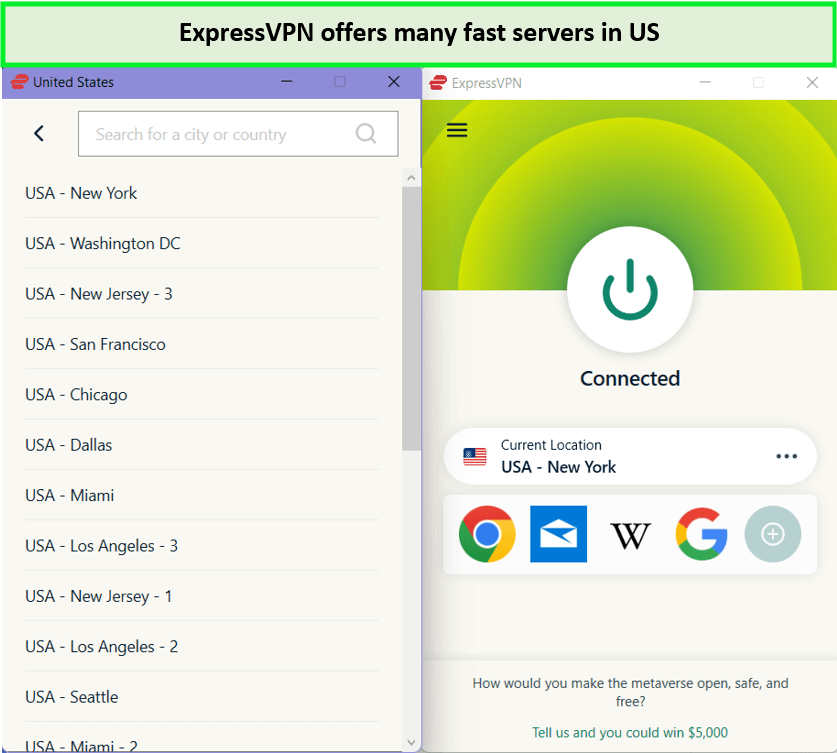
Switching to a different VPN server can help determine if the issue is specific to a particular server. Try connecting to another server and see if the problem persists.
Check your network settings
Ensure that ExpressVPN is allowed through your firewall settings and that it has the necessary permissions to access the internet. Also, check if you have any other VPN software installed that could be conflicting with ExpressVPN.
Try connecting directly to your modem or router
If you’re using Wi-Fi, try connecting your computer or device directly to the modem or router using an Ethernet cable. This can help determine if the issue is with your Wi-Fi connection or with ExpressVPN.
Reset network settings and logs
Resetting your network settings and logs can help resolve connectivity issues. You can do this by opening the Command Prompt and typing “netsh int ip resetlog.txt” (without quotes), then press enter.
Consider congestion or channel interference
If you’re experiencing slow speeds while connected to ExpressVPN, it could be due to network congestion or channel interference. You may try switching to a different channel or contacting your internet service provider for assistance.
Uninstall and reinstall ExpressVPN
If none of the above steps resolve the issue, you can try uninstalling and reinstalling ExpressVPN to ensure that you have the latest version installed on your computer.
Seek further assistance
If you’ve tried all the above steps and are still experiencing internet connection issues, it could be worth reaching out to ExpressVPN’s support team or considering a refund or purchase of another VPN. They may be able to provide further advice or troubleshoot the issue.
Checking TCP and UDP Ports for ExpressVPN
When it comes to using ExpressVPN, it’s important to ensure that your TCP and UDP ports are properly configured to avoid any internet connection problems. By checking and adjusting these ports, you can ensure that your connection remains secure and reliable.
Firstly, it’s worth mentioning that ExpressVPN is designed to protect your privacy and secure your internet connection. However, there may be situations where you experience connectivity issues, and learning how to troubleshoot these issues can be helpful.
Checking TCP and UDP Ports
ExpressVPN offers two primary protocols for its connections: TCP (Transmission Control Protocol) and UDP (User Datagram Protocol). Both of these protocols use specific ports to establish a connection with the VPN servers. To check the TCP and UDP ports for your ExpressVPN setup, follow the steps below:
- Open the ExpressVPN app on your Windows or Mac computer
- Go to the Options menu and click on the “Advanced” tab
- Under the “Protocol” section, you will see the TCP and UDP ports displayed
If you are unable to connect to the internet or experience slow speeds, checking these ports can help identify any issues with your ExpressVPN setup. If the TCP or UDP ports are not properly configured, it can affect your connection functionality.
Troubleshooting Common Issues
If you find that your TCP or UDP ports have failed or are not displaying correctly, there are a few troubleshooting steps you can take:
- Uninstall and reinstall ExpressVPN: Sometimes, reinstalling the program can help resolve any issues with the TCP and UDP ports.
- Switch to a different protocol: By switching from TCP to UDP, or vice versa, you can see if the connectivity issues persist.
- Check your internet connection: Ensure that your internet is working fine without ExpressVPN and adjust your connection settings accordingly if necessary.
- Reset your TCP and UDP ports: You can try resetting the TCP and UDP ports by following the provided instructions from ExpressVPN.
If you’ve tried the above solutions and still can’t resolve the issues, it may be worth contacting ExpressVPN support for further advice. They can provide you with specific instructions based on your operating system (Windows, Mac, Ubuntu, etc.) and version.
Remember, it’s always important to check and adjust your TCP and UDP ports to ensure that your ExpressVPN connection is working properly. If you’re still experiencing issues, it’s worth seeking assistance to get your VPN functionality back up and running smoothly.
How to Troubleshoot TCP and UDP Port Issues with ExpressVPN
If you are experiencing internet connection issues while using ExpressVPN, it may be due to TCP and UDP port compatibility problems. TCP (Transmission Control Protocol) and UDP (User Datagram Protocol) are the two main protocols used for sending and receiving data over the internet. While ExpressVPN is a safe and reliable VPN service, sometimes it can encounter port issues that may disrupt your connection.
When you connect to ExpressVPN, it automatically assigns you to a TCP or UDP port. While most of the time this process goes smoothly, there are instances when your internet service provider or network administrator may have specific settings that conflict with ExpressVPN’s default settings. When this occurs, you may experience slow or unstable internet connection.
To check if TCP or UDP ports are causing issues with ExpressVPN, follow these steps:
- Open the ExpressVPN app on your device. If you don’t have the app, download and install it from their official website.
- Login to your ExpressVPN account. If you don’t have an account yet, you can sign up for one.
- Once logged in, go to the settings or preferences section of the app.
- Look for the option to switch between TCP and UDP ports. This may be labeled as “Protocol” or “Connection Protocol.”
- Select the other port option (TCP if you are currently using UDP or vice versa) and click on it.
- Press the “Connect” button to establish a new connection using the different port.
- Monitor your internet connection to see if the issues have been resolved. If the new port doesn’t work, try switching back to the original port.
If after adjusting the port settings and trying different options, you still experience connection issues, it may be worth considering other factors that could be affecting your internet connection. It is also advised to check your network settings, router configuration, and ensure that your computer or other devices are connected to a stable Wi-Fi network.
Another piece of advice is to test ExpressVPN on different servers. Sometimes, certain servers might have issues with TCP or UDP ports, so switching to a different server can help resolve the problem. Additionally, if you are using ExpressVPN on Windows, make sure that you have the latest version of the software installed.
In some cases, errors can occur due to conflicts with other VPN services or security software installed on your device. If you have multiple VPN services or security software running concurrently, it could cause issues with ExpressVPN. Ensure that there are no conflicts and if necessary, flush DNS and reset your network settings.
For users with advanced technical skills or using Linux, you can try adjusting the network settings manually to ensure that the TCP and UDP ports are correctly configured. This may involve editing configuration files or using command-line tools to modify the port settings.
In conclusion, troubleshooting TCP and UDP port issues with ExpressVPN requires a step-by-step approach to identify and fix the problem. By trying different ports, switching servers, and checking for conflicts with other software, you can ensure a stable and secure VPN connection.
Common NordVPN Connectivity Issues and How to Solve Them
1. Unable to Connect to NordVPN
If you are experiencing difficulties connecting to NordVPN, there are several steps you can take to resolve the issue:
- Check your Wi-Fi connection: Make sure you are connected to a stable Wi-Fi network. If you encounter problems only when connecting through Wi-Fi, try using a different network or try connecting using an Ethernet cable.
- Check the NordVPN servers: Sometimes, specific NordVPN servers may experience connectivity issues. Try connecting to a different server to see if the problem persists.
- Reset your network settings: On Windows, open the Command Prompt and enter the “netsh winsock resetlog” command. On macOS, go to System Preferences > Network > Wi-Fi > Advanced > TCP/IP and click “Renew DHCP Lease”.
- Verify your NordVPN credentials: Make sure you are using the correct username and password to log in to NordVPN.
- Update NordVPN: Ensure that you have the latest version of NordVPN installed on your device. Outdated software may result in connection issues.
- Uninstall and reinstall NordVPN: If all else fails, try uninstalling NordVPN from your device and then reinstalling it. This can help resolve any software conflicts that may be causing the connectivity issues.
2. NordVPN Disconnects Frequently
If your NordVPN connection frequently disconnects, consider the following steps to address the issue:
- Switch between TCP and UDP: Open the NordVPN settings panel and toggle between TCP and UDP protocols. Some networks may perform better with one protocol over the other.
- Check firewall and antivirus settings: Ensure that NordVPN is allowed through your firewall and antivirus software. Sometimes, these security measures can interfere with the VPN connection.
- Disable other VPN-like software: If you have other VPN or proxy software installed on your device, disable or uninstall them. These programs can conflict with NordVPN and cause disconnections.
- Restart your devices: Sometimes a simple restart can fix connectivity issues. Restart your computer, router, and modem, then try connecting to NordVPN again.
- Contact NordVPN customer support: If you have tried all the above steps and are still unable to resolve the issue, reach out to NordVPN’s customer support for further assistance.
Troubleshooting NordVPN Connection Problems
If you’re experiencing connection problems with NordVPN, there are several common errors and issues that you may encounter. Learning about these issues and following the advice provided can help you resolve the problems and get your connection working properly again.
Unable to Connect
One of the most common errors when using NordVPN is being unable to establish a connection. If you’re facing this issue, first check your internet connection to ensure it’s working properly. If everything seems fine with your internet, try resetting NordVPN and connecting again.
Connection Disconnections
If you experience frequent disconnections while using NordVPN, it could be due to network bugs or congestion. To check if this is the case, try connecting to different servers or using different connection options. Additionally, make sure your NordVPN client is up to date to ensure optimal functionality.
WiFi Connectivity Issues
If you’re encountering WiFi issues specifically when NordVPN is connected, it’s possible that the VPN service is causing the problem. In this case, you can try disabling NordVPN and see if the WiFi connection improves. If the issue persists, it may be an unrelated problem with your WiFi or router.
IP Address Error
If you’re receiving an IP address error while using NordVPN, it could be due to a problem with the credentials you entered. Double-check that you’ve entered the correct username and password. If you’re still having trouble, try resetting your NordVPN credentials.
Slow Internet Connection
If you notice a significant decrease in internet speed when NordVPN is connected, it may be due to the encryption and rerouting of your traffic. This is a common trade-off for enhanced privacy and security. However, you can try connecting to different servers or using the UDP protocol instead of TCP to potentially improve speeds.
Before considering other solutions or getting in touch with customer support, it’s always a good idea to consult the NordVPN support pages or the suggested troubleshooting chapters in the NordVPN app. These resources often provide useful information and steps to resolve common connection issues.
Note that connection problems can be caused by a variety of factors, including issues with your internet service provider, hardware, or software conflicts. If you’re still unable to resolve the issue, it may be helpful to contact NordVPN support for further assistance.
Fixing Slow NordVPN Connection Issues
If you are experiencing slow internet connection while using NordVPN, there are several troubleshooting steps you can take to resolve the issue and improve your connection speed. Here are some common issues and their potential solutions:
1. Check your internet connection status
Before diving into NordVPN, make sure that your internet connection is stable and functioning properly. Check if other online services or websites are working to determine if the issue is specific to NordVPN.
2. Adjust NordVPN settings
One possible reason for slow NordVPN connection is the selection of improper ports. Try switching between TCP and UDP ports to see if it improves your connection speed. You can also test different servers to find the one that offers the best speed for your location.
3. Troubleshoot Wi-Fi congestion
If you are connected to a Wi-Fi network, other devices using the same network may be causing congestion and slowing down your internet speed. Try disconnecting or turning off other devices to see if it improves your NordVPN connectivity.
4. Disable antivirus or firewall temporarily
Sometimes, antivirus or firewall software can interfere with NordVPN’s connection. Temporarily disabling these security services can help identify if they are causing the issue. Remember to enable them again after troubleshooting.
5. Clear DNS cache and reset Winsock
In some cases, DNS cache or Winsock may become corrupted, leading to connection issues. You can clear DNS cache and reset Winsock using specific commands in Windows. This can help resolve any network-related issues.
6. Update NordVPN application
Make sure that you are using the latest version of the NordVPN application. Updating the application can address any known bugs or compatibility issues that may be causing the slow connection.
7. Contact NordVPN support
If none of the above solutions work or you are facing specific errors, it’s worth reaching out to NordVPN support. They can provide further guidance and troubleshooting steps based on your specific situation.
By following these steps, you can troubleshoot and resolve slow NordVPN connection issues, ensuring a faster and more reliable internet access while using their services.
Troubleshooting NordVPN App Connectivity Problems
If you are experiencing connectivity issues with the NordVPN app, there are several steps you can take to troubleshoot and fix the problem. Here are some tips to help you get your NordVPN app up and running smoothly:
1. Check your internet connection
Before proceeding with any troubleshooting steps, make sure your internet connection is working correctly. Try accessing other websites or using other applications to verify that your connection is stable.
2. Adjust NordVPN app settings
If you are unable to connect to NordVPN, try adjusting the settings. Open the NordVPN app and click on the settings panel. Check if any exceptions or security features are enabled that may be causing connection issues.
3. Switch between TCP and UDP ports
In some cases, switching between TCP and UDP ports can resolve connectivity issues. Try switching between these protocols to see if it improves your connection.
4. Restart NordVPN app and device
Sometimes a simple restart can fix connection problems. Close the NordVPN app and restart your device to see if it resolves the issue.
5. Reinstall NordVPN app
If all else fails, reinstalling the NordVPN app may help. Uninstall the app from your device, download the latest version from the official website, and reinstall it.
6. Contact NordVPN support
If you have tried all the troubleshooting steps and are still unable to connect to NordVPN, it may be worth contacting NordVPN support for further assistance. They can provide additional troubleshooting steps or offer a refund if the app doesn’t work correctly.
By following these steps, you can troubleshoot and fix connectivity issues with the NordVPN app, ensuring a secure and stable online connection.
Resolving NordVPN Server Connection Issues
If you’re experiencing issues with connecting to NordVPN servers, there are a few troubleshooting steps you can follow to resolve the problem.
1. Check your internet connectivity
Before connecting to NordVPN, ensure that you have a stable internet connection. If there are any disconnections or speed issues, try resetting your modem or router and then try connecting again.
2. Configure NordVPN correctly on your device
Make sure you have properly configured NordVPN on your device. Check if you have the latest version of the NordVPN app installed. If you are using a different platform, there may be platform-specific steps that need to be followed.
3. Try different NordVPN servers
If you are experiencing connection problems with a specific NordVPN server, try switching to a different server. NordVPN has a large number of servers available, so it’s worth trying a few to see if they work better for you.
4. Use the NordVPN recommended settings
Make sure you are using the recommended settings for NordVPN. These settings usually open the required TCP and UDP ports for NordVPN’s traffic.
5. Troubleshoot common errors
If you receive error messages or encounter any specific issues, visit NordVPN’s support page or contact their support team for assistance. They can guide you through troubleshooting steps or provide a solution for the problem you’re facing.
6. Switch protocols
If you’re having trouble connecting with the default protocol, try switching to a different protocol such as TCP or UDP. This can help resolve connectivity issues in some cases.
7. Reset your NordVPN settings
If all else fails, you can try resetting your NordVPN settings to their default values. This can be done within the NordVPN app or by using a command in the command prompt (for Windows) or the terminal (for Linux).
Keep in mind that NordVPN provides a 30-day money-back guarantee, so if you are unable to resolve the connection issues, you can request a refund and try a different VPN service.
How to Fix NordVPN Authentication Problems
If you are experiencing authentication problems with NordVPN, there are several steps you can take to resolve the issue and regain access to secure and private internet connections.
Verify your credentials
The first thing you should do is double-check your NordVPN account login credentials. Make sure you have entered the correct username and password. If you are unsure, try resetting your NordVPN password for a fresh start.
Check your Wi-Fi or internet connection
Having a stable and reliable internet connection is crucial to ensure NordVPN’s functionality. Verify that your Wi-Fi or ethernet connection is working properly by checking the status symbol on your device. If you are experiencing disconnections or failed connectivity, try connecting to a different network or restarting your router.
Adjust NordVPN settings
If your authentication problems persist, you might need to adjust your NordVPN settings. Make sure you have the latest version of the NordVPN app installed. Navigate to the settings menu and check if there are any specific options or exceptions set that could be causing the issue. By default, NordVPN uses OpenVPN TCP port 443 and UDP port 1194 for connections. Make sure these ports are not blocked by your firewall or router.
Try different NordVPN servers
Since some servers may experience higher loads, try connecting to a different NordVPN server to see if it resolves the authentication problem. NordVPN offers a vast network of servers worldwide, so there should be plenty of options to choose from.
Reach out to NordVPN customer support
If none of the above steps solve your authentication problems, the next best course of action is to contact NordVPN customer support. They can provide you with personalized advice and troubleshoot the issue further. NordVPN also offers a 30-day money-back guarantee, so if you are still having connectivity problems, you can ask for a refund.
Remember to always keep your NordVPN app up to date and make sure your operating system, whether it is macOS, Windows, or Linux, is also updated to the latest version. This helps ensure compatibility and security while using NordVPN to protect your online data and privacy.
Dealing with NordVPN DNS Connection Issues
If you are having trouble connecting to NordVPN and experiencing DNS connection issues, there are a few steps you can take to troubleshoot and resolve the problem.
Check Network Connectivity
First, make sure that your computer is connected to the internet. Check if other websites or applications are working properly. If you are unable to access any websites, the issue might be with your internet connection.
Reset NordVPN Client
If NordVPN is not connecting or showing any error messages, try resetting the NordVPN client. Close the application completely and then reopen it. You can also try restarting your computer for a fresh start.
Verify NordVPN Credentials
Double-check your NordVPN login credentials to ensure they are correct. If you recently changed your password or username, make sure you are entering the updated information. Incorrect credentials can prevent NordVPN from establishing a connection.
Disable Antivirus/Firewall
If you are using antivirus or firewall software, it could be blocking NordVPN’s connectivity. Temporarily disable these programs and try reconnecting to NordVPN to see if it resolves the issue.
Try Different NordVPN Servers
If you are unable to connect to a specific NordVPN server, try switching to a different one. NordVPN has multiple servers across the globe, and connecting to a different server might resolve the DNS connection problem.
Flush DNS and Renew IP
In some cases, flushing the DNS cache and renewing the IP address can help resolve DNS connection issues. Open the command prompt or terminal window and enter the appropriate commands for your operating system. For Windows, you can use the commands “ipconfig /flushdns” and “ipconfig /renew”. On Linux, you can try “sudo systemd-resolve –flush-caches” and “sudo dhclient -r”.
By following these troubleshooting steps, you should be able to resolve NordVPN DNS connection issues and regain full functionality of the service. If the problem persists, it might be worth checking NordVPN’s support forums or contacting their customer support for further assistance.
Resolving NordVPN Proxy Connection Problems
If you are experiencing connection issues with NordVPN proxy on your Windows device, there are several options you can try to troubleshoot and resolve the problem.
Check Antivirus and Firewall Settings
Make sure that your antivirus or firewall is not blocking NordVPN proxy. Some antivirus software and security tools may interfere with the connection. Try disabling them temporarily and see if the problem persists.
Try Different Protocols and Commands
NordVPN supports various protocols, including OpenVPN and IKEv2. Trying different protocols may help resolve connectivity issues. Additionally, you can try executing specific commands in the command window to reset network configurations and flush DNS cache.
Update NordVPN and Adjust Settings
Make sure you have the latest version of NordVPN installed on your device. Updating the software can often fix bugs and improve compatibility. Additionally, check NordVPN settings and adjust them if necessary to ensure a stable and secure connection.
Configure Router and Network Settings
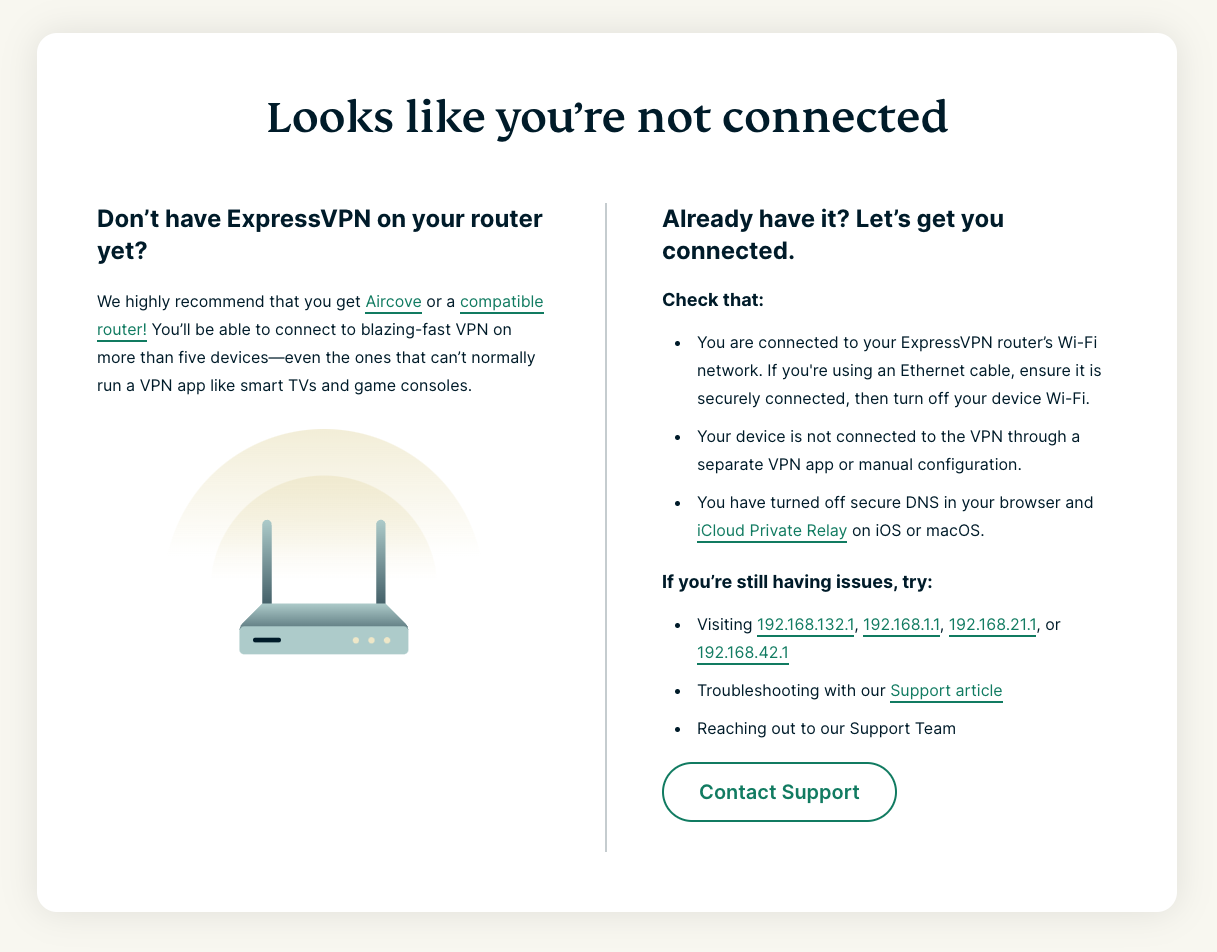
If you are unable to connect to NordVPN proxy on multiple devices, it might be worth checking your router and network settings. Make sure that the router firmware is up to date, and adjust network settings to allow NordVPN to establish a connection.
Uninstall and Reinstall NordVPN
If all else fails, and you still encounter connection issues with NordVPN proxy, consider uninstalling and reinstalling the application. This can help resolve any software related issues or conflicts that may be causing the problem.
In conclusion, when experiencing NordVPN proxy connection problems, it is essential to try different options, check antivirus and firewall settings, update the software, configure router and network settings, and consider reinstalling the application. By following these troubleshooting steps, you can ensure a secure and reliable connection when using NordVPN.
Fixing NordVPN IP Address Connectivity Issues
If you’re experiencing connectivity issues with your NordVPN IP address, there are several troubleshooting steps you can take to resolve the problem.
1. Check your internet connection
Before troubleshooting NordVPN, make sure your internet connection is stable and working properly. You can do this by trying to load a website or stream a video outside of the VPN. If you’re having trouble connecting to any website, the issue might not be related to NordVPN.
2. Verify server status
Ensure that the NordVPN server you’re trying to connect to is functioning properly. NordVPN has a list of their server statuses on their website. If a server is down or experiencing issues, it may cause connectivity problems. In this case, try connecting to a different server.
3. Adjust NordVPN settings
Within the NordVPN application, you can try adjusting settings to resolve connectivity issues. For example, you can switch between protocols like UDP and TCP, or enable the “Obfuscated Servers” feature, which can help bypass network restrictions or firewalls. Additionally, make sure your NordVPN client is up to date.
4. Reset network configuration
Sometimes, issues with NordVPN can be resolved by resetting network configurations. To do this, open a command prompt or terminal and run the appropriate command for your operating system. For Windows, the command is “ipconfig /flushdns”. For macOS and Linux-based systems, use “sudo killall -HUP mDNSResponder”.
5. Reinstall NordVPN
If other troubleshooting steps haven’t solved the issue, consider reinstalling NordVPN. This can help resolve any conflicts or corruption in the application. Make sure to download the latest version from the official NordVPN website and follow the installation instructions.
By following these steps, you should be able to troubleshoot and resolve any IP address connectivity issues with NordVPN. Remember to reach out to NordVPN’s support team if you need further assistance or encounter any persistent problems.
Understanding NordVPN Connectivity Issues on Mobile Devices
When it comes to using NordVPN on mobile devices, there can be several connectivity issues that users may encounter. It’s important to understand and troubleshoot these issues in order to ensure a smooth and secure VPN connection.
1. Internet Connection Problems
If you’re experiencing connectivity problems on your mobile device while using NordVPN, it’s worth checking your internet connection first. Make sure that your device is connected to a stable and reliable internet network. If there are any issues with your internet connection, it could affect the performance of NordVPN as well.
2. VPN Server Congestion
Another factor that can cause connectivity issues with NordVPN is server congestion. NordVPN has a large number of servers, but during peak usage times, some servers might become overcrowded. If you’re experiencing slow speeds or difficulty connecting, try switching to a different server that is less congested.
3. TCP and UDP Ports
It’s also worth checking if the TCP or UDP ports used by NordVPN are blocked on your mobile device. Some networks or firewalls may block certain ports, causing connection issues. By adjusting the port settings, you can potentially resolve these problems and establish a successful VPN connection.
4. VPN Application Configuration
The NordVPN application on mobile devices allows you to configure various settings. It’s important to ensure that you have the correct settings enabled for your specific needs. Take the time to review and adjust the application settings to optimize your VPN connection.
5. Reconnecting and Resolving Errors
If you encounter errors or issues while connecting to NordVPN on your mobile device, try reconnecting to the VPN server. Sometimes, a simple reconnect can resolve the problem. You can also check the NordVPN website or contact their support team for assistance in troubleshooting specific errors or issues.
Overall, NordVPN is a reliable and secure VPN service that works well on mobile devices. By understanding these common connectivity issues and following the suggested solutions, you can ensure a stable and uninterrupted VPN connection on your iOS or Android device.
Troubleshooting NordVPN Connection Problems on macOS
If you are experiencing connection issues with NordVPN on your macOS device, there are several troubleshooting steps you can take to resolve them. Here are some tips to help you troubleshoot and fix common NordVPN connection problems:
- Check your internet connection: Make sure your Wi-Fi or Ethernet connection is stable and working properly. Restart your router or modem if needed.
- Ensure NordVPN is up to date: Make sure you are using the latest version of NordVPN software. Update it if necessary to access the latest features and bug fixes.
- Try different NordVPN servers: Sometimes, certain servers may have issues. Switch to another server location in NordVPN and see if the problem persists.
- Check protocols and ports: NordVPN supports both TCP and UDP protocols. Try using different protocols to see if there is any improvement. Also, ensure that the necessary ports are open on your network.
- Reset NordVPN settings: In the NordVPN app, click on the gear symbol to access the settings. Click on “Advanced” and then on “Reset” to revert any changes made to the configuration.
- Disable firewall and antivirus software: Sometimes, antivirus or firewall software can block NordVPN’s connection. Temporarily disable these programs and check if the issue is resolved.
- Reinstall NordVPN: If none of the above steps work, try uninstalling and reinstalling NordVPN on your macOS device.
These troubleshooting steps should help you resolve most NordVPN connection issues on macOS. If you continue to experience problems, contact NordVPN’s customer support for further assistance.
Solving NordVPN Connectivity Issues on Windows
If you are experiencing connectivity issues with NordVPN on your Windows device, this article will provide you with troubleshooting options to help solve the problem. NordVPN is a popular VPN service that offers secure and protected internet connections. However, sometimes users may face issues connecting to the VPN on their Windows computers.
1. Check your internet connection
Before troubleshooting NordVPN, make sure you have a stable internet connection. Check if your Wi-Fi or Ethernet connection is working properly. If not, reset your router or modem and try connecting again.
2. Verify your NordVPN credentials
Ensure that you are using the correct NordVPN credentials to log in. Double-check your username and password to make sure there are no typos or mistakes.
3. Update NordVPN
Make sure you have the latest version of NordVPN installed on your Windows device. Updating the VPN software can often resolve connectivity issues by fixing bugs and improving compatibility with the operating system.
4. Switch to different VPN servers or protocols
Try connecting to a different NordVPN server or switch between different protocols (TCP or UDP) to see if the connectivity problem is solved. Some networks may have restrictions or firewall settings that could cause issues with certain VPN channels.
5. Disable conflicting security software
If you have other security software installed on your Windows device, it could be causing conflicts with NordVPN. Temporarily disable any antivirus or firewall programs and then try connecting to NordVPN again.
6. Check NordVPN’s online support resources
If the above steps do not solve your connectivity issues, visit NordVPN’s online support resources. They offer a wide range of troubleshooting advice and solutions for common problems.
7. Contact NordVPN support
If you have tried all the above steps and are still unable to connect to NordVPN, contact their customer support. They can provide further assistance and guidance specific to your issue.
By following these steps, you should be able to troubleshoot and resolve any connectivity issues you may be having with NordVPN on your Windows device. Remember to have updated software, check your internet connection, and explore the available support resources for more advice and solutions.
Вопрос-ответ:
I am using ExpressVPN on my iOS device and experiencing internet connection problems. What could be the cause?
If you are experiencing internet connection problems while using ExpressVPN on your iOS device, one possible cause could be a problem with TCP and UDP ports. It is recommended to check if the necessary ports are open and not being blocked by your network or device settings.
What are TCP and UDP ports, and why are they important for ExpressVPN?
TCP and UDP ports are communication endpoints on a network device. They are important for ExpressVPN because the app uses these ports to establish secure connections and transfer data between your device and the VPN servers. If these ports are blocked or misconfigured, it can result in internet connection problems or issues with the VPN connection.
How can I open TCP and UDP ports on my iOS device?
To open TCP and UDP ports on your iOS device, you may need to configure your device’s network or firewall settings. Unfortunately, the process may vary depending on your specific device and network setup. It is recommended to consult the user manual or contact your network administrator for assistance in opening the necessary ports.
Is it possible to fix internet connection problems caused by ExpressVPN on iOS without checking TCP and UDP ports?
While checking TCP and UDP ports is a common solution for internet connection problems caused by ExpressVPN on iOS, it is not the only possible solution. Other troubleshooting steps can include restarting your device, reinstalling the ExpressVPN app, or contacting the ExpressVPN support team for further assistance.
Why would TCP and UDP ports be blocked on my network or device?
TCP and UDP ports can be blocked on your network or device due to various reasons. Some common reasons include network security settings, firewall configurations, or restrictions imposed by your internet service provider. It is important to ensure that the necessary ports are open and not being blocked to establish a successful connection with ExpressVPN.
Видео:
ExpressVPN: A Secure Way to Access Public Wi-Fi Networks
ExpressVPN: A Secure Way to Access Public Wi-Fi Networks by Think Security 4 months ago 2 minutes, 47 seconds 587 views
