
Understanding ExpressVPNexe: Step-by-Step Guide for Configuring ExpressVPN on Windows in the USA
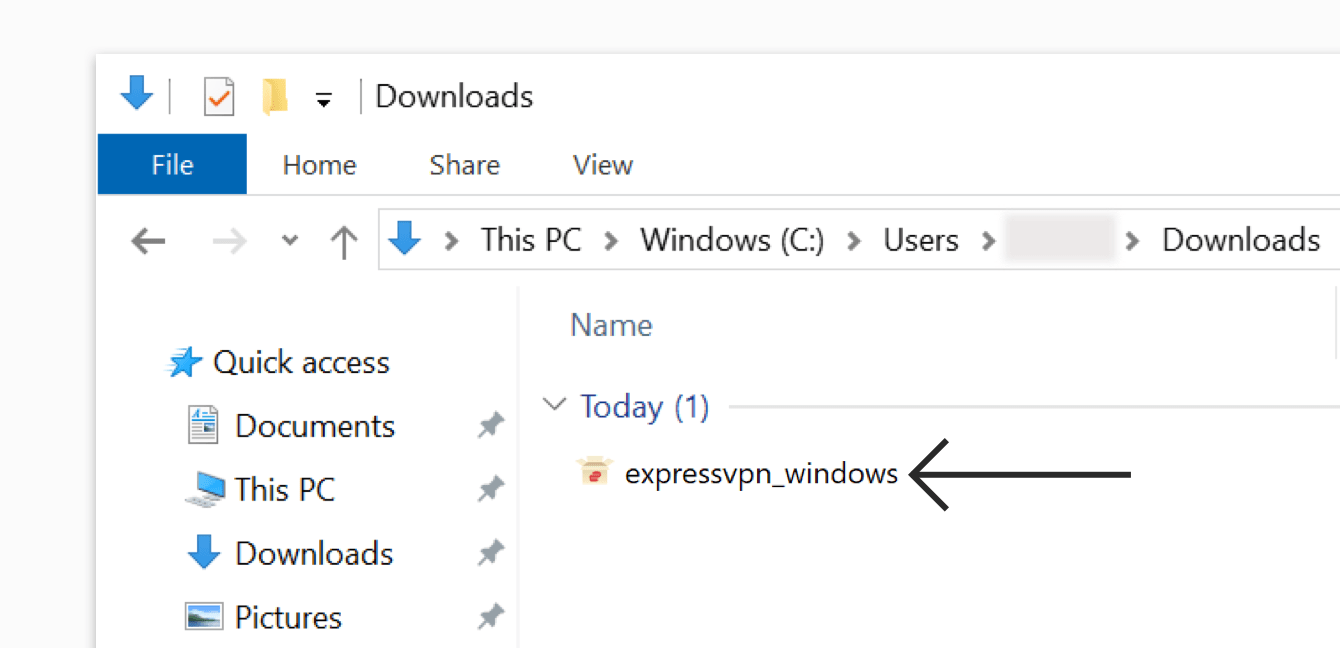
Welcome to our step-by-step guide on configuring ExpressVPN on Windows in the USA. ExpressVPN is a popular and highly regarded virtual private network (VPN) service that provides users with enhanced security and privacy while browsing the internet. In this article, we will explore the different steps required to set up ExpressVPN on your Windows device, ensuring a smooth and secure online experience.
Before we dive into the configuration process, let’s start with some background information on ExpressVPN. ExpressVPN offers a range of features to enhance your browsing experience, including a proprietary protocol called “CChocofeature” that enables faster connection speeds and improved security. With ExpressVPN, you can choose from various types of servers located across the globe, allowing you to access region-restricted content and bypass censorship.
To begin the configuration process, you will need to download and install the ExpressVPN executable file (ExpressVPNEXE) from the official website. Once the file is downloaded, simply double-click it to start the installation process. During the installation, you will be prompted to provide your username and activation code, which can be found in the confirmation email you received upon signing up for ExpressVPN.
After the installation is complete, open the ExpressVPN application and log in using your credentials. Once you are logged in, you can choose the desired server location from the available options. ExpressVPN’s self-service methodology ensures a user-friendly experience, allowing you to easily connect to the server of your choice with just a few clicks.
ExpressVPN also offers advanced security features, such as split tunneling and IPv6 leak protection, to protect your online privacy. Split tunneling allows you to choose which applications use the VPN connection, while IPv6 leak protection prevents your true IP address from being exposed. With ExpressVPN, you can browse the internet with peace of mind, knowing that your data is secure.
In conclusion, ExpressVPN is an excellent choice for users looking to enhance their online security and privacy. Its user-friendly interface, extensive server network, and advanced security features make it a top choice among VPN clients. By following the step-by-step guide provided in this article, you will be able to configure ExpressVPN on your Windows device and enjoy a fast, secure, and unrestricted internet browsing experience.
Get the app
Looking to configure ExpressVPN on Windows in the USA? The first step is to get the app, and we’ll show you how to do it. The ExpressVPN app is the baseline for accessing their secure network and ensuring your online privacy and security.
To make it simple for Windows users to download and install ExpressVPN, the company provides an official client called ExpressVPN.exe. You can download this client directly from their website.
To get the app, go to the ExpressVPN website (https://www.expressvpn.com) and navigate to the “Download” section. Here, you’ll find the option to download the app for Windows. Click on the download button to start the process. Once the app is downloaded, you can proceed with the installation.
Before launching the ExpressVPN.exe installer, make sure that your Windows environment meets the specified requirements. Ensure that you have a stable internet connection and enough free disk space. Also, check that your browser is up to date to avoid any compatibility issues.
Once you have everything in place, double-click on the ExpressVPN.exe file to start the installation process. Follow the prompts on the screen to complete the installation. After a successful installation, you can launch the ExpressVPN app from your desktop or start menu.
When you open the app for the first time, you’ll need to sign in using your ExpressVPN account credentials. If you don’t have an account, you can create one by signing up on the ExpressVPN website. Once you’re signed in, you’ll have access to all the main features of the ExpressVPN app.
ExpressVPN offers a simple and user-friendly interface, allowing you to quickly connect to their network and secure your connection. You can choose from multiple endpoints to ensure the best speed and performance. If you want to split your traffic between the VPN and your regular internet connection, ExpressVPN gives you the power to do so with their built-in split tunneling feature.
Download and install ExpressVPNexe
To start using ExpressVPN on your Windows device in the USA, you need to download and install ExpressVPNexe. Follow these steps:
- Visit the official ExpressVPN website and locate the download section.
- Click on the “Download” button to start downloading the ExpressVPNexe setup file.
- Once the file is downloaded, locate it in your computer’s downloads folder.
- Double-click on the downloaded file to start the installation process.
- Follow the on-screen instructions to complete the installation.
- After the installation is finished, launch ExpressVPNexe from your desktop or Start menu.
- If prompted, allow the necessary permissions for ExpressVPNexe to run.
- Enter your ExpressVPN account credentials to log in.
- Select your preferred server location and click on the “Connect” button to establish a secure connection.
Once you have completed these steps, ExpressVPNexe will be installed and you can start using the VPN service to protect your online privacy and browse the internet securely.
Launch ExpressVPNexe
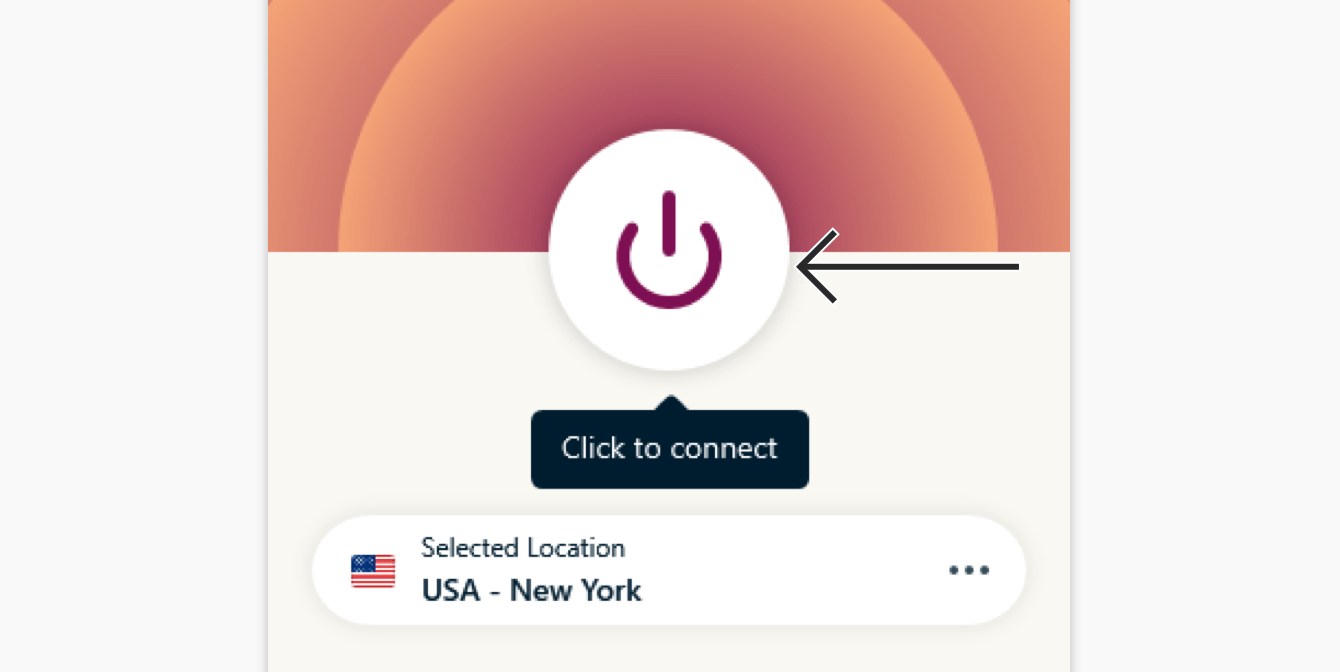
To launch ExpressVPNexe on your Windows operating system, you can use the Chocolatey package manager called win_chocolatey. This tool allows you to easily install and manage various software packages on your system.
Once you have Chocolatey installed, you can simply use the command choco install expressvpn to install ExpressVPN on your computer. After the installation process is complete, you can launch the program by searching for it in the start menu or by locating the program file in the installation directory.
Upon launching ExpressVPNexe, you will be prompted to enter your login credentials. After providing the necessary information, you can select the “connect” option to establish a secure VPN connection. ExpressVPN enables you to connect to multiple VPN servers in different locations to ensure the best possible browsing experience and privacy.
If you wish to disconnect from the VPN, simply select the “disconnect” option within the ExpressVPNexe interface. This will terminate the secure connection between your computer and the VPN server.
It is worth noting that ExpressVPNexe offers a variety of configuration options to customize your VPN settings. These options include selecting different VPN protocols, configuring automatic startup when your system boots, and resolving DNS leaks. You can access these configuration settings by clicking on the three horizontal lines in the top-left corner of the program window and selecting “Options”.
In conclusion, launching ExpressVPNexe on your Windows system is a straightforward process using the Chocolatey package manager. By following the step-by-step guide mentioned above, you can easily set up and configure ExpressVPN on your computer, providing you with secure and private internet browsing.
Sign in to your account
Before you can start configuring ExpressVPN on your Windows device, you will need to sign in to your account. This will enable you to access all the necessary features and settings.
To sign in, you will need your username and password. If you have forgotten your password, you can request a password reset from the ExpressVPN website. Make sure to check your email for the password reset link.
Once you have signed in, you will also need to copy your unique protocol and salt. These are important for the configuration process and will ensure that your connection is secure.
If you are located in the USA, ExpressVPN recommends using the OpenVPN protocol for optimal performance. The protocol will give you a fast and secure connection to the VPN server.
Before you can begin the setup process, you will need to have ExpressVPN installed on your Windows device. You can download the setup file from the ExpressVPN website and follow the installation instructions.
After you have installed ExpressVPN, you can launch the desktop application and sign in with your username and password. This will open the ExpressVPN interface, where you can access all the features and settings.
ExpressVPN also offers a browser extension that you can install for an even more seamless experience. This extension will enable you to easily connect and disconnect from the VPN server directly from your browser.
Once you have signed in and configured ExpressVPN to your liking, you are ready to enjoy a secure and private browsing experience. ExpressVPN will encrypt your internet traffic and ensure that your online activities are protected from prying eyes.
By following these steps, you can easily sign in to your ExpressVPN account and configure the VPN on your Windows device. Whether you are traveling or just want to browse the internet securely, ExpressVPN is a reliable and trusted choice.
Choose a VPN server location
When using ExpressVPN on Windows in the USA, you have the option to choose from a vast range of server locations to connect to. This allows you to access content from different countries and bypass any geo-restrictions that may be in place.
ExpressVPN has a large network of licensed servers in over 160 locations across 94 countries. These servers are strategically located to provide the best possible performance and secure connections for its users.
To select a VPN server location, simply launch the ExpressVPN application on your desktop and click on the “Choose Location” button. This will open a new window where you can see a list of available server locations.
You can either manually select a server location by clicking on the name of the country or region you want to connect to, or you can let ExpressVPN automatically select the best server for you. The automatic option will choose the server with the lowest latency and highest score based on your current location and network conditions.
If you have specific requirements or preferences, you can use the search bar or filter options to narrow down the server locations. ExpressVPN also provides a recommended server list, which suggests the best servers for specific activities such as streaming, gaming, or file sharing.
It’s important to note that while connected to a VPN server, your internet traffic will appear to be coming from the selected server location, masking your true IP address and providing you with enhanced privacy and security.
Connect to the VPN server
To connect to the VPN server using ExpressVPN on Windows in the USA, follow these steps:
Step 1: Download and install ExpressVPN
If you haven’t already, download and install the ExpressVPN app on your Windows device. You can find the download link on the official ExpressVPN website. After the installation is complete, launch the app to begin the configuration process.
Step 2: Get ExpressVPN configuration files
ExpressVPN provides various configuration files that are necessary for establishing a connection to their VPN servers. These files typically have a .ovpn extension and contain the VPN server settings. You can access these files from the ExpressVPN website or the ExpressVPN app.
Step 3: Configure the ExpressVPN app
After obtaining the configuration files, open the ExpressVPN app and navigate to the settings menu. Locate the option to import the configuration files and select the files you downloaded in the previous step. This will populate the app with the necessary VPN server settings.
Step 4: Connect to the VPN server
With the configuration files imported, you are now ready to connect to the VPN server. Open the ExpressVPN app and click the “Connect” button. The app will establish a connection to the VPN server based on the settings provided in the configuration files.
Note that ExpressVPN allows you to connect to multiple VPN servers simultaneously. You can prioritize certain servers and even choose a specific server location. This flexibility lets you tailor the VPN connection to your specific needs and preferences.
Verify your connection
After configuring ExpressVPN on your Windows device, it’s essential to verify that your connection is secure and working correctly. This step ensures that you can enjoy a private and protected browsing experience.
To verify your connection, follow these steps:
- Launch the ExpressVPN application on your device.
- Enter your username and password to log into your ExpressVPN account.
- Select a server location from the available options.
- Click on the “Connect” button to establish a secure connection.
Once connected, you can check the status of your connection in the ExpressVPN interface. It will display the server you are connected to, as well as the IP address assigned to your device.
To ensure that ExpressVPN is working correctly, you can visit websites like Netflix or other streaming services to verify that you can access their content. ExpressVPN offers excellent speed and performance, allowing you to stream, download, and browse without any limitations.
If you encounter any issues during the verification process or if you have any questions about your ExpressVPN configuration, you can refer to the FAQs section on the ExpressVPN website or contact their support team for assistance.
Customize your preferences
When it comes to configuring ExpressVPN on your Windows computer, it’s important to customize your preferences to ensure the best experience. Here are the steps to follow:
- Step 1: Activation and Setup
- Step 2: Customize Features
- Step 3: Disconnect and Reconnect
- Step 4: Review Recent Audit
- Step 5: Manage organizational preferences
- Step 6: Access the Knowledge Repository
- Step 7: Keep Up with Updates
- Step 8: Explore Additional Courses
- Step 9: Review Pricing and Value
To begin the process, enter your credentials and activate the program. This is a simple step that ensures your privacy and encryption are in place from the start.
ExpressVPN offers a range of features and options that you can customize according to your needs. From split tunneling and endpoint configurations to integrations with other programs, you can tailor the VPN to fit your requirements.
Should you need to disconnect from the VPN, the process is simple. Just use the disconnect button within the application and your connection will be severed. To reconnect, simply click on the connect button.
ExpressVPN takes security and privacy seriously. The program undergoes regular audits to ensure its effectiveness and adherence to best practices. You can review the most recent audit reports within the application for peace of mind.
If you’re the manager of a team or an organizational network, ExpressVPN offers options for centralized management. You can configure the program to meet specific organizational requirements, such as restricting access to certain endpoints or enabling certain features.
ExpressVPN provides a knowledge repository that contains helpful resources, FAQs, and troubleshooting guides. If you have any questions or issues, you can refer to this repository for solutions.
ExpressVPN regularly releases updates with new features, bug fixes, and security enhancements. It’s important to keep your version of the program up to date to ensure optimal performance and protection.
ExpressVPN offers additional courses and training materials for those who want to learn more about VPNs and online security. These courses are available at an additional cost, but provide valuable knowledge and insights.
Before finalizing your ExpressVPN configuration, take a moment to review the pricing options and determine which plan provides the best value for your needs.
By following these steps and customizing your preferences, you can make the most of ExpressVPN’s features and ensure a secure and private browsing experience.
Optimize your VPN settings for Windows
When using a VPN on your Windows device, it’s important to optimize your settings to ensure the best performance and security. Here are some methods you can use to optimize your VPN settings:
1. Choose the right VPN protocol
Selecting the appropriate VPN protocol can help improve the performance and security of your connection. Popular protocols include OpenVPN, L2TP/IPsec, and IKEv2.
2. Double-check your VPN settings
Before connecting to a VPN server, review your settings to make sure they align with your needs. This includes options like split tunneling, DNS leak protection, and kill switch functionality.
3. Test your VPN connection
Regularly test your VPN connection to ensure it’s fully functional and not experiencing any issues. Use online tools or resources provided by your VPN service to perform tests like DNS leak checks and speed tests.
4. Update your VPN client
Keeping your VPN client up to date is crucial for maintaining optimal performance and security. Check for updates regularly, and install any necessary updates to ensure you have the latest features and bug fixes.
5. Use a reputable VPN service
Choosing a reliable and trusted VPN service is key to optimizing your VPN settings. Research different providers, read reviews, and compare pricing plans to find the best option for your needs.
By following these tips, you can optimize your VPN settings for Windows and ensure you’re getting the best performance and protection while using a VPN on your device.
Enable the kill switch feature
The kill switch feature is an important part of ExpressVPN’s security configuration, as it helps to maintain your privacy and protect your data in the event of a VPN connection drop.
To enable the kill switch feature, you will need to make changes in the ExpressVPN.exe program’s settings. Once the installation is complete, you can find the configuration settings located in the C:Program Files (x86)ExpressVPNconfig directory.
To enable the kill switch feature, you need to open the ‘expressvpn_user’ file using a text editor. In this file, you will find a line that defines the activation of the kill switch. By default, it is set to ‘false’, meaning that the kill switch is not activated. Change this setting to ‘true’ to enable the kill switch feature.
Another option to enable the kill switch feature is by using the ExpressVPN application’s user interface. Once you have launched the application and logged in to your ExpressVPN account, go to the ‘Settings’ section. Under the ‘Security’ tab, you will find the option to enable the kill switch.
It is important to note that enabling the kill switch feature may have an impact on your internet connection, as it will prevent any outgoing connections when the VPN is not active. However, this added security measure ensures that your online activities are protected at all times.
Configure split tunneling
Split tunneling is a feature that allows you to decide which traffic is routed through the VPN and which traffic goes directly through your regular internet connection. This can be useful when you want to access certain websites or programs without going through the VPN.
To configure split tunneling in ExpressVPN, you can follow these steps:
Step 1: Open the ExpressVPN app
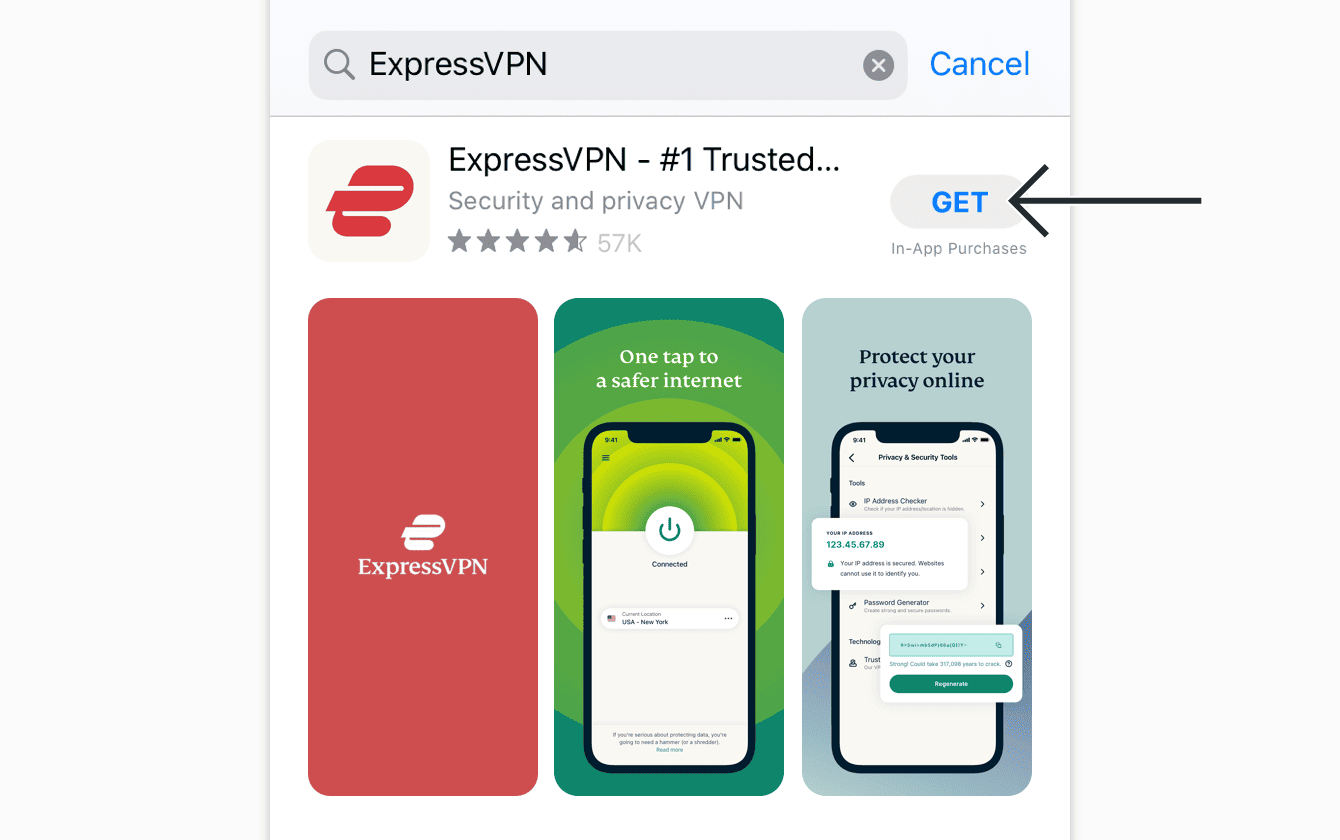
Launch the ExpressVPN app on your Windows device. If you haven’t installed the app yet, you can go to the ExpressVPN website and download it.
Step 2: Go to the settings
In the app, click on the menu icon (three horizontal lines) in the top-left corner. Then, click on the “Options” button to open the settings.
Step 3: Configure split tunneling
- In the settings, click on the “General” tab.
- Scroll down and find the “Split tunneling” section.
- Click on the toggle switch to enable split tunneling.
- Once enabled, you can choose which apps or websites you want to exclude from the VPN by clicking on the “Exclude apps” or “Exclude websites” buttons.
- Enter the names or URLs of the apps or websites you want to exclude, and click “Save” to apply the changes.
By configuring split tunneling, you can customize your VPN usage based on your needs. You can have certain programs or websites protected by ExpressVPN while others use your regular internet connection.
Troubleshoot Connection Issues
If you experience any difficulties with your ExpressVPN connection, follow these troubleshooting steps to resolve the issue:
1. Check Internet Connection
Make sure you have a stable and working internet connection. Disconnect and reconnect to see if that resolves the issue.
2. Verify Activation and Configuration
Ensure that your ExpressVPN subscription is active and that you have properly configured the software on your device. Check the ExpressVPN website for detailed instructions on activation and configuration.
3. Report the Issue
If you are unable to connect to the ExpressVPN servers, report the issue to the ExpressVPN support team. Provide them with any error messages, screenshots, or other relevant information to help identify and resolve the problem.
4. Update ExpressVPN Software
Ensure that you are using the latest version of the ExpressVPN software. Check for any available updates and install them to keep your software up-to-date.
5. Change Server Location
If you are experiencing slow speeds or connection issues, try connecting to a different server location. ExpressVPN offers a wide range of server locations that you can choose from to find the best speed and performance.
6. Use Background Service
If you are encountering errors related to the ExpressVPN background service, enable the “UseBackgroundServiceWithNonAdmins” feature. This feature helps to resolve connection issues for non-administrator users.
7. Enable Branding
If you are using ExpressVPN for your company or organization, enable the branding feature to add your company’s logo and customize the software. This helps to ensure a consistent and branded experience for your users.
By following these troubleshooting steps, you should be able to identify and resolve any connection issues you may face while using ExpressVPN.
Contact ExpressVPN support if needed
If you have any questions or run into any issues while configuring ExpressVPN on Windows, don’t hesitate to contact their support team. They are very helpful and knowledgeable when it comes to troubleshooting and privacy concerns.
ExpressVPN offers multiple channels for contacting their support team, including live chat, email, and a support ticket system. Their support team is available 24/7 to assist you with any queries you may have.
Whether you need help with installation, troubleshooting, or have questions about the various encryption protocols and pricing plans offered by ExpressVPN, their support team is well-equipped to provide the necessary assistance.
If you want to connect with their support team immediately, you can go to the ExpressVPN website and look for the “Support” or “Contact Us” section. Here, you will find all the information you need to get in touch with them.
Before reaching out to the support team, it’s a good idea to check their online documentation, FAQ section, or community forum to see if your question has already been addressed.
If you are a more technical user, you can also explore their GitHub repository, which hosts the open-source projects related to ExpressVPN. This can be useful if you want to dive deeper into the technical aspects of their software.
In conclusion, if you encounter any issues or have questions about configuring ExpressVPN on Windows, contacting their support team is the best way to get the help you need. They are available 24/7 and are very knowledgeable about their product, so you can trust them to resolve any problems that may arise.
Secure your online privacy
Ensuring the security of your online privacy is essential in today’s digital age. With the increasing number of cyber threats and data breaches, it is crucial to take the necessary steps to protect your personal information.
One effective way to secure your online privacy is by using a reliable VPN service like ExpressVPN. ExpressVPN offers a user-friendly interface and robust security features that can help safeguard your sensitive information.
When using ExpressVPN, you can connect to their servers with just a click of a button. This ensures that your internet connection is encrypted and your data is protected from prying eyes.
ExpressVPN also provides shortcuts for quick access to important features such as server configurations and connection settings. This makes it easy to customize your VPN experience and optimize your security.
To prevent any potential IP leaks, ExpressVPN recommends configuring your Windows firewall and DNS settings. This ensures that all internet traffic is routed through their secure network, protecting you from any potential vulnerabilities.
If you’re concerned about your online privacy, ExpressVPN has a dedicated guide on their website to help you sign up and configure the client on your Windows device. Their step-by-step instructions are simple to follow and can be done in just a few minutes.
In addition, ExpressVPN provides FAQs and support resources to assist you with any questions or issues you may encounter. Their customer support team is available 24/7 to provide assistance and ensure that your online privacy is protected.
ExpressVPN also offers a management console for administrators to easily configure the client on multiple devices. This is especially useful for businesses or organizations that have multiple employees or users.
With ExpressVPN, you can also enjoy the benefits of their advanced security features, such as a kill switch and split tunneling. These options give you more control over your VPN connection and allow you to tailor your privacy settings to your specific needs.
ExpressVPN also has a client salt feature that generates a unique salt value for each client. This adds an extra layer of security to your VPN connection and ensures that your data remains private.
In conclusion, secure your online privacy by using a trusted VPN service like ExpressVPN. Take the necessary steps to configure the client, sign up for an account, and enjoy the peace of mind knowing that your personal information is protected. Don’t let cyber threats and data breaches compromise your privacy – keep your online activities private with ExpressVPN.
Bypass geo-restrictions
In today’s digital age, where the internet has become an essential part of our lives, it can be frustrating to encounter geo-restrictions that prevent access to certain websites and content. However, there is a solution – ExpressVPN! With ExpressVPN, you can easily bypass these restrictions and access any website or service from anywhere in the world.
One way to bypass geo-restrictions using ExpressVPN is to enter your desired website’s URL in the provided field. ExpressVPN will then route your connection through one of its secure servers located in different locations around the world. By doing so, your IP address is masked, and the website will think you are accessing it from the location of the server you connected to.
Another feature of ExpressVPN that helps bypass geo-restrictions is its ability to choose from a wide range of server locations. With over 3000 servers in 160 locations across 94 countries, you can easily find a server that allows you to access the content you want. Whether you need to access region-specific websites or stream content from a different country, ExpressVPN has got you covered.
ExpressVPN also ensures that your connection is secure and your data remains protected. It uses high-level encryption to prevent any leaks or unauthorized access to your information. This means that even if you are accessing geo-restricted content, your online activities will remain private and secure.
In conclusion, ExpressVPN is an excellent tool for bypassing geo-restrictions and accessing blocked websites and content. With its wide range of server locations, strong encryption, and user-friendly interface, ExpressVPN is a must-have for anyone looking to access the internet freely and securely.
Access blocked websites and services
When browsing the internet, you may come across websites or services that are blocked in your current location. This can be frustrating, especially if you need to access important information or connect with others.
Fortunately, with ExpressVPN, you can easily bypass these restrictions and gain access to blocked websites and services. ExpressVPN provides a secure and private connection to the internet, allowing you to browse freely and without limitations.
If you’re unsure if a website or service is blocked, you can check by using the ExpressVPN app. Simply launch the app and connect to a server in a different location. This will give you a different IP address and enable you to access content that may be restricted in your current environment.
It’s important to note that using ExpressVPN to access blocked websites and services is not illegal, as long as you are using it for legitimate purposes. However, it’s always a good idea to review the terms and conditions of the website or service you are accessing and ensure that you are complying with their guidelines.
In addition to accessing blocked websites and services, ExpressVPN also provides advanced security features to protect your online privacy. With features like DNS leak protection and a strict no-logs policy, you can browse the internet with peace of mind, knowing that your personal information is secure.
Whether you want to access blocked content or protect your online privacy, ExpressVPN is a reliable and trusted service. With a user-friendly interface and fast connection speed, you can enjoy a seamless browsing experience without any interruption.
Enjoy fast and reliable VPN connection on Windows in the USA
ExpressVPN provides a powerful VPN solution for users in the USA who want to enjoy a fast and reliable internet connection. With its user-friendly interface and robust features, ExpressVPN offers a seamless and secure experience for all your online activities.
One of the key benefits of using ExpressVPN is its ability to resolve connectivity issues and ensure a smooth browsing experience. Whether you’re accessing the internet from a home network or a public Wi-Fi hotspot, ExpressVPN offers advanced features that protect your privacy and keep your data secure.
Configuring ExpressVPN on your Windows device is quick and simple. The step-by-step guide provides clear instructions on how to enable the ExpressVPN client, install the necessary software, and configure the settings to get started. The configuration process is designed to make it easy for both beginners and experienced users to set up the VPN on their Windows device.
Once ExpressVPN is installed and configured, you can enjoy a wide range of features and benefits. ExpressVPN operates a vast network of servers located across the globe, allowing you to access content from different countries and regions. This makes it perfect for streaming geo-restricted content, accessing websites that are blocked in your region, or simply ensuring a secure and private internet connection.
ExpressVPN’s commitment to user privacy and security is evident in its regular audits and transparent policies. The company takes measures to ensure that no user data is logged or stored, and its strong encryption protocols protect your information from hackers, snoopers, and other cyber threats. ExpressVPN also offers a built-in malware and ad blocker, keeping your device safe from malicious websites and intrusive advertisements.
In conclusion, ExpressVPN offers a reliable and efficient VPN solution for users in the USA. With its easy-to-use interface, fast connection speeds, and robust security features, ExpressVPN is an excellent choice for anyone looking to enhance their online privacy and access geo-restricted content.
Вопрос-ответ:
What is ExpressVPNexe and what is its purpose?
ExpressVPNexe is an executable file that is used to install and configure ExpressVPN on a Windows operating system. Its purpose is to provide users with a secure and private internet connection by encrypting their data and routing it through a virtual private network (VPN) server.
How do I configure ExpressVPN on Windows in the USA?
To configure ExpressVPN on Windows in the USA, you need to follow a step-by-step guide. One of the steps is to enter your internal repository URL, which is a web address where the VPN software and updates are stored. By entering the internal repository URL, you ensure that you are using the latest version of ExpressVPN and have access to all the features and security updates.
Can I use ExpressVPN on other operating systems besides Windows?
Yes, ExpressVPN is compatible with various operating systems, including Windows, Mac, Linux, iOS, and Android. This allows users to secure their internet connection and protect their privacy on different devices and platforms.
Is it necessary to enter the internal repository URL while configuring ExpressVPN?
Yes, it is necessary to enter the internal repository URL during the configuration process of ExpressVPN. This ensures that you have the latest version of the software and access to all the updates and features provided by ExpressVPN. It is recommended to always use the most up-to-date version for optimal security and performance.
Видео:
HOW TO USE EXPRESSVPN | ExpressVPN tutorial for 2023
HOW TO USE EXPRESSVPN | ExpressVPN tutorial for 2023 by CyberNews 3 months ago 9 minutes, 3 seconds 9,691 views
