
ExpressVPN Cannot Detect Internet Connection: FAQ and Troubleshooting Guide

If you are experiencing issues with ExpressVPN detecting your internet connection, there are several steps you can take to troubleshoot and resolve the problem. In this FAQ and troubleshooting guide, we will address common questions about this issue and provide step-by-step solutions.
Firstly, make sure that your internet connection is stable and working properly. Check if other devices on the same network can connect to the internet without any issues. If not, contact your internet service provider to resolve any connectivity problems.
Next, check if you are using the latest version of the ExpressVPN client. Sometimes, outdated versions may have compatibility issues with certain network configurations or hardware. Visit the ExpressVPN website to download and install the latest version.
If you are running ExpressVPN on Linux, the steps for troubleshooting your internet connection may be different. You can find specific troubleshooting information for your Linux version on the ExpressVPN website.
If you are unable to connect even after following these steps, it may be helpful to switch to a different network location. ExpressVPN has multiple server locations to choose from, and sometimes connecting to a different server can resolve connectivity issues.
Another option is to add ExpressVPN to your antivirus or firewall’s whitelist, as these applications may block the VPN connection. Consult your antivirus or firewall’s documentation for instructions on how to do this.
If you continue to experience internet connection issues with ExpressVPN, you can use the diagnostic tools built into the ExpressVPN client. Click on the three-bar menu, then select “Options” or “Settings” from the dropdown menu. From there, you can access the diagnostic tools to analyze and fix any connectivity problems.
Additionally, you can try changing your network location or checking for any internet interference that may be affecting your connection. Follow the steps in the troubleshooting guide to address these potential issues.
In summary, if ExpressVPN cannot detect your internet connection, you should first check the stability of your connection and ensure that other devices can connect without any issues. Update your ExpressVPN client to the latest version and consider switching to a different network location. If these steps do not resolve the problem, use the built-in diagnostic tools or consult the troubleshooting guide for further assistance.
Download the latest version of ExpressVPN
If you are experiencing issues with ExpressVPN detecting your internet connection, a possible solution is to download the latest version of the software. ExpressVPN regularly releases updates to improve performance, add new features, and fix any bugs or connectivity issues that may arise.
To download the latest version, visit the ExpressVPN website. You can download the software directly from their website and install it on your device. Ensure that you are downloading the correct version for your operating system or device.
If you have an active ExpressVPN subscription, you can also update the software directly from the client. Launch the ExpressVPN app and click on the three-bar menu icon. Navigate to the “Options” or “Settings” section and look for the “Updates” tab. From there, you can check for updates and download the latest version if available.
It’s important to keep your ExpressVPN software up to date to ensure it is running properly and to take advantage of any fixes or improvements that may have been made. Outdated versions of the software may not function correctly or may not be compatible with the latest changes in VPN protocols.
If you’re still having trouble connecting to ExpressVPN after downloading the latest version, it’s recommended to contact ExpressVPN support for further assistance. They can provide you with specific troubleshooting steps and guidance based on your specific issue.
Check your internet connection
If you are unable to connect to ExpressVPN, the first step is to check your internet connection to ensure that it is working properly. A stable and reliable internet connection is essential for the application to function correctly.
To do this, you can open a web browser and try to navigate to a website to see if it loads successfully. If you encounter any issues, such as slow internet speed or pages not loading, there may be problems with your internet connection.
If you are using a Wi-Fi connection, make sure you are connected to the correct network and that the signal is strong enough. Interference from other devices or physical obstacles can affect the quality of your connection.
Another possibility is that the server you are trying to connect to may be experiencing issues or undergoing maintenance. In this case, simply try connecting to a different server location or wait for the issue to be resolved.
If your internet connection is working fine and you are still unable to connect to ExpressVPN, there may be specific issues with the application or your device. You can try the following steps to troubleshoot the problem:
- Restart the application: Sometimes, simply restarting the ExpressVPN client can fix connection issues.
- Check for updates: Make sure you are using the latest version of the application. Outdated software can sometimes cause compatibility issues.
- Switch protocols: ExpressVPN supports different VPN protocols. Switching between them can sometimes help resolve connectivity problems.
- Contact support: If you have tried all the troubleshooting steps and are still unable to connect, it may be necessary to contact ExpressVPN support for further assistance. They can help analyze the issue and provide a solution.
By following these steps and checking your internet connection, you can troubleshoot and fix any issues preventing you from connecting to ExpressVPN.
Disable any VPN-blocking software
If you are experiencing connection issues with ExpressVPN and the application cannot detect an internet connection, it may be due to VPN-blocking software that is installed on your device. VPN-blocking software is designed to block or restrict VPN connections, which can prevent ExpressVPN from working properly.
To resolve this issue, you should disable any VPN-blocking software that is running on your device. This can be done by navigating to the settings or preferences of the software and turning off any features or options related to blocking VPN connections.
If you are unsure which software is causing the issue, you can also try contacting the ExpressVPN support team for assistance. They will be able to guide you through the troubleshooting process and help you determine if there are any VPN-blocking software applications that need to be disabled.
It is also recommended to check if any antivirus or firewall software on your device is causing the issue. Some antivirus or firewall programs may have settings that block VPN connections. You can try temporarily disabling these programs to see if it resolves the problem.
Additionally, make sure you are using the latest version of the ExpressVPN client. Outdated software can sometimes cause connection issues. You can check for updates by clicking on the three-bar menu in the ExpressVPN client and selecting “Check for updates.”
If you are still unable to establish a connection after disabling VPN-blocking software and updating the ExpressVPN client, you may need to test connecting using a different VPN protocol or server location. ExpressVPN supports multiple protocols and server locations, so trying a different combination may help resolve the issue.
If you have gone through all the troubleshooting steps and are still unable to connect, it is best to contact the ExpressVPN support team for further assistance. They will be able to diagnose the issue and provide specific instructions on how to resolve it. You can reach their support team via email or live chat.
Try different ExpressVPN servers
If you are experiencing issues with connecting to ExpressVPN and it cannot detect an internet connection, one possible solution is to try connecting to a different server.
There could be a variety of reasons why the current server you are trying to connect to is not working correctly. It could be due to an issue with the server itself, network interference, or changes in your network settings. By selecting a different server location, you can troubleshoot whether the issue is specific to the current server or a more widespread problem.
To change the server location in the ExpressVPN application, simply launch the program and navigate to the server selection screen. From there, you can manually select a different server from the available locations. Wait for the connection to establish, and then check if you are now able to connect to the internet through the VPN.
If the issue still persists after trying different servers, it may be helpful to disable any antivirus or security programs that could potentially interfere with the VPN connection. Some antivirus software or firewall settings may block or restrict the VPN protocols used by ExpressVPN, causing connection issues. By temporarily disabling these programs, you can determine if they are the cause of the problem.
It is also recommended to ensure that you are using the latest version of the ExpressVPN software. Outdated versions of the application may encounter compatibility issues or bugs that can prevent proper internet connection detection. Check the ExpressVPN website for the latest version and update if necessary.
If you are using ExpressVPN on a Linux device, you may face additional troubleshooting steps. One common issue is that the VPN service may not automatically start on boot. In this case, you will need to manually launch the ExpressVPN application after the device has started up. Another potential issue on Linux is that the network manager may conflict with ExpressVPN, causing connectivity problems. You can try disabling the network manager and connecting through the ExpressVPN command line interface instead.
In summary, if ExpressVPN cannot detect an internet connection, try connecting to a different server to troubleshoot the issue. Additionally, check for any antivirus or security programs that may be interfering and ensure that you have the latest version of the ExpressVPN software. Different troubleshooting steps may be needed for Linux devices, so consider these as well if you are experiencing connectivity issues.
Disable firewall and antivirus temporarily
If you are experiencing the error “ExpressVPN Cannot Detect Internet Connection,” it is possible that your firewall or antivirus software is blocking the connection. Disabling these programs temporarily can help identify if they are the cause of the issue.
Firewalls and antivirus software are designed to protect your device from unauthorized access and potential threats. However, they can sometimes mistakenly block legitimate applications from accessing the internet. This can prevent ExpressVPN from detecting an internet connection and establishing a secure connection to its servers.
To disable your firewall, you can usually find the option in your device’s settings or control panel. Look for a section related to network or internet settings, and then locate the firewall settings. Temporarily disable the firewall and try connecting to ExpressVPN again to see if the issue is resolved.
Similarly, you can disable your antivirus software temporarily. Most antivirus programs have an option to temporarily turn off their protection. Refer to the documentation or support resources for your specific antivirus software to find out how to disable it. Once disabled, attempt to connect to ExpressVPN to see if the issue persists.
Keep in mind that disabling your firewall and antivirus software temporarily should only be done as a troubleshooting step. It is important to re-enable these security measures once you have determined whether they were causing the issue or not.
If disabling the firewall and antivirus software did not resolve the problem, there may be other factors at play. In this case, it is recommended to consult ExpressVPN’s FAQ and troubleshooting guide for further assistance or contact their support team directly for personalized help.
Update your device’s operating system
If you are running an outdated operating system on your device, it can cause problems with your internet connection and prevent ExpressVPN from detecting it.
Updating your operating system is important for various reasons. Firstly, it ensures that your device has the latest security patches and bug fixes, which can help protect your device and data from vulnerabilities. Additionally, updating your operating system can improve the overall performance of your device and fix any compatibility issues that you may be experiencing.
To update your operating system, you can follow these steps:
- On Windows: Go to the “Settings” menu, click on “Update & Security,” and then click on “Windows Update.” Here, you can check for updates and install any available updates.
- On Mac: Click on the Apple menu, select “System Preferences,” and then click on “Software Update.” If there are any available updates, click on the “Update Now” button to install them.
- On iOS: Go to the “Settings” app, tap on “General,” and then tap on “Software Update.” If there are any available updates, tap “Download and Install” to update your device.
- On Android: Open the “Settings” app, scroll down and tap on “System,” then tap on “Advanced,” and finally, tap on “System update.” Here, you can check for updates and install them if available.
After updating your operating system, restart your device and then launch ExpressVPN to see if the issue persists.
Update your ExpressVPN app
If you are experiencing issues with ExpressVPN not detecting an internet connection, one possible solution is to update your ExpressVPN app. It is important to keep the app up-to-date as newer versions often include bug fixes and improvements that can resolve connectivity problems.
To update your ExpressVPN app, follow these steps:
- Launch the ExpressVPN application on your device.
- Browse to the settings or preferences section of the app.
- Look for the option to update the app and click on it.
- If there is an update available, follow the prompts to download and install the latest version of ExpressVPN.
After updating, restart the program and test your internet connection to see if the issue is resolved. If you are still unable to connect, there may be other troubleshooting steps you can follow.
If you are using ExpressVPN on Windows, you can also try checking your network adapter settings using the ipconfig command. Open a command prompt and type “ipconfig” to view a list of network adapters and their configurations. Make sure the adapter being used by ExpressVPN is active and has a valid IP address.
If you have recently updated your ExpressVPN app and the issue still persists, you can reach out to ExpressVPN support via email or their website for further assistance. They may be able to provide specific instructions or additional troubleshooting steps based on your current situation.
Restart your device
If you are experiencing issues with ExpressVPN not detecting your internet connection, one of the troubleshooting steps you can try is to restart your device. Restarting your device can help resolve temporary connectivity issues and refresh your network settings.
Here is how you can restart your device:
- Click on the “Start” or “Home” button on your device.
- Select the “Power” or “Settings” option.
- Choose the “Restart” option and wait for your device to reboot.
After restarting your device, launch the ExpressVPN client once again and check if it can now detect your internet connection.
Contact ExpressVPN customer support
If you have tried all the troubleshooting steps and still cannot resolve the issue with ExpressVPN detecting your internet connection, it is recommended to contact ExpressVPN customer support for further assistance. The support team is highly knowledgeable and can provide you with specific guidance to help you get your connection back up and running.
To contact ExpressVPN customer support, you have a few options. First, you can visit the ExpressVPN website and navigate to their support section. Here, you will find a list of frequently asked questions and troubleshooting guides that may help you resolve the issue on your own. If you can’t find the information you need, you can contact ExpressVPN support via email or through their live chat service.
When reaching out to customer support, it is important to provide them with all the relevant information about your connection issue. Let them know which specific error messages you are seeing, what steps you have already taken, and any other relevant details. This will help them diagnose the problem more effectively and provide you with the best solution.
ExpressVPN customer support is known for their efficient and prompt service. They will guide you through the troubleshooting steps and offer solutions tailored to your specific situation. Whether it’s a problem with your internet connection or an issue with the ExpressVPN application itself, their team will work with you to find a resolution.
Remember to keep your ExpressVPN application up to date with the latest version. The release of newer versions often includes bug fixes and improvements that can help resolve connection issues. If you’re using ExpressVPN on multiple devices, make sure to install the latest version on each device to ensure optimal performance.
In summary, if you are experiencing difficulties with ExpressVPN detecting your internet connection, reaching out to ExpressVPN customer support is the best course of action. They have the expertise and resources to help you troubleshoot the issue and get your VPN connection back up and running smoothly.
Check for any network restrictions
If you are facing difficulties in establishing a connection with ExpressVPN, it is essential to check for any network restrictions that might be causing the issue. There could be different factors at play, and you can follow the steps below to troubleshoot the problem.
1. Check your internet connection
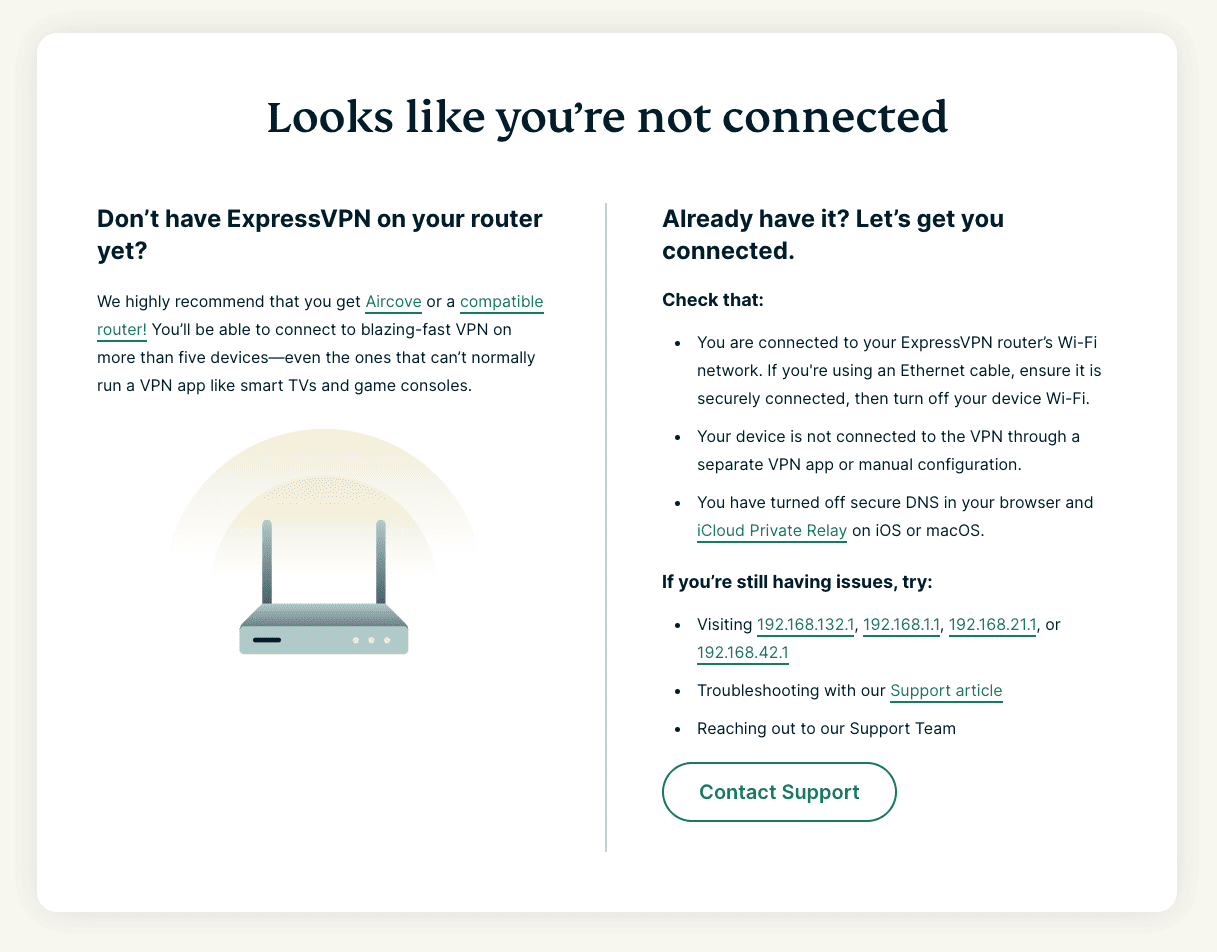
Make sure that you have a stable internet connection. You can open a web browser and try accessing different websites to verify if you have an active internet connection.
2. Verify ExpressVPN service status
Visit the ExpressVPN website or contact their customer support via email. They will provide you with the latest information about any service outages or maintenance that might be occurring.
3. Check for any software or firewall restrictions
Some security software or firewalls might be causing interference with your VPN connection. Make sure to disable them temporarily and then try connecting to ExpressVPN again.
4. Try different server locations
If you cannot connect to a specific server location, try connecting to a different one. ExpressVPN has a large list of server locations available, and there might be temporary issues with certain locations.
5. Contact ExpressVPN support
If you have tried all the above troubleshooting steps and still cannot establish a connection, it is recommended to contact ExpressVPN support for further assistance. They will guide you through more advanced troubleshooting steps and help resolve the issue you are experiencing.
Flush DNS cache
If you are unable to connect to the internet while running ExpressVPN, it may be due to an outdated DNS cache. This can cause your device to be unable to find the correct IP address for websites or applications, leading to connectivity issues.
Flushing your DNS cache can help resolve this issue. Here are the steps to flush the DNS cache on different operating systems:
Windows
- Press the Windows key + R to open the Run dialog box.
- Enter “cmd” and click OK to open the Command Prompt.
- Type “ipconfig /flushdns” and press Enter.
- Wait for the confirmation message, then close the Command Prompt.
Mac
- Open the Terminal application.
- Enter “sudo killall -HUP mDNSResponder” and press Enter.
- Enter your administrator password and press Enter.
- Wait for the command to execute, then close the Terminal.
Linux
- Open a terminal window.
- Type “sudo /etc/init.d/nscd restart” and press Enter.
- Enter your administrator password and press Enter.
- Wait for the command to execute, then close the terminal.
By flushing your DNS cache, you are essentially clearing out any outdated information that may be causing issues with your internet connection. After flushing the cache, you can then test whether ExpressVPN is working properly by connecting to a server and checking if you have internet connectivity.
If you are still experiencing issues with your internet connection after flushing the DNS cache, it may be necessary to contact ExpressVPN’s support team for further assistance. They can help diagnose the problem and provide you with the necessary steps to resolve it.
Reset TCP/IP stack
One possible solution to try when ExpressVPN cannot detect an internet connection is to reset the TCP/IP stack. The TCP/IP stack is responsible for handling network communications in Windows operating systems.
To reset the TCP/IP stack, follow these steps:
- Open the Command Prompt as an administrator. In Windows, you can do this by searching for “Command Prompt” in the Start menu, right-clicking on it, and selecting “Run as administrator”.
- In the Command Prompt, type the following command and press Enter: netsh int ip reset
- After the command has executed, restart your computer to apply the changes.
Resetting the TCP/IP stack can help resolve connectivity issues and reset any configurations that may be causing problems with ExpressVPN’s detection of an internet connection.
If you are still unable to connect to the internet after resetting the TCP/IP stack, there may be other underlying issues that need to be addressed. It is recommended to contact ExpressVPN’s support team for further assistance and troubleshooting.
Check for IP conflicts
If you are experiencing issues with ExpressVPN not detecting an internet connection, one possible cause could be an IP conflict. This occurs when multiple devices on the same network are assigned the same IP address.
To test if this is the issue, you can try the following steps:
1. Keep only one device running ExpressVPN
Make sure that only one device is running the ExpressVPN application at a time. If you have it installed on multiple devices, switch off the VPN on all other devices and keep only one device connected.
2. Switch to a different server location
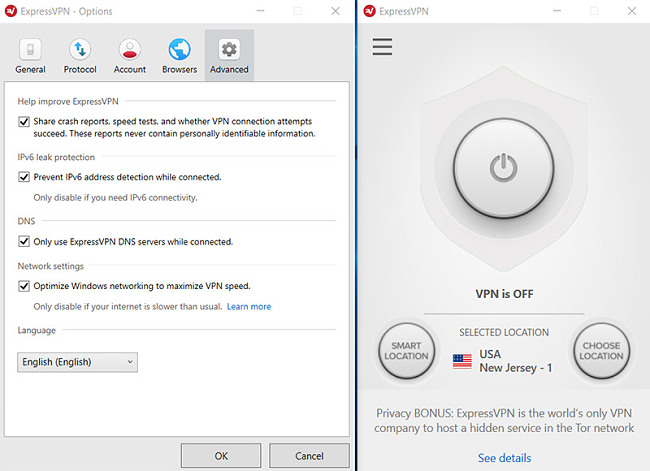
If you are still having trouble connecting to the internet, try switching to a different server location in the ExpressVPN application. Sometimes, certain servers may experience issues, so choosing a different location can help resolve the problem.
3. Check your router settings
If the above steps did not fix the issue, you can try analyzing and configuring your router settings. Check whether there are any conflicting IP addresses assigned to your devices. You can also try restarting your router to see if that resolves the problem.
4. Contact ExpressVPN support
If you have followed the steps above and are still facing issues with ExpressVPN not detecting an internet connection, you can contact ExpressVPN’s support team for further assistance. You can reach out to them via email or the live chat service provided on their website. Provide them with all the relevant information, such as the version of ExpressVPN you are using, the error messages you are receiving, and any other details that might help them analyze the issue.
By following the above troubleshooting guide, you can fix the issue of ExpressVPN not detecting an internet connection and continue using the service to browse securely.
Disable IPv6
If you are experiencing issues with ExpressVPN detecting an internet connection, one possible solution is to disable IPv6 on your device. Here are the steps to disable IPv6:
- First, download the ExpressVPN app: If you do not have the app installed already, you can download it from the official ExpressVPN website or from your device’s app store.
- How to disable IPv6 on different devices and operating systems: The steps to disable IPv6 can vary depending on the device and operating system you are using. ExpressVPN provides detailed guides for disabling IPv6 on various platforms, such as Windows, Mac, iOS, Android, and Linux. You can find these guides on the ExpressVPN website or by contacting their customer support.
- Why disable IPv6? IPv6 is the newer version of the internet protocol and is designed to replace IPv4. However, some applications and networks may not have full support for IPv6, which can lead to compatibility issues with VPN services. By disabling IPv6, you can ensure that your device is using the older IPv4 protocol, which is more widely supported.
- Why disable IPv6 for ExpressVPN? ExpressVPN recommends disabling IPv6 because some networks and applications may be unable to establish a connection while IPv6 is active. This can result in the “ExpressVPN Cannot Detect Internet Connection” error. By disabling IPv6, you can fix this issue and allow ExpressVPN to establish a secure connection.
- How to disable IPv6 on ExpressVPN: ExpressVPN provides a troubleshooting guide that explains how to disable IPv6 specifically for their service. This guide includes step-by-step instructions for disabling IPv6 on different operating systems and devices.
- Additional steps for troubleshooting: If disabling IPv6 does not fix the issue, there may be other network-related problems. ExpressVPN provides a diagnostic tool that can help identify any issues and guide you through the necessary steps to fix them. It is also recommended to check if your antivirus software or firewall is blocking the VPN connection.
Run ExpressVPN as an administrator
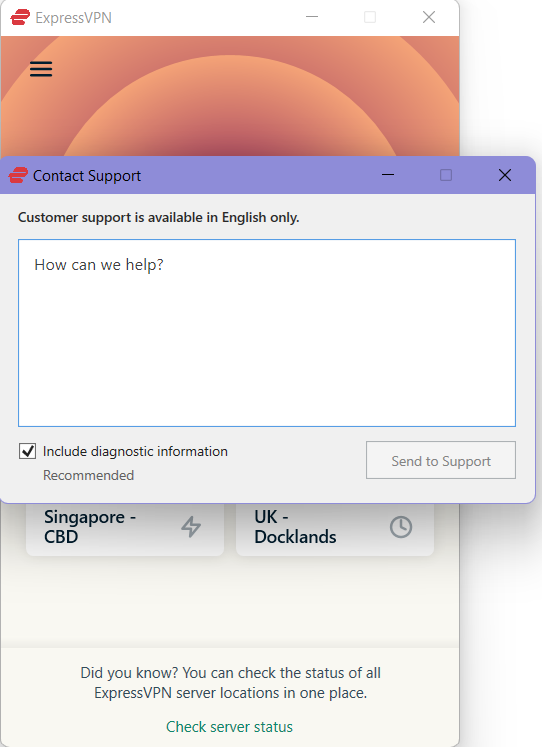
If you are experiencing issues with ExpressVPN not detecting your internet connection, running the application as an administrator can often help resolve the problem. This troubleshooting step is particularly useful for Windows users.
To run ExpressVPN as an administrator, follow these steps:
- Close the ExpressVPN application if it is currently running.
- Right-click on the ExpressVPN shortcut or application icon.
- From the context menu, select “Run as administrator.” If prompted, enter your administrator credentials.
- Once the application opens, check whether the issue of ExpressVPN not detecting the internet connection has been resolved.
If you are still unable to establish a connection, there may be other underlying causes. In that case, it is recommended to try other troubleshooting steps or contact ExpressVPN’s support team for further assistance.
Try a different device
If you are unable to connect to ExpressVPN and are experiencing issues with internet connectivity, trying a different device may help identify the root cause of the problem. Some devices may have built-in security settings or firewall configurations that can interfere with the VPN connection.
To troubleshoot the issue, start by connecting a different device, such as a smartphone or tablet, to the same network. If the second device is able to connect to the internet without any issues, then the problem may be specific to the initial device you were using.
Make sure to apply the same steps you followed on the previous device, such as disabling any VPN protocols or changing the location. This will help determine if the issue is isolated to a particular device or if it persists across multiple devices.
If the second device also encounters the same problem, it may indicate a wider issue with your internet connection. In this case, make sure that you are connected to a trusted network and that there are no changes or disruptions to the service provided by your internet service provider (ISP).
Reinstall ExpressVPN
If you are experiencing issues with ExpressVPN not detecting an internet connection, reinstalling the software can help resolve the problem. Reinstalling the application ensures that any corrupted files or settings are fixed, and a fresh installation may also rectify any compatibility issues.
To reinstall ExpressVPN, follow the steps below:
- First, make sure you are connected to the internet. If you cannot connect, check your network settings or try connecting to a different network.
- Open the ExpressVPN application and click on the menu icon (three horizontal lines) in the top-left corner.
- From the menu, select the “Options” or “Preferences” option.
- In the options/preferences window, click on the “Advanced” tab, and then select the “Reinstall” option.
- A prompt will appear asking if you want to uninstall ExpressVPN. Click “Yes” to proceed.
- Once the uninstallation is complete, download the latest version of ExpressVPN from the official website.
- After downloading, run the installer and follow the on-screen instructions to reinstall ExpressVPN.
- Once the installation is complete, launch the ExpressVPN client and sign in with your account credentials.
- Now, try connecting to a server location and check if the issue is resolved.
If you are still unable to detect an internet connection after reinstalling ExpressVPN, there may be other underlying issues at play. It is recommended to contact the ExpressVPN support team for further assistance. They can analyze your specific network setup, diagnose any potential problems, and provide a tailored solution to fix the issue.
Вопрос-ответ:
Why can’t ExpressVPN detect my internet connection?
If ExpressVPN is unable to detect your internet connection, it may be due to a few reasons. Firstly, check if your internet connection is working properly by trying to access other websites or services. If you’re still experiencing issues, try restarting your router and modem. Additionally, make sure that ExpressVPN is updated to the latest version. If none of these steps work, contact the ExpressVPN support team for further assistance.
What should I do if ExpressVPN is unable to connect?
If ExpressVPN is having trouble connecting, there are several steps you can take to resolve the issue. Firstly, ensure that your internet connection is stable and working properly. If you’re using a Wi-Fi connection, try switching to a wired connection. Restarting your router and modem can also help. Additionally, check if ExpressVPN is updated to the latest version. If the problem persists, reach out to the ExpressVPN support team for further troubleshooting.
Why is ExpressVPN not working on my mobile device?
If ExpressVPN is not functioning properly on your mobile device, there could be a few reasons for this. Firstly, check if your internet connection is stable and working on other apps or websites. Make sure that ExpressVPN is updated to the latest version on your device. If the issue persists, try restarting your device or reinstalling the ExpressVPN app. If none of these steps solve the problem, contact the ExpressVPN support team for further assistance.
How can I troubleshoot ExpressVPN connection issues on my computer?
If you’re experiencing connection issues with ExpressVPN on your computer, there are a few troubleshooting steps you can try. Firstly, check if your internet connection is stable and working on other applications or websites. Restarting your computer, router, and modem can also help resolve the issue. Ensure that ExpressVPN is updated to the latest version on your computer. If the problem persists, reach out to the ExpressVPN support team for further troubleshooting guidance.
What should I do if none of the troubleshooting steps work?
If you have followed all the troubleshooting steps and ExpressVPN still cannot detect your internet connection, it’s best to contact the ExpressVPN support team for further assistance. They will be able to provide specialized guidance and help resolve any underlying issues that may be causing the problem. You can reach the support team via email or live chat on the ExpressVPN website.
Видео:
How to use ExpressVPN Network Lock for Windows
How to use ExpressVPN Network Lock for Windows by ExpressVPN 4 years ago 1 minute, 45 seconds 14,636 views
How to use Expressvpn in 2023 The Only Express VPN Tutorial You’ll Need!
How to use Expressvpn in 2023 The Only Express VPN Tutorial You’ll Need! by Geekman 1 year ago 8 minutes, 18 seconds 24,775 views
How to Use ExpressVPN on a Mac ✅ Best ExpressVPN Mac Tutorial For 2023
How to Use ExpressVPN on a Mac ✅ Best ExpressVPN Mac Tutorial For 2023 by Consumer Research Studios 6 months ago 3 minutes, 46 seconds 2,440 views
