
Complete Guide to Setting up Check Point Mobile Access VPN with Java and Multi-Factor Authentication Support
In this step-by-step guide, we will walk you through the process of setting up Check Point Mobile Access VPN with Java on your Linux machine. This simple and user-friendly software provides secure authentication and remote access to corporate networks using a variety of Check Point blades.
Before you begin, make sure you have Java installed on your Linux machine. Java is an important dependency for Check Point Mobile Access VPN, and without it, you won’t be able to complete the installation.
Once you have Java installed, we can start the installation process. First, let’s give you an overview of the version of Check Point Mobile Access VPN that we’ll be working with. We will be using the Check Point Mobile Access VPN Extender, which offers a standalone VPN client for Linux.
Now, let’s dive into the installation process. The first step is to create an account on the Check Point user center. This account will allow you to download the necessary software and access the VPN portal. Once you have created an account, log in to the user center and navigate to the Mobile Access tab. Here, you will find the download link for the Mobile Access VPN software.
Download the Mobile Access VPN software and extract the contents of the package. Open a terminal shell and navigate to the extracted folder. Here, you will find a file named usrbincshell. Run this file to start the installation process. The installation wizard will guide you through the installation steps, including selecting the desired features and configuring the VPN settings.
During the installation, you will be prompted to enter the IP address of the VPN portal and the IPsec VPN gateway. Make sure to enter the correct details to ensure proper connectivity to the corporate network. Additionally, you will have the option to enable multi-factor authentication for added security.
Once the installation is complete, you can launch the Mobile Access VPN client using the provided shell commands. The client will connect to the VPN portal and authenticate using the credentials you provided during the installation. You will now have secure remote access to your corporate network from your Linux machine.
In conclusion, setting up Check Point Mobile Access VPN with Java on your Linux machine is a relatively simple process. With the right software and proper configuration, you can enjoy secure remote connectivity to your corporate network and access important resources and applications.
Step-by-Step Guide to Linux Setup Check Point Mobile Access VPN with Java
Introduction
In this step-by-step guide, we will explain how to set up Check Point Mobile Access VPN with Java on Linux. This guide is specifically for Linux systems and assumes you have basic knowledge of Linux.
Step 1: Install Java
Before you can set up Check Point Mobile Access VPN, you need to have Java installed on your Linux system. You can install Java by running the following command in the terminal:
sudo apt-get install default-jre
Step 2: Download and Extract Check Point Mobile Access VPN
The next step is to download the Check Point Mobile Access VPN package for Linux. You can find the appropriate package on the Check Point website. Once you have downloaded the package, extract it to a location of your choice.
Step 3: Configure Mobile Access Portal
After extracting the package, navigate to the “post-install” directory and run the “cshell_install.sh” script. This script will guide you through the configuration process for the Mobile Access Portal.
Step 4: Set Up User Access
Once the Mobile Access Portal is configured, you need to set up user access. This can be done through the Mobile Access Portal web interface. Here, you can create user accounts and define access policies.
Step 5: Configure VPN Gateway
To allow access to the corporate network through the VPN, you need to configure the VPN gateway. This can be done through the Mobile Access Portal interface. Here, you can set up VPN policies and define the VPN gateway IP address.
Step 6: Set Up Check Point Mobile Access VPN on Windows
Once the Mobile Access Portal and the VPN gateway are set up, you need to install Check Point Mobile Access VPN on the user’s Windows computer. The installation package is available on the Mobile Access Portal web interface. Simply download and install the package.
Step 7: Log In and Connect
With Check Point Mobile Access VPN installed on the user’s Windows computer, they can now log in to the Mobile Access Portal and connect to the VPN. This will provide them with secure access to the corporate network.
By following these step-by-step instructions, you can easily set up and configure Check Point Mobile Access VPN with Java on Linux. This allows for secure remote access to the corporate network, ensuring the integrity and privacy of sensitive data.
Requirements for Setting Up Check Point Mobile Access VPN
Setting up Check Point Mobile Access VPN requires several requirements to be met before the installation process can begin.
Operating System:
The Check Point Mobile Access VPN solution supports various operating systems, such as Windows, Linux, and Mac. Ensure that your computer is running a supported operating system.
Software Architecture:
The Check Point Mobile Access VPN solution is built around a client-server architecture. Before installing the VPN software, make sure that your operating system supports this architecture.
Check Point Products:
To check compatibility, ensure that you have the necessary Check Point products and software installed on your computer. This includes the Check Point Gateway and the required software libraries.
Java Version:
Check Point Mobile Access VPN requires Java to be installed on your computer. Make sure that you have the latest version of Java installed to ensure compatibility.
Certificates and Tokens:
In order to establish a secure connection, you will need the necessary SSL certificates and tokens. These can be obtained from the Check Point management portal.
Network Connection:
Ensure that your computer has a stable network connection, either through Ethernet or Wi-Fi, to establish a connection to the Check Point Mobile Access VPN.
Permissions and Configuration:
During the installation process, you may need to make changes to certain system files or configurations. Make sure that you have the necessary permissions and access to perform these actions, such as using the ‘sudo’ command in Linux.
By meeting these requirements, you will be able to setup and configure the Check Point Mobile Access VPN solution on your computer, allowing you to securely access sensitive information and resources through a trusted network connection.
Step 1: Install Java Runtime Environment (JRE)
Before setting up Check Point Mobile Access VPN with Java, you need to ensure that Java Runtime Environment (JRE) is installed on your system. JRE is essential for running Java-based applications and is necessary for the functionality of Check Point’s VPN solution.
Overview
Java Runtime Environment provides the necessary platform for running Java applications on your computer. It includes the Java Virtual Machine (JVM) and the Java Class Library, which are essential components for executing Java-based programs.
Installation
To install JRE on your system:
- Visit the official Java SE website and navigate to the download section.
- Choose the appropriate JRE version for your operating system (e.g., Windows, macOS, Linux).
- Click on the download link and follow the on-screen instructions to proceed with the installation.
- Once the installation process is complete, verify that JRE is working correctly by opening a command prompt or terminal and typing
java -version. This command should display the installed JRE version.
Secure Connectivity
Check Point Mobile Access VPN relies on Java for secure connectivity to your organization’s network. By using Java, the VPN client can establish a secure connection to the central VPN gateway and authenticate the user with multi-factor authentication.
With JRE installed, you can download and install the Check Point Mobile Access VPN software. This software integrates seamlessly with JRE, providing a secure and reliable VPN solution for accessing corporate resources.
Integration with Check Point Software Blades
Check Point’s Mobile Access VPN offers integrated support for various security features, known as software blades. These software blades enable advanced security policies and controls to protect your network and data.
Whether you’re using the Check Point Capsule VPN or the Mobile Access VPN client, both solutions integrate with JRE and offer an exceptional VPN experience. They adhere to the highest security specifications, ensuring that your connection is encrypted and your data is protected.
Step 2: Download and Install Check Point Mobile Access VPN Software
After completing the necessary preparations in Step 1, you can now proceed to download and install the Check Point Mobile Access VPN software on your system. This software provides a user-friendly and executable solution for securely accessing sensitive corporate resources remotely.
Downloading the Software
1. First, log in to the Check Point User Center portal using your credentials.
2. Navigate to the Mobile Access section and locate the software version that is compatible with your system and requirements.
3. Click on the download link and save the software file to a location on your computer.
Installing the Software
1. Once the software file has been downloaded, locate it in the saved location.
2. Double-click on the file to run the installation executable.
3. Follow the installation wizard instructions to install the software on your system.
4. During the installation process, you may be prompted to install certain dependencies or components.
5. Ensure that you have the necessary SSL certificates and dependencies installed to support the Mobile Access VPN.
6. After the installation is complete, you will find the “Check Point Mobile Access VPN” application in your list of installed applications.
Note: If you encounter any issues during the installation process, refer to the troubleshooting section of the installation guide for assistance.
Step 3: Configure Check Point Mobile Access VPN
1. Download and install Check Point Mobile Access VPN: Begin by downloading the Check Point Mobile Access VPN application. Once downloaded, install the application on your device.
2. Scan the list of available applications: After installation, scan the list of available applications to ensure that you have the necessary dependencies and security measures in place.
3. Enter user information: Input the required user information, such as your username and password, to access the Check Point Mobile Access VPN.
4. Configure system dependencies: Follow the provided instructions to configure the system dependencies for the Check Point Mobile Access VPN. Each operating system may have different requirements, so make sure to reference the instructions specific to your system.
5. Allow access to networks: Adjust the settings to allow access to the networks you need for the VPN connection to function properly.
6. Support for malware scanning: Enable support for malware scanning to enhance security while using the Check Point Mobile Access VPN.
7. Enable multi-factor authentication: For an added level of security, enable multi-factor authentication to ensure that only authorized users can access the VPN.
8. Remote management: Take advantage of the remote management capabilities offered by the Check Point Mobile Access VPN. This allows for easier installation, deployment, and management of the VPN solution.
9. Secure IPSec connections: Ensure that your IPSec connections are secure by following the provided guidelines for configuration.
10. Login to the central network portal: Once the setup is complete, login to the central network portal using your credentials. This will give you access to the benefits provided by the Check Point Mobile Access VPN, such as secure and private network connections.
Conclusion: Configuring Check Point Mobile Access VPN involves downloading the application, installing it, configuring system dependencies, and setting up security measures such as malware scanning and multi-factor authentication. Once configured, you can securely access networks remotely and enjoy the benefits of this comprehensive VPN solution.
Step 4: Generate and Configure SSL Certificate
In order to establish a secure connection between the user and the Check Point Mobile Access VPN, an SSL certificate needs to be generated and configured.
Here are the steps to generate and configure the SSL certificate:
- Open a shell or terminal window on the Check Point gateway
- Create a new directory for the SSL certificate files
- Generate the SSL certificate using the
cshell_install.shexecutable - Configure the SSL certificate by setting the appropriate options
- Import the SSL certificate into the Check Point Mobile Access portal
The SSL certificate is an important component of the Check Point Mobile Access VPN, as it ensures the integrity and security of the connection. It allows for multi-factor authentication and enables the use of features such as SSL network extender and Secure Workspace. By generating and configuring the SSL certificate, you are enabling these powerful and user-friendly features for connecting to the corporate network securely.
Once the SSL certificate is generated and configured, you can proceed to the next step in the setup process.
Step 5: Configure Firewall and Router Ports for Check Point Mobile Access VPN
Once you have completed the installation and setup of Check Point Mobile Access VPN on your Linux system, it is important to configure the firewall and router ports to ensure proper connectivity and access to the VPN solution.
Here is a step-by-step guide on how to configure the firewall and router ports for Check Point Mobile Access VPN:
- First, it is important to check if the required ports and protocols are open and allowed through the firewall. You can use the following command in the terminal to check the status of the firewall:
- If the firewall is enabled and blocking the necessary ports, you can open them using the following command:
- Next, you need to configure the router to allow incoming connections on the required ports. This step may vary depending on your router’s make and model. Refer to your router’s documentation or contact your network administrator for assistance.
- Once the firewall and router ports are configured, you can test the connectivity to the Check Point Mobile Access VPN. Open a web browser and enter the URL for the VPN access portal provided by your network administrator.
- If you have configured the VPN for auto-connect, you should see a login prompt. Enter your credentials and click the “Connect” button to establish a VPN connection.
- If needed, you can also configure the VPN to auto-connect on system startup. This can be done by adding a startup script to the system’s “rc.local” file or by using the appropriate configuration settings in the VPN client.
- Once the connection is established, you should be able to access your corporate network and resources securely through the Check Point Mobile Access VPN.
sudo ufw statussudo ufw allow [port/protocol]Configuring the firewall and router ports is an important step in the deployment of the Check Point Mobile Access VPN solution. It ensures that the necessary network traffic is allowed through and provides secure connectivity for remote users.
For more information on configuring the firewall and router ports, please refer to the Check Point Mobile Access VPN documentation or contact Check Point support for assistance.
Step 6: Test the Check Point Mobile Access VPN Connection
Once you have completed the installation and setup of the Check Point Mobile Access VPN with Java, it is important to test the connection to ensure everything is working properly. Follow the steps below to test the VPN connection:
1. Open the Check Point Mobile Access VPN client
Launch the Check Point Mobile Access VPN client on your device. This client is user-friendly and provides a simple interface for connecting to the VPN.
2. Enter your login credentials
Enter your username and password for the VPN. These credentials are typically provided by your system administrator.
3. Connect to the remote VPN server
Click on the “Connect” button to establish a connection to the remote VPN server. The client will use Java to establish a secure connection.
4. Verify the VPN connection
Once connected, verify that the VPN connection is working properly. You can do this by checking your IP address to ensure it has changed to the IP address provided by the VPN server. You can also try accessing resources on the remote network to ensure you have connectivity.
5. Test the auto-connect feature
If you want the VPN client to automatically connect whenever you are on an unsecured network, you can enable the auto-connect feature. This feature will ensure your connection is always secured, regardless of whether you are connected to a public Wi-Fi hotspot or other unsecured network.
6. Disconnect or kill the VPN connection
When you are finished using the VPN, you can disconnect or kill the connection. This will free up resources on your device and allow you to connect to other networks or applications.
Testing the Check Point Mobile Access VPN connection is an important step to ensure a secure and reliable connection. By following these simple steps, you can ensure that your VPN is working properly and providing you with the benefits of a secure and encrypted connection.
Benefits of Using Check Point Mobile Access VPN
Check Point Mobile Access VPN offers several benefits that enhance your network security and provide a seamless user experience:
- Centralized Management: Check Point Mobile Access VPN allows for centralized management of VPN connections, making it easier to control and configure the network settings for all endpoints.
- Integrated Security: The VPN integrates with Check Point’s security blades, providing additional layers of protection such as endpoint scanning and integrated software blades.
- Simple Installation: Installing Check Point Mobile Access VPN is simple and straightforward. You can easily download the necessary software and dependencies, and follow step-by-step instructions to set it up.
- Enhanced Security: Check Point Mobile Access VPN utilizes multiple security protocols to ensure that your network and sensitive information are securely transmitted. It provides a secure connection even when using public Wi-Fi hotspots.
- Flexible Connection Modes: There are multiple connection modes available, such as IPsec VPN, SSL VPN, and Capsule Connect, allowing you to choose the most suitable option based on your requirements.
- Seamless User Experience: Check Point Mobile Access VPN offers a user-friendly interface with simple options and buttons to connect and manage VPN connections. This makes it easy for users to securely access corporate information and resources.
By using Check Point Mobile Access VPN, you’ll benefit from its integrated security features, simplified installation process, and enhanced network protection. Its centralized management capabilities and flexible connection modes ensure a seamless and secure experience for both administrators and end-users.
Secure Remote Access
Secure remote access is essential in today’s digital world. With the increasing number of remote workers and the need for flexible working arrangements, there is a growing demand for secure solutions that allow users to access their company’s network from anywhere, using any device.
One such solution is the Check Point Mobile Access VPN with Java. This user-friendly tool provides secure remote connectivity for mobile devices, ensuring that your information and privacy are protected while accessing your company’s network.
The Check Point Mobile Access VPN with Java is a software solution that must be installed on your mobile device. It supports Java libraries and dependencies, providing a seamless and secure user experience. Once installed, you will have a simple and user-friendly console that allows you to connect to your company’s network securely.
There are three main components to the Check Point Mobile Access VPN with Java: the Java extender, the user-friendly console, and the Check Point VPN software.
The Java extender is a small application that runs on your mobile device, allowing you to connect securely to your company’s network. The user-friendly console provides a simple interface for managing your remote access settings and preferences.
The Check Point VPN software is the central management tool for the Mobile Access VPN. It provides integrated policies and security management features, allowing you to define and enforce your company’s security policies.
With the Check Point Mobile Access VPN with Java, you can securely access your company’s network without the need for any additional agents or dependencies. The software is designed to support multiple modes of connectivity, including auto-connect and user-initiated connections.
What sets the Check Point Mobile Access VPN with Java apart is its support for multi-factor authentication. This additional layer of security ensures that only authorized users can access your company’s network, providing an extra level of protection for your sensitive information.
In conclusion, the Check Point Mobile Access VPN with Java is a secure and user-friendly solution for remote access. Whether you’re running your own business or working for a larger organization, this tool allows you to connect securely to your company’s network, ensuring the privacy and security of your data.
User-Friendly Interface
The Check Point Mobile Access VPN with Java offers a user-friendly interface that simplifies the installation and troubleshooting process. Whether you are a beginner or an experienced user, the intuitive design makes it easy to connect to your network securely.
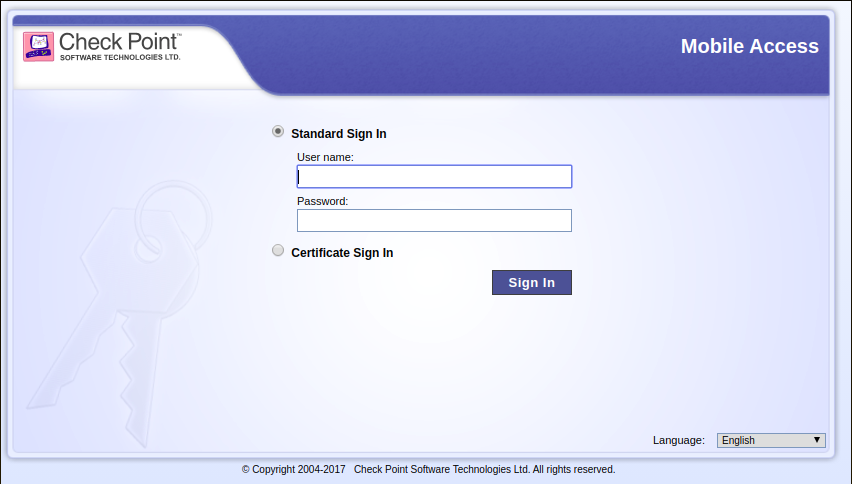
Once the necessary software is installed, accessing the VPN is as simple as opening your preferred web browser and entering the URL of the VPN portal. This means you can connect to your network from any computer with an internet connection, allowing for remote access and increased flexibility.
The user-friendly interface includes a login screen that supports multi-factor authentication, ensuring the security of your sensitive systems and files. With just a few clicks, you will be logged in and ready to experience the benefits of a secure VPN connection.
The Check Point Mobile Access VPN also integrates seamlessly with other Check Point software and hardware solutions, such as Check Point Firewall Blade and Check Point Endpoint Security. This integration allows for a centralized management and a more streamlined experience.
During the installation process, the Check Point Mobile Access VPN automatically checks for any dependencies and downloads everything it needs to run smoothly. This eliminates the need for manual troubleshooting and ensures that you have everything you need to start using the VPN right away.
After the post-install script is completed, everything is set up and ready to go. The user-friendly interface includes options to auto-connect to the VPN upon login, further simplifying the experience. This means you don’t have to worry about manually connecting each time you start your computer or open your preferred applications.
In addition to its user-friendly interface, the Check Point Mobile Access VPN also offers excellent support for troubleshooting and privacy. If you encounter any issues, there is a dedicated support team available to assist you. The VPN also ensures the privacy and security of your data while in transit, protecting it from unauthorized access.
In conclusion, the Check Point Mobile Access VPN with Java provides a user-friendly interface that allows for connecting securely to your network. The integrated software and hardware solutions, along with the easy installation process, make it a simple and reliable choice for anyone in need of a VPN solution.
Increased Productivity with VPN
A VPN (Virtual Private Network) allows users to securely access a network from remote locations. There are several benefits to using a VPN, including increased productivity. In this guide, we will explore how setting up a VPN can improve productivity in your network.
Securely Access Network Resources
With a VPN, employees can securely access network resources from any location. This eliminates the need for employees to be physically present in the office to access files, documents, and other resources. Employees can conveniently work from home, on the go, or from any other remote location without compromising security.
Remote Troubleshooting and Management
Setting up a VPN allows network administrators to remotely troubleshoot and manage network devices and endpoints. They can log in to the network securely and troubleshoot issues, configure settings, and perform maintenance tasks from anywhere. This eliminates the need for physical presence and minimizes downtime, resulting in improved productivity.
Streamlined Collaboration and Communication
A VPN can improve collaboration and communication among team members. By securely connecting team members to the network, it becomes easier to share files, documents, and collaborate on projects in real-time. This ensures that everyone is working on the latest version of files and promotes efficient teamwork.
Access to Centralized Resources
A VPN provides access to centralized resources, such as shared drives, databases, and applications. Employees can quickly and securely access these resources from anywhere, without the need for complex configurations. This streamlines workflow and improves efficiency, ultimately leading to increased productivity.
Enhanced Security and Data Protection
By using a VPN, all data transmitted between endpoints and the network is encrypted and secure. This ensures that sensitive information remains protected from unauthorized access. Additionally, VPNs often come with built-in security features such as firewall and antivirus capabilities, further enhancing data protection.
Flexible Work Options
With VPN, employees have more flexibility in their work options. They can choose when and where to work, whether it’s from home, a coffee shop, or while traveling. This increases job satisfaction and work-life balance, which in turn improves productivity.
In conclusion, setting up a VPN in your network can significantly increase productivity by providing secure access to network resources, streamlining collaboration and communication, enabling remote troubleshooting and management, providing access to centralized resources, enhancing security and data protection, and offering flexible work options for employees. Implementing a VPN is a user-friendly, efficient, and effective solution to improve productivity in your organization.
Enhanced Security
Security is a top priority in any network environment. When it comes to network access and VPN connections, ensuring the highest level of security is crucial. Check Point Mobile Access VPN with Java offers enhanced security features to protect your network and applications.
Secure Remote Access: With Check Point Mobile Access VPN, you can securely access your network and applications remotely without compromising privacy or data integrity. It provides a secure tunnel for communication between your endpoint and the network, ensuring that your data remains encrypted and protected.
Multi-Factor Authentication: Check Point Mobile Access VPN supports multi-factor authentication, adding an extra layer of security to your connection. By requiring multiple forms of verification, such as a password and a unique token, it reduces the risk of unauthorized access to your network.
Endpoint Security: Check Point Mobile Access VPN offers endpoint security capabilities to protect your devices from malware and other threats. It can enforce security policies, scan for vulnerabilities, and block malicious activities, ensuring that your endpoints are secure while accessing the network.
Central Management: With Check Point Mobile Access VPN, you can manage your VPN connections centrally, making it simple to configure and monitor the network. It provides a central console where you can view and manage all your endpoints, apply security policies, and troubleshoot any issues that arise.
Advanced Encryption: Check Point Mobile Access VPN uses advanced encryption algorithms to secure your data transmission. It supports strong encryption protocols like IPSec and SSL/TLS, ensuring that your data is encrypted and protected from unauthorized access.
Secure Shell (SSH) Access: Check Point Mobile Access VPN allows you to securely access your network using SSH. It provides a built-in SSH client, allowing you to execute commands on remote systems securely. This feature is particularly useful for system administrators who need to perform management tasks on remote machines.
These are just a few of the enhanced security features that Check Point Mobile Access VPN with Java offers. With its secure and robust capabilities, you can ensure that your network and applications are protected from threats and unauthorized access.
Cost Savings
Implementing Check Point Mobile Access VPN with Java can bring significant cost savings for organizations. By providing remote access to corporate resources, it eliminates the need for physical travel and on-site support, saving money on transportation and accommodation expenses.
Moreover, the setup process is simplified and user-friendly, reducing the need for extensive training and technical support. The step-by-step guide ensures that even non-technical users can easily configure the VPN connection without the assistance of IT professionals. This saves time and reduces the overall cost of setup and management.
Additionally, the integrated Java architecture eliminates the need for additional software installation and dependencies. There’s no need to install multiple tools, libraries, or extensions as everything is bundled within the Java executable. This not only saves time but also ensures the security and integrity of the system by providing a controlled environment for VPN access.
The integrated Check Point Mobile Access VPN with Java also offers cost savings in terms of compliance and security. It enforces access policies and provides secure remote access that complies with industry regulations and best practices. This reduces the risk of security breaches and potential financial penalties associated with non-compliance.
Overall, implementing Check Point Mobile Access VPN with Java offers cost savings in terms of reduced travel expenses, simplified setup and management process, elimination of additional software and dependencies, and enhanced compliance and security.
Flexibility and Scalability
When setting up Check Point Mobile Access VPN with Java, it is important to understand the flexibility and scalability options available to you.
Check Point Mobile Access VPN offers a user-friendly and flexible architecture that allows for easy deployment and management of VPN endpoints. With Check Point’s integrated software blades, you can easily configure and manage your VPN network from a single console.
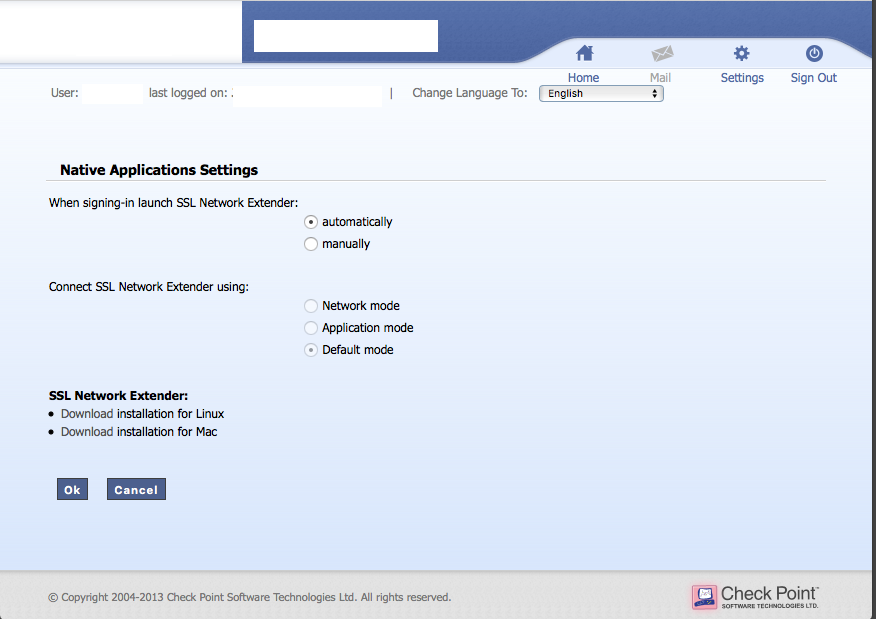
Whether you are connecting from a remote location or from inside the network, Check Point Mobile Access VPN provides secure and encrypted connectivity. The installation process is simple and straightforward, and the Java version of the software auto-connects to the VPN upon running.
With Check Point Mobile Access VPN, you have the flexibility to choose the level of authentication and security that best suits your needs. The software supports various authentication options, such as username and password, certificate-based authentication, and multi-factor authentication.
Scalability is another key feature of Check Point Mobile Access VPN. The software can support a large number of endpoints, allowing you to easily scale up your VPN network as your organization grows. Additionally, the software supports the use of load balancers and high availability configurations to ensure that your VPN network is always available and running smoothly.
When it comes to troubleshooting and support, Check Point Mobile Access VPN provides a comprehensive set of tools and options. The software includes a troubleshooting wizard that can help you diagnose and resolve any issues that may arise. Additionally, Check Point offers 24/7 support and a knowledge base with articles and tutorials to assist you with any questions or problems you may have.
In conclusion, Check Point Mobile Access VPN with Java provides the flexibility and scalability you need for your VPN network. With its user-friendly interface, secure architecture, and wide range of authentication and troubleshooting options, it is the ideal choice for businesses of all sizes.
Seamless Integration
The Check Point Mobile Access VPN provides seamless integration between your Linux operating system and the Check Point security products. With this integration, you can securely access your company’s resources from any location, whether you’re inside the office or connected to a public hotspot.
Once you’ve downloaded and installed the necessary software, a set of scripts will be available in the central console. These scripts allow you to easily configure and manage the VPN connection from your Linux machine.
With the Check Point Mobile Access VPN, you can use your favorite web browser to connect to the VPN. You don’t need to install any additional software or plugins, making it a simple and hassle-free experience.
If you prefer using the command line, there’s also an option to configure the VPN using shell commands. The scripts provide all the necessary information and commands to set up and manage the VPN connection.
The Check Point Mobile Access VPN offers integrated security features, such as malware scanning and IPsec encryption, to ensure the privacy and security of your data. With these features, you can securely access your company’s files and resources from any operating system, whether it’s Windows or Linux.
Once the installation is complete, you’ll have access to a full range of Check Point security products and blades. You can easily configure and manage these blades through the central console or using the command line.
Overall, the integration of the Check Point Mobile Access VPN with your Linux operating system provides a seamless and secure way to connect to your company’s resources. Whether you’re working from inside the office or remotely, you can trust that your data and endpoints are protected.
Вопрос-ответ:
What is a Check Point Mobile Access VPN?
Check Point Mobile Access VPN is a secure remote access solution that allows users to connect to a corporate network from any location using a web browser or mobile app.
Why would I need to set up a Check Point Mobile Access VPN?
You would need to set up a Check Point Mobile Access VPN if you need to access resources on a corporate network remotely, such as files, applications, or internal websites. It provides a secure connection that protects your data and ensures that only authorized users can access the network.
What are the requirements for setting up a Check Point Mobile Access VPN?
To set up a Check Point Mobile Access VPN, you will need a Linux server with Java installed, a Check Point Security Gateway, and a valid Check Point Mobile Access VPN license. You will also need administrative access to these systems to configure and manage the VPN.
Can I use Check Point Mobile Access VPN on any device?
Yes, Check Point Mobile Access VPN supports a wide range of devices and platforms, including Windows, Mac, Linux, iOS, and Android. You can connect to the VPN using a web browser or the Check Point Mobile app.
Видео:
tcpdump – Traffic Capture & Analysis
tcpdump – Traffic Capture & Analysis by HackerSploit 4 years ago 23 minutes 188,067 views
Episode 4: Check Point Remote Access VPN Setup and Configuration for Quantum Spark 1590 SMB Firewall
Episode 4: Check Point Remote Access VPN Setup and Configuration for Quantum Spark 1590 SMB Firewall by Check Point Software Technologies, Ltd. 1 year ago 10 minutes, 51 seconds 4,471 views
