Setting Up a Site-to-Site VPN with AWS Virtual Private Network: Step by Step Guide
If you’re an administrator looking to provide secure connectivity between your on-premises data center and your AWS cloud resources, setting up a site-to-site VPN with AWS Virtual Private Network (VPC) is a great solution. With the help of openswan, you can easily configure the necessary tunnels and connections to enable seamless communication between your sites.
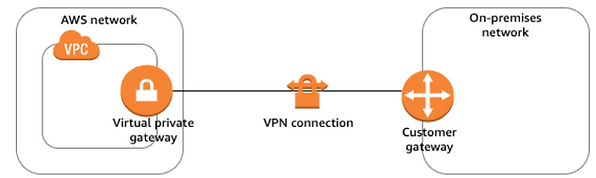
To set up a site-to-site VPN, you’ll need to create a virtual private gateway (VPG) in your AWS VPC. This acts as the VPN service that connects your AWS VPC to your on-premises network. Once the VPG is set up, you’ll need to create a customer gateway on your on-premises network side. This represents the hardware or software VPN gateway used to connect to your AWS VPC.
With both the VPG and customer gateway in place, the next step is to create the VPN connection. This connection acts as the pairing between the VPG and the customer gateway. You’ll need to specify the IPsec VPN tunnel options, such as the IP address and pre-shared key. It’s also important to decide whether you want static or dynamic routing for the VPN connection.
If you opt for static routing, you’ll need to configure the static routes in your VPC route table manually. This allows you to specify the routes that must be propagated to your on-premises network. On the other hand, dynamic routing automatically updates the routes based on the network topology and changes in your on-premises network. This is often the preferred option, as it simplifies the management of multiple sites.
Once the VPN connection is established, it’s crucial to ensure that the proper security groups and network access control lists (ACLs) are in place. These resources allow you to control the inbound and outbound traffic to and from your VPC. You can create custom security groups and ACLs that define the rules and permissions specific to your setup and connectivity requirements.
After setting up the site-to-site VPN, don’t forget to test the connectivity between your sites. You can do this by pinging the private IP addresses of your resources in the AWS VPC from your on-premises network and vice versa. This will help you verify that the VPN connection is working correctly and that there are no issues with the communication between the two networks.
What is a Site-to-Site VPN?
A Site-to-Site VPN, or a virtual private network, is a connection between multiple sites or networks that allows users to securely connect to their on-premises data center or office to the cloud. It establishes a secure and encrypted connection over the internet, ensuring that the data transmitted between the sites remains confidential and protected.
With a Site-to-Site VPN, you can connect your on-premises data center or office with your AWS Virtual Private Cloud (VPC) to access resources and services hosted in the cloud. This allows you to easily extend your on-premises network to the cloud and enable seamless communication and data transfer between the two environments.
To establish a Site-to-Site VPN, you need to install a VPN software or appliance on both ends of the connection. You will configure and manage the VPN connection and routing in your VPC, ensuring that traffic is correctly routed between the on-premises site and the cloud resources.
The VPN software or appliance on each site establishes a pair of tunnels between the customer gateway and the virtual private gateway in AWS. These tunnels use the IPsec protocol to securely connect the on-premises site and the VPC. The routing tables are configured to ensure proper propagation of the static and dynamic routes, enabling seamless connectivity between the sites.
Setting up a Site-to-Site VPN involves configuring the customer gateway and the virtual private gateway, and then creating and configuring the VPN connection. You will need to specify the IP addresses, routing details, and security settings for the VPN connection. Once the connection is established, you can confirm connectivity by pinging resources on both sides of the VPN.
Benefits of Setting Up Site-to-Site VPN
Setting up a site-to-site VPN provides several benefits for businesses and organizations:
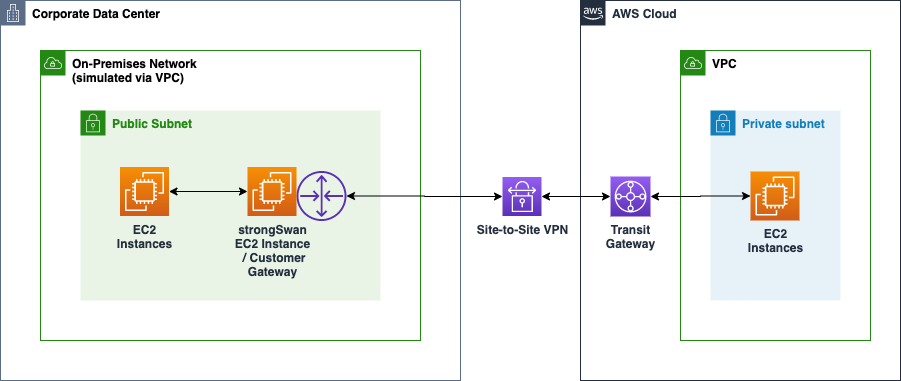
- Secure Connectivity: By using a site-to-site VPN, organizations can establish a secure connection between multiple sites, such as branch offices or data centers, and their AWS Virtual Private Cloud (VPC).
- Multiple Sites: The site-to-site VPN allows for multiple sites to connect to the central AWS VPC. This enables seamless access to resources and services across different locations, improving collaboration and communication.
- On-Premises Integration: With a site-to-site VPN, businesses can integrate their existing on-premises infrastructure, such as servers and hardware appliances, with the AWS cloud. This integration enables a hybrid architecture, combining the benefits of both on-premises and cloud resources.
- Dynamic Routing: A site-to-site VPN can enable dynamic routing, which allows the automatic exchange of routing information between the on-premises network and the AWS VPC. This ensures efficient and optimized traffic flow between the sites.
- Static IP Addresses: By using a site-to-site VPN, organizations can assign static IP addresses to their network resources. This provides stability and consistency, making it easier to manage and control the network.
- Secure Data Transfer: A site-to-site VPN uses IPsec (Internet Protocol Security) to encrypt and protect data as it travels between the on-premises network and the AWS VPC. This ensures the confidentiality and integrity of sensitive information.
- User-Friendly Setup: Setting up a site-to-site VPN is a relatively straightforward process. AWS provides detailed documentation and step-by-step guides to help administrators configure the VPN connections and establish the tunnels between the sites.
Overall, setting up a site-to-site VPN with AWS VPC offers organizations enhanced security, seamless connectivity, and the ability to integrate their on-premises infrastructure with the cloud. It provides a scalable and flexible solution for connecting multiple sites and facilitating efficient data transfer and communication.
Understanding AWS Virtual Private Network (VPN)
IPSec VPN Connection
An AWS Virtual Private Network (VPN) allows you to securely connect two or more sites or networks using the Internet. The VPN connection is established using IPSec, which ensures the confidentiality and integrity of your data traffic.
VPC and Customer Office
When setting up a site-to-site VPN with AWS, you will typically have a VPC (Virtual Private Cloud) in AWS and a customer office or branch on the other end. The VPN connection will enable secure communication between these two sites.
On-Premises Network and VPN Appliance
In your customer office or branch, you will have an on-premises network with its own IP address space. You will need to install a VPN appliance, such as OpenSwan, to establish the VPN connection between your office and AWS. This appliance will handle the encryption and decryption of your data.
Static and Dynamic IP Addresses
In order to establish the VPN connection, you will need to provide the static IP address of your VPN appliance to AWS. If your office has a dynamic IP address, you can use a dynamic DNS service to update the IP address whenever it changes.
Creating VPN Connection with AWS
Once you have set up your VPN appliance and obtained its static IP address, you can create the VPN connection in AWS. This involves creating a Virtual Private Gateway (VPG) in AWS and configuring the necessary routes and security groups to enable connectivity between your VPC and customer office.
Routing Traffic and Security Groups
You will need to configure the routing tables in your VPC to direct the traffic to the VPN connection. Additionally, you will need to create security groups to allow the necessary protocols and traffic between the VPC and customer office.
Testing the VPN Connection
After setting up the VPN connection, you can test its functionality by pinging the IP address of a resource in the customer office from an instance in the VPC. If the ping is successful, it means that the VPN connection is working correctly.
VPN Connectivity Options
AWS offers various VPN connectivity options, including site-to-site VPN, cloudHub, and AWS Direct Connect. Depending on your specific requirements, you can choose the option that best suits your needs.
Third-Party VPN Hardware Appliances
If you prefer to use hardware appliances from third-party vendors, you can also set up a VPN connection with AWS. AWS provides a guide that outlines the steps to configure the VPN connectivity using custom hardware appliances.
Setting Up a Site-to-Site VPN with AWS VPN
Setting up a site-to-site VPN with AWS VPN involves connecting multiple sites using VPN tunnels. This type of connectivity enables users at one site to connect to resources located in another site. In order to set up a site-to-site VPN, you must first enable the VPN feature on your Virtual Private Cloud (VPC).
Step 1: Configure VPC and Subnets
In order to set up a site-to-site VPN, you need to configure your VPC and subnets. Ensure that your VPC has a main route table (rt-main-asg) with the appropriate routes to enable traffic between your VPC and the customer gateway (CGW) at the on-premises site. Also, create subnets in your VPC and associate them with the appropriate route table.
Step 2: Configure Customer Gateway
Next, you need to configure the customer gateway (CGW) at your on-premises site. This involves obtaining the public IP address of the CGW and providing it during the setup process. The CGW can be a hardware device or software such as openswan.
Step 3: Create a Virtual Private Gateway
Create a virtual private gateway (VGW) in your VPC. This acts as the VPN concentrator on the AWS side of the VPN connection. Attach the VGW to your VPC and associate it with a specific availability zone.
Step 4: Create a Site-to-Site VPN Connection
Create a site-to-site VPN connection between your VGW and CGW. During this process, you will specify the IP address of the VGW and CGW, as well as the VPN connection type (static or dynamic).
Step 5: Set Up Routing
Configure routing between your VPC and on-premises site to enable traffic flow. This involves adding appropriate routes in your VPC’s main route table (rt-main-asg) and configuring the routing on the CGW.
Step 6: Test the Connection
Once the setup is complete, you can test the site-to-site VPN connection by pinging resources on the other site from your client machine. If the connection is successful, you will be able to access resources on both sites seamlessly.
By following these steps, you can successfully set up a site-to-site VPN with AWS VPN, allowing connectivity between multiple sites securely over the internet.
Prerequisites for Setting Up Site-to-Site VPN with AWS VPN
Before you can set up a site-to-site VPN with AWS Virtual Private Network (VPN), there are a few prerequisites that need to be met. These prerequisites ensure that you have the necessary resources and configurations in place for a successful setup.
1. VPC and Subnet Configuration
In order to establish a site-to-site VPN connection, you must have a Virtual Private Cloud (VPC) and subnet in your AWS environment. This serves as the main networking infrastructure for your VPN connectivity.
2. VPN Gateway
A VPN gateway is required to enable the site-to-site VPN connection. This gateway acts as the entry point for the VPN traffic between your on-premises network and the AWS VPC. Make sure to configure and enable the VPN gateway in your AWS account.
3. Customer Gateway
The customer gateway is the other end of the site-to-site VPN connection, which represents your on-premises network. You must configure the customer gateway with the appropriate IP addresses and other necessary details to establish the connection.
4. Route Tables
To ensure proper routing of traffic between your on-premises network and the VPC, you must have the necessary routes configured in your route tables. This allows the VPN traffic to flow correctly through the VPN gateway and customer gateway.
5. IPsec VPN Protocol
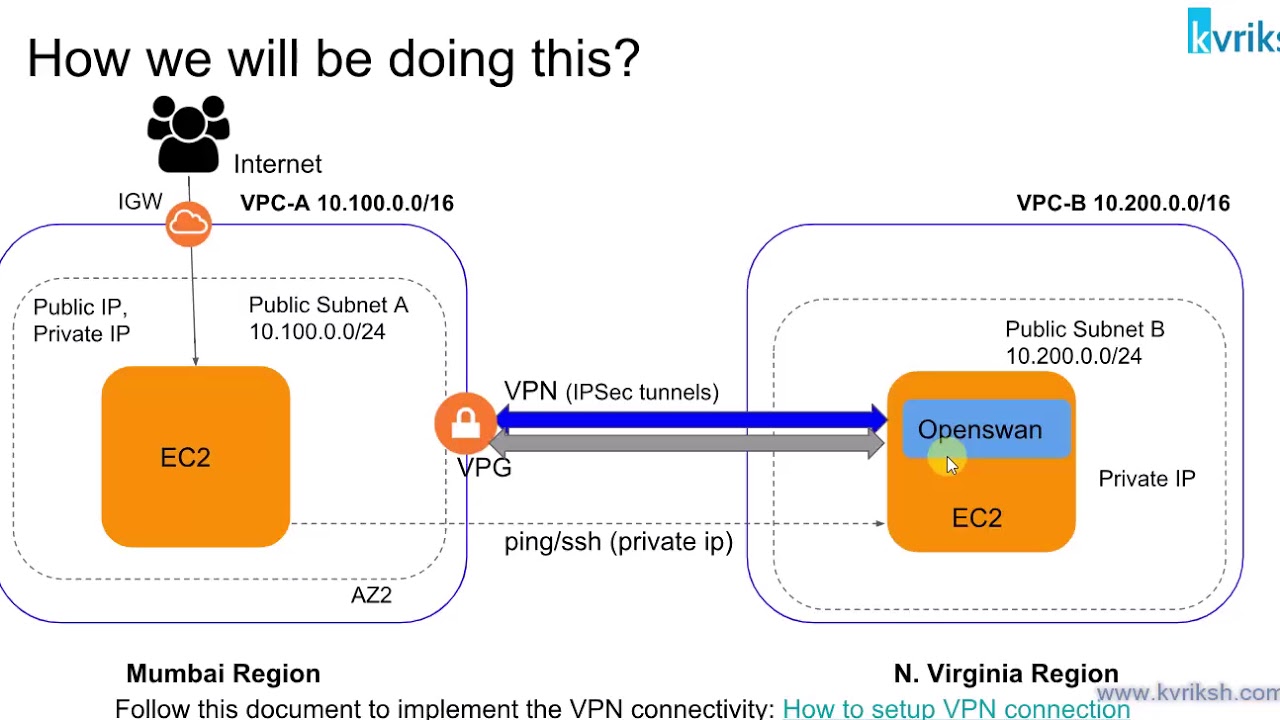
For the site-to-site VPN connection, you will need to install and configure an IPsec VPN protocol on your on-premises network. This protocol ensures secure communication between your on-premises network and the AWS VPC.
6. Network Administrator
Having a network administrator who is familiar with VPN configurations and settings is essential. They will be responsible for setting up and managing the site-to-site VPN connection. The administrator should have the necessary access and privileges to configure the VPN on both the AWS side and on-premises network.
By meeting these prerequisites, you will be able to successfully set up a site-to-site VPN with AWS VPN. It is important to make sure all the necessary configurations and configurations are in place, as any missing or incorrect settings can prevent the VPN from functioning properly.
Creating a Virtual Private Gateway in AWS
When setting up a site-to-site VPN with AWS Virtual Private Network (VPN), it is important to create a Virtual Private Gateway. This gateway serves as the entry point for your virtual private network and allows connectivity between your on-premises network and your AWS resources.
To create a Virtual Private Gateway, you need to navigate to the Virtual Private Gateway page in the AWS Management Console. Here, you can click on the “Create Virtual Private Gateway” button to start the process.
Once you’ve clicked on the “Create Virtual Private Gateway” button, you will be prompted to enter a name for your gateway. This name should be descriptive and easily identifiable. You can also choose the type of VPN connection you want to enable, such as a static or dynamic routing.
After providing the necessary information, you can create the Virtual Private Gateway and connect it to your Virtual Private Cloud (VPC). The next step is to configure the necessary routes to ensure proper traffic flow between your on-premises network and your AWS resources. You can do this by creating route tables and associating them with your VPC and Virtual Private Gateway.
In order for your on-premises network to connect to the Virtual Private Gateway, you will need to install a VPN appliance or hardware at your branch office. This appliance will establish the VPN connection with AWS and allow traffic to flow between your on-premises network and the resources in your VPC.
Once the VPN appliance is installed and configured, you can create the necessary VPN connections in the AWS Management Console. These connections will link your on-premises network to the Virtual Private Gateway. You can then test the connectivity by using tools such as ping to ensure that traffic is able to flow between the two networks.
Creating a Virtual Private Gateway is an essential step in establishing a site-to-site VPN with AWS VPN. It enables connectivity between your on-premises network and your AWS resources, allowing users in the branch office to access the cloud resources securely. By following this guide, you will be able to set up a reliable and secure connection for your organization.
Creating a Customer Gateway in AWS
In order to establish a Site-to-Site VPN connection between your on-premises network and your Virtual Private Cloud (VPC) in AWS, you need to create a Customer Gateway.
A Customer Gateway is a logical representation of the gateway device on your side of the Site-to-Site VPN connection. It is necessary to configure the Customer Gateway before you can create the VPN connection in the AWS Management Console.
To create a Customer Gateway, follow these steps:
- Log in to the AWS Management Console and navigate to the VPC service.
- Go to the “Customer Gateways” page and click on “Create Customer Gateway”.
- Enter a name for your Customer Gateway and select the appropriate routing type (static or dynamic).
- Specify the publicly-routable IP address of your on-premises hardware appliance. If you are using a software appliance, enter the IP address of the instance where the appliance is installed.
- Click on “Create Customer Gateway” to complete the configuration.
Note that the Customer Gateway must have a unique name within your AWS account, and you must ensure that the IP address of your hardware or software appliance is publicly reachable from AWS.
Once the Customer Gateway is created, you can proceed with creating the VPN connection. This will involve configuring the Virtual Private Gateway (VPG) in your VPC and specifying the Customer Gateway as the target for the connection.
Creating a Site-to-Site VPN connection with AWS allows you to securely connect your on-premises network to your VPC in the cloud. This enables your on-premises users to access resources in the VPC, and your VPC resources to access resources in your on-premises network.
Establishing a Site-to-Site VPN Connection in AWS
A site-to-site VPN connection in AWS enables connectivity between your on-premises data center or office and your AWS virtual private cloud (VPC). This connection allows for the secure transmission of data between these two separate networks.
Step 1: Configure the VPN Components
- Create a Virtual Private Gateway (vpg-mainbranch-asg) in AWS.
- Install and enable an IPsec VPN client on your office hardware.
- Set up the appropriate routing rules in the VPC’s main branch (vpc-main-asg) and on-premises site.
Step 2: Create the VPN Connection
- Create a new VPN connection using the AWS management console.
- Choose the appropriate VPN type, either static or dynamic, depending on your network requirements.
- Fill in the necessary details, such as the customer gateway IP address and BGP ASN.
Step 3: Establish the VPN Connection
- Select the created VPN connection and choose “Download Configuration”.
- Provide the necessary configuration settings to your network administrator or third-party hardware vendor.
- Follow the provided guidance to set up the VPN tunnels on your office hardware.
Step 4: Test the Connection
- Verify the connection by pinging a resource located in the VPC from your on-premises site.
- Monitor the VPN connection status to ensure it remains stable.
- Configure any necessary security groups (sg-pub-bra-asg) to allow the desired traffic flow between the networks.
Step 5: Optimize the VPN Connection
- Consider using multi-hop connectivity with AWS CloudHub to connect multiple VPCs.
- Utilize openswan or other software VPN solutions for custom IPsec configuration.
- Identify and mitigate any potential performance issues by tuning routing and MTU settings.
By following this guide, you can establish a secure site-to-site VPN connection in AWS to enable seamless communication between your on-premises network and your VPC.
Configuring the Site-to-Site VPN Connection on the On-Premises Device
Once you have set up your virtual private cloud (VPC) in AWS and established the necessary connections, it’s time to configure the site-to-site VPN connection on your on-premises device. This will ensure secure and encrypted communication between your on-premises network and the AWS cloud.
To begin, you will need to gather the required information, such as the IP addresses of the VPN tunnel endpoints and the public IP address of your on-premises device. You will also need to select the appropriate VPN hardware or software that is compatible with AWS, such as openswan or a third-party appliance.
Next, make sure that your on-premises device has the necessary routing configuration. This involves setting up static routes to allow traffic to flow between your on-premises network and the VPC. You may also need to configure dynamic routing if you have multiple sites or if you want to take advantage of AWS Direct Connect link aggregation.
Once your on-premises device is properly configured, you can proceed with setting up the site-to-site VPN connection on AWS. This involves creating a virtual private gateway, a customer gateway, and a VPN connection. You will need to provide the necessary details, such as the IP addresses and the type of encryption to be used.
After the VPN connection is established, you can verify the connectivity between your on-premises network and the VPC. You can do this by running a ping test from your on-premises device to a resource in the VPC. If the ping is successful, it means that the VPN connection is working properly and that traffic is flowing between the two networks.
To help streamline the setup process, AWS provides a comprehensive guide on how to configure the site-to-site VPN connection. This guide includes step-by-step instructions, example configurations, and troubleshooting tips. It is recommended to refer to this guide to ensure a smooth and successful setup.
Troubleshooting Site-to-Site VPN Connection Issues
If you’re experiencing issues with your site-to-site VPN connection, here are some troubleshooting steps to help you diagnose and resolve the problem:
1. Check VPN Configuration
Verify that the VPN configuration settings on both the AWS side and the on-premises appliance are correct. Make sure the IP addresses and tunnel settings match, including the static or dynamic type of tunnel.
2. Check Network Connectivity
Ensure that there is proper network connectivity between the AWS VPC and the on-premises site. Check if there are any firewalls or security groups blocking the traffic. You can try pinging the on-premises site from an EC2 instance located in the VPC to test the connection.
3. Restart VPN Resources
If the VPN connection seems to be established but no traffic is passing through, try restarting the VPN resources. This includes the virtual private gateway (VPG) and the on-premises appliance. Sometimes a restart can resolve connectivity issues.
4. Check Routing Configuration
Verify the routing configuration on both the AWS and on-premises sides. Make sure the route tables are properly set up to direct the traffic between the VPC and the on-premises network. Check if the route propagation between the VPC and the VPN is enabled.
5. Verify Security Group Settings
Check the security group (SG) settings on both the VPC and the on-premises appliance. Ensure that the necessary ports and protocols are allowed through the security groups. Make sure the security groups are correctly associated with the appropriate network resources.
6. Check the Name and Tags
Verify that the names and tags of your VPN resources are correct. A mismatch in names or incorrect tags can sometimes result in connectivity issues. Ensure the names and tags are consistent across all the related resources.
If the troubleshooting steps above don’t help resolve the issue, please consult the AWS documentation or contact AWS Support for further assistance. Remember to gather relevant log files and error messages to help diagnose the problem.
Common Issues and Solutions for Site-to-Site VPN Connections
When setting up a site-to-site VPN connection, there are several common issues that may arise. It is important to be aware of these issues and understand how to troubleshoot them in order to ensure a successful and stable connection between your on-premises network and your AWS VPC.
1. IP Address Conflict
One common issue is an IP address conflict between your on-premises network and your VPC. It is essential to ensure that the IP address ranges of both networks do not overlap. If an overlap is detected, you will need to reconfigure one of the networks to use a different IP address range.
2. Routing Issues
Another issue that can occur is routing problems. It is crucial to configure the routing tables correctly in order for the traffic to flow between the two networks. Make sure that the routing table entries are properly configured to route traffic to the VPN connection.
3. Security Group Configuration
Incorrect security group configuration can also cause connectivity problems. Ensure that the security groups associated with your VPC and on-premises VPN device are properly configured to allow the necessary traffic to pass through the VPN connection.
4. Compatibility and Version Mismatch
Compatibility and version mismatch between the on-premises VPN hardware and the AWS VPN service can also cause issues. Make sure that your VPN device is using a compatible and up-to-date firmware or software version that is supported by AWS.
5. Connectivity Issues
If you are experiencing connectivity issues, it is important to check the network connectivity between your on-premises network and the VPC. Verify that there are no firewall rules or network ACLs blocking the necessary traffic. You can also use network monitoring tools to diagnose any connectivity problems.
6. Configuration Mistakes
Mistakes in the configuration of the VPN connection can also lead to issues. Double-check the configuration settings, such as the tunnel endpoint IP addresses and pre-shared key (PSK), to ensure that they are correctly entered and match on both ends of the connection.
By being aware of these common issues and their solutions, you will be better equipped to troubleshoot and resolve any problems that may arise when setting up a site-to-site VPN connection.
Monitoring and Managing Site-to-Site VPN Connections on AWS
When setting up a site-to-site VPN with AWS Virtual Private Network (VPN), it is important to monitor and manage the VPN connections to ensure smooth operation and connectivity between your on-premises site and AWS resources.
Monitoring VPN Connectivity
To monitor the connectivity of your site-to-site VPN connections, you can utilize the AWS Management Console. From the console, you can view the status of each VPN connection and check if any issues are being reported.
If you discover any issues with the VPN connection, you can restart the connection to try and resolve the problem. Additionally, AWS provides CloudWatch metrics and logs that can help you monitor the performance and health of your VPN connections.
Managing VPN Connections
As an administrator, you have the ability to manage your site-to-site VPN connections through the AWS Management Console. You can create and delete VPN connections, modify their configurations, and enable or disable routing propagation.
For multiple connections, you can group them together for easier management. This can be done by assigning a meaningful name to each connection and utilizing tags to organize and categorize connections.
When managing VPN connections, it is important to consider security measures. You can apply security groups (SGs) to control inbound and outbound traffic, and configure network ACLs to restrict access to certain IP addresses or subnets.
Best Practices for Monitoring and Managing VPN Connections
Here are some best practices to consider when monitoring and managing your site-to-site VPN connections:
- Regularly check the VPN connection status and address any reported issues promptly.
- Test connectivity by using ping or other network diagnostic tools.
- Monitor the performance and health of your VPN connections using CloudWatch metrics and logs.
- Ensure that your on-premises VPN device is compatible with AWS VPN connections.
- Follow the AWS documentation and guides for setting up your VPN connections properly.
- Enable VPN connectivity monitoring between the on-premises and AWS VPC networks.
- Regularly update and apply security measures such as security groups and network ACLs.
- Keep track of any IPsec VPN client configuration changes.
- Regularly test the connectivity between your on-premises site and AWS VPC resources.
By following these best practices, you can ensure that your site-to-site VPN connections on AWS are properly monitored and managed, providing reliable connectivity between your on-premises site and AWS resources.
Securing Site-to-Site VPN Connection
Setting up a secure site-to-site VPN connection is crucial for protecting your cloud resources and data. By using AWS Virtual Private Network (VPN), you can establish a type of secure connection between your on-premises network and your AWS VPC.
AWS VPN enables customers to connect their branch office or data center to the cloud, allowing for secure and private communication. This is achieved by creating tunnels using IPsec, which encrypts the traffic that flows between the customer’s site and the AWS VPC.
When setting up a site-to-site VPN connection, the administrator must configure the appropriate VPN appliance on the customer’s site. This appliance should be able to establish a VPN tunnel with the AWS VPN gateway, which is a custom resource you can create in your VPC. The VPN gateway acts as an entry point for the VPN connections and facilitates the secure communication of data between different network environments.
In order to secure the site-to-site VPN connection, it is recommended to use static IP addresses for the VPN appliances on both ends. This ensures that the endpoints of the connection remain consistent and reduces the chances of unauthorized access. Additionally, enabling routing protocols such as BGP (Border Gateway Protocol) can help to establish dynamic routing and ensure efficient data transfer.
To further enhance security, you can configure security groups and network ACLs (Access Control Lists) to control the inbound and outbound traffic for the VPN connections. This allows you to define specific rules and policies to filter traffic and ensure that only authorized users and resources can access the VPN connection.
It is important to regularly monitor the VPN connections and perform maintenance tasks such as restarting the VPN appliances or updating the VPN software. This will help to ensure the stability and security of the connection. Additionally, you can use monitoring tools provided by AWS, such as CloudWatch, to track the performance and health of your VPN connections.
In conclusion, securing a site-to-site VPN connection is essential for protecting your data and ensuring secure communication between your on-premises network and your AWS VPC. By following best practices and implementing proper security measures, you can establish a reliable and secure connection that meets the needs of your organization.
Implementing Security Best Practices for Site-to-Site VPN
1. Use Multiple Pairs of Tunnels
For added redundancy and improved site-to-site VPN connectivity, it is recommended to configure multiple pairs of tunnels. This allows for failover in case one tunnel becomes unavailable.
2. Enable Source/Destination Check for VPN Instances
In order to ensure the security of your site-to-site VPN connections, you should enable the source/destination check for your VPN instances. This feature helps to prevent instances from sending or receiving traffic that is not destined for them.
3. Install and Configure Security Groups
To further enhance the security of your site-to-site VPN connections, you should install and configure security groups. Security groups act as virtual firewalls that control inbound and outbound traffic for instances associated with your VPN connections.
4. Implement Dynamic Routing
Dynamic routing is another security best practice that you should consider when setting up a site-to-site VPN. By using dynamic routing protocols such as BGP (Border Gateway Protocol), you can automatically propagate routes and provide efficient connectivity between your on-premises data center and AWS VPC.
5. Use Static IP Addresses for VPN Endpoints
Using static IP addresses for your VPN endpoints is essential for ensuring a secure and stable site-to-site VPN connection. Static IP addresses should be assigned to both the on-premises VPN device and the AWS VPN gateway.
6. Block Source/Destination Traffic with Network ACLs
In order to prevent unauthorized access to your site-to-site VPN connection, you must configure network ACLs (Access Control Lists) to block any unwanted source/destination traffic. Network ACLs act as a firewall for controlling inbound and outbound traffic to and from your VPC.
7. Monitor and Audit VPN Connections
Monitoring and auditing your site-to-site VPN connections is crucial for maintaining security and detecting any potential vulnerabilities. Regularly review logs, monitor traffic patterns, and perform security audits to ensure that your VPN connections are operating securely.
8. Limit Access with IAM Users and Roles
To further enhance security, limit access to your site-to-site VPN connections by using IAM (Identity and Access Management) users and roles. With IAM, you can control which users or roles have permissions to manage and configure your VPN connections.
9. Secure Your On-Premises VPN Device
Always make sure to secure your on-premises VPN device by following best practices provided by the device’s manufacturer. This includes regularly applying software updates and patches, configuring strong passwords, and enabling encryption protocols such as IPSec (Internet Protocol Security).
10. Follow AWS Security Best Practices
Lastly, make sure to follow AWS security best practices to ensure the overall security of your site-to-site VPN connections. This includes regularly reviewing and implementing AWS security recommendations, configuring strong IAM policies, and using AWS security services such as AWS Config and AWS CloudTrail.
Encrypting Site-to-Site VPN Traffic
When setting up a site-to-site VPN, it is crucial to ensure that your traffic is encrypted for secure communication between your on-premises network and your AWS VPC. Amazon Virtual Private Network (VPN) uses IPsec (Internet Protocol Security) to provide network encryption.
During the setup process, you will need to enable VPN connectivity on both the AWS side and the customer side, which involves configuring network routing, security groups, and VPN gateways. You will also need to install a third-party hardware or software VPN appliance on your customer’s site.
By enabling encryption, you can ensure that your VPN traffic is protected from unauthorized access or interception. IPsec encrypts and encapsulates the network packets, making it difficult for anyone to eavesdrop on the communication between your on-premises network and your VPC.
To encrypt your site-to-site VPN traffic, you must create a VPN connection from your AWS VPC. This connection will establish two tunnels between your on-premises network and the VPC, ensuring redundancy and failover capabilities. Each tunnel will have its own public IP address, which you can use to configure the VPN appliance on your customer’s site.
Once the VPN connection is established, you can start sending encrypted traffic between your on-premises network and the VPC. This includes traffic from multiple subnets and networks, as well as any communication between different sites or branches of your organization.
Encrypted VPN traffic offers additional security benefits such as protecting sensitive data and ensuring the integrity of your network communication. It also enables you to comply with regulatory requirements that mandate the use of encryption for certain types of data or industries.
In conclusion, encrypting site-to-site VPN traffic is essential to maintain the security and privacy of your network communication. By following the steps outlined in the AWS documentation and this guide, you will be able to set up a secure and encrypted site-to-site VPN connection between your on-premises network and your AWS VPC, ensuring the confidentiality and integrity of your data.
FAQ:
What is a site-to-site VPN?
A site-to-site VPN is a secure connection between two or more networks that allows for the exchange of data over the internet. It enables organizations to connect their on-premises networks to cloud-based networks, such as those provided by AWS, securely.
Why would I want to set up a site-to-site VPN with AWS?
There are several reasons why you might want to set up a site-to-site VPN with AWS. One reason is to extend your on-premises network to the cloud, allowing your applications and resources in the cloud to securely communicate with your on-premises systems. Another reason is to establish a secure connection between multiple AWS regions or VPCs within the same region. This can provide redundancy and enable resource sharing between regions.
What is a virtual private gateway?
A virtual private gateway is the AWS-side endpoint for the VPN connection. It is a logical entity that represents the VPN gateway in the AWS cloud infrastructure. It is attached to a VPC and provides a target for the VPN connection from the on-premises side.
What is a customer gateway?
A customer gateway is the on-premises-side endpoint for the VPN connection. It is a physical device or software application that acts as the gateway for traffic between the on-premises network and the AWS cloud. The customer gateway must be configured to communicate with the virtual private gateway in AWS.
Can I use a third-party VPN device for the customer gateway?
Yes, you can use a third-party VPN device for the customer gateway as long as it is compatible with AWS VPN services. AWS provides a list of supported devices, but you can also use non-listed devices as long as they support standard VPN protocols like IPsec and BGP.
Videos:
How to Create a Site-To-Site VPN Topology
How to Create a Site-To-Site VPN Topology by CBT Nuggets 2 years ago 6 minutes, 8 seconds 21,697 views
Securely connect AWS VPC to Azure Virtual Network via site-to-site VPN
Securely connect AWS VPC to Azure Virtual Network via site-to-site VPN by fastpacedtutorials 1 year ago 12 minutes, 24 seconds 4,761 views
